Test Agentforce inside Blaze
Agentforce Preview lets you test the behavior of Agentforce agents directly inside the Blaze UI.
What is Agentforce Preview?
Agentforce Preview is a feature that lets you test and debug Salesforce Agentforce agents inside Blaze.
Just opening an agent metadata file is enough to enable the preview view.
Layout
When you open an Agentforce file, three tabs appear in the file viewer on the right.
Code tab
Shows the agent metadata file content (or its diff) in the code editor.
Preview tab
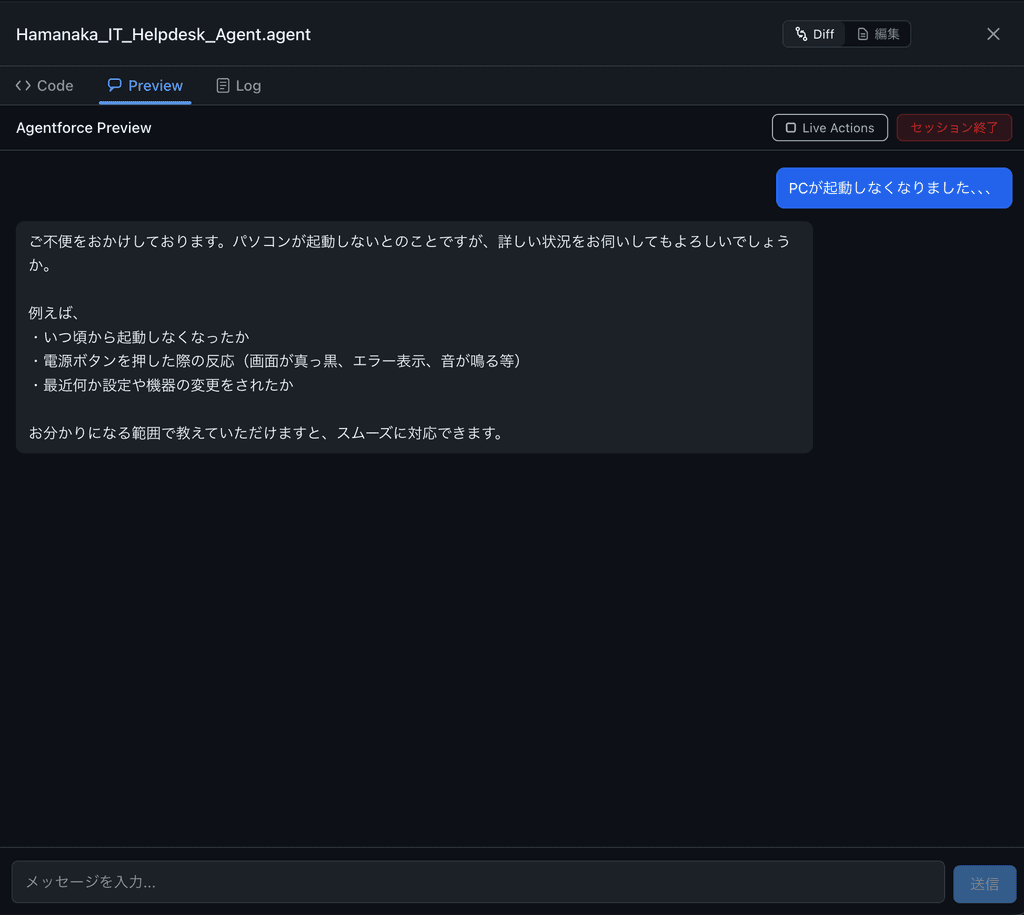
Talk to the agent in chat form and verify its behavior.
-
Opening the tab automatically starts a session
-
Type a message in the input field and press Cmd+Enter (Windows: Ctrl+Enter) to send
-
The agent’s response is displayed
Log tab
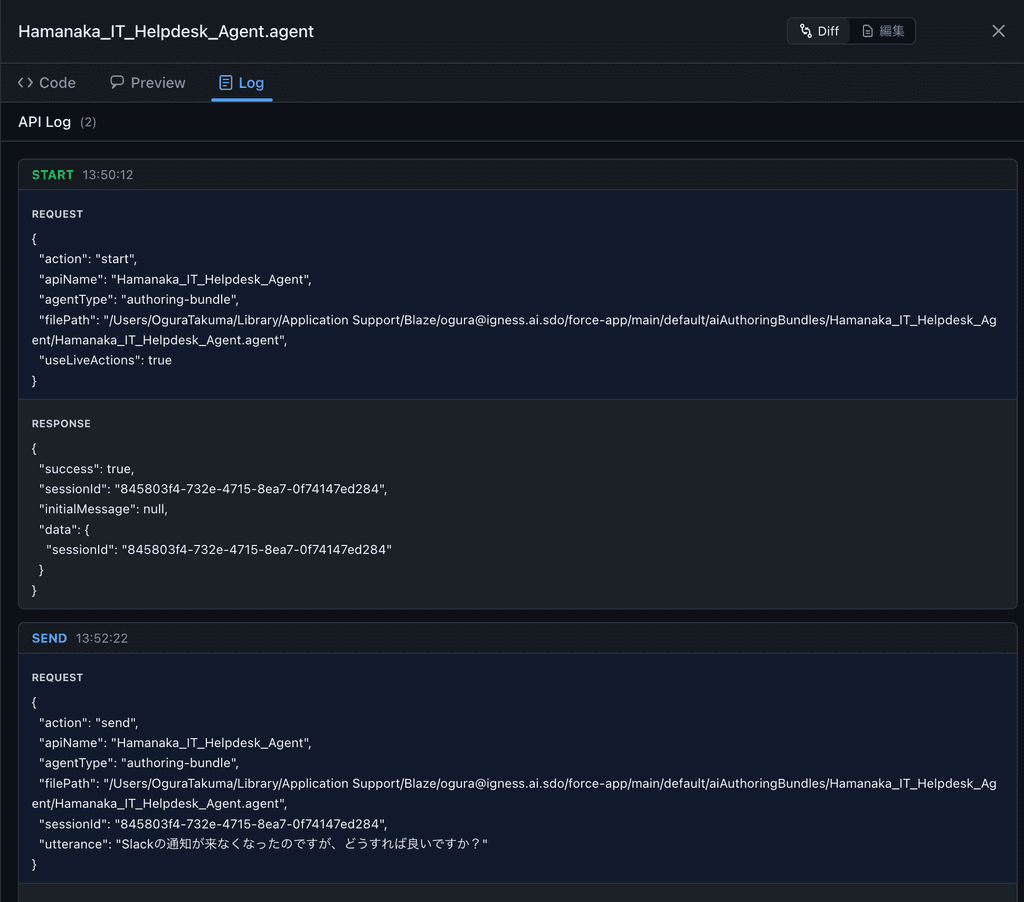
Inspect API traffic during the Preview session.
-
Request and Response are shown side by side
-
Each log records the action type (start / send / end) and a timestamp
-
Useful for debugging and troubleshooting
Supported file types
Opening any of these Agentforce-related files enables the Preview feature.
-
.agent / .agent-meta.xml
-
.bot-meta.xml / .botVersion-meta.xml
-
.genAiPlanner-meta.xml
-
.genAiPlugin-meta.xml
-
.genAiFunction-meta.xml
About the Live Actions button
Live Actions executes an agent’s actions (Apex execution, flow triggers, API calls, etc.) against your real Salesforce org during the preview.
When Live Actions is ON
-
The agent’s actions run against the real org
-
Records may be created, updated, or deleted
-
A confirmation dialog appears when enabling it
-
A red banner is pinned at the top so live mode is always visible
⚠️ Enabling Live Actions restarts the current session.
Ending the session
Click the End Session button on the Preview tab to end the session.
After ending you can:
-
Inspect the trace log: communication logs from the session are saved to a file automatically
-
Reveal in Finder: open the trace log folder directly in Finder
-
Resume: start a new session from the “Resume” button
Workflow
-
When an Agentforce metadata file is created or edited during a Blaze conversation, the file viewer opens
-
Click the Preview tab
-
The session starts automatically
-
Type a message and send it
-
Inspect the agent’s response
-
(Optionally turn Live Actions ON to test real-world behavior)
-
After testing, click End Session in the top right