Restrict Access by IP Address
Allow your organization’s members to connect to Igness services (the Blaze app and the account management screens) only from IP addresses you have approved. Use this when you want to accept connections only from your office network or through a VPN.
Only organization admins can change this setting.
Open the Settings Screen
Open “Organization Settings” from the account icon menu in the top right, then select the “Security” tab.
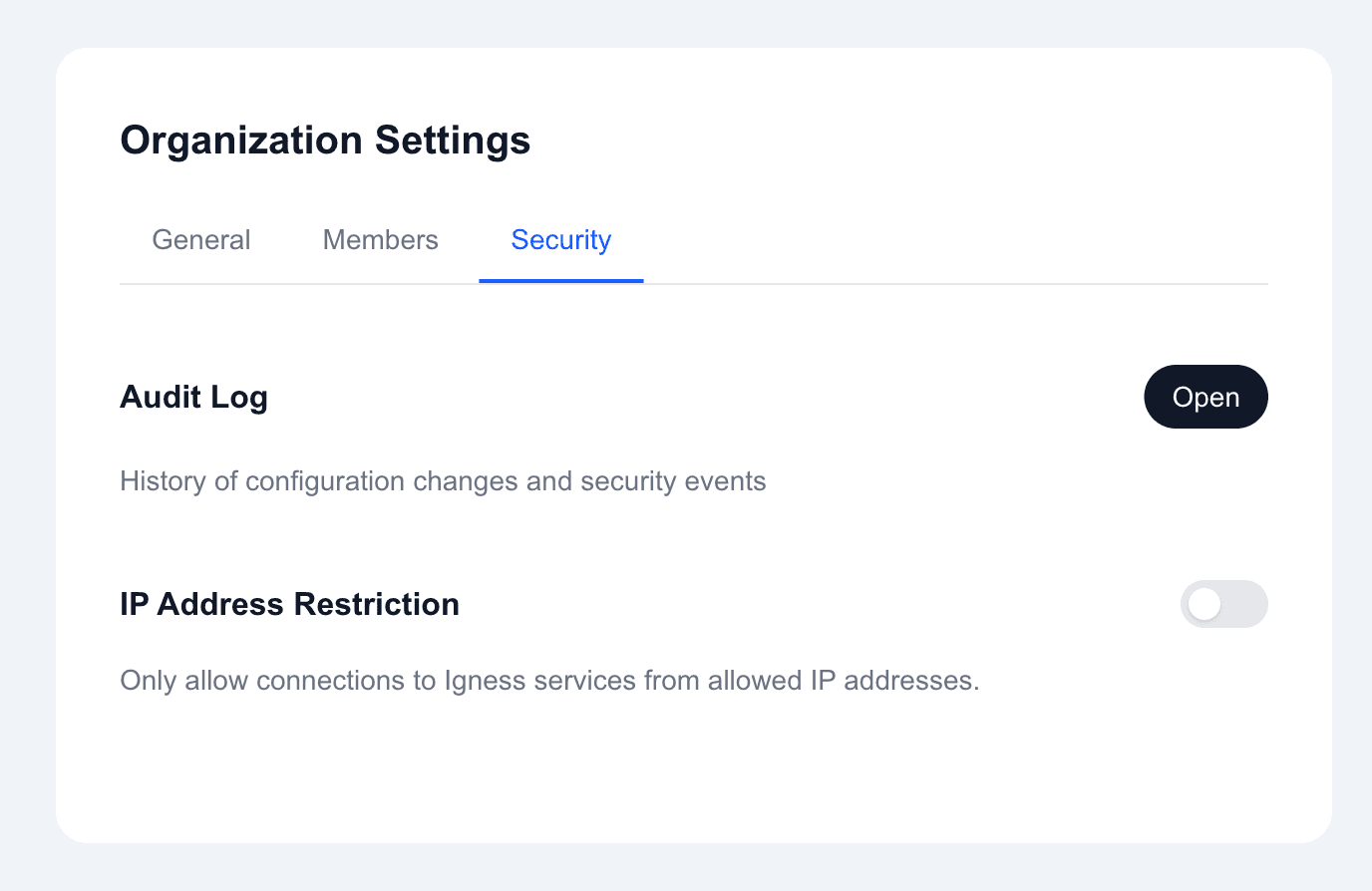
Use the toggle to the right of “IP Address Restriction” to turn the feature on or off.
Two Modes
Once enabled, you can choose between two modes.
| Mode | Behavior | Use case |
|---|---|---|
| Test mode | Connections from outside the allow list are only logged; nothing is blocked | Learn where your members actually connect from before rolling the restriction out |
| Block mode | All connections from IP addresses not in the allow list are rejected | Actually shut out access from outside networks (normal operation) |
Setup Steps
1. Turn the toggle on
The feature is enabled in test mode and the allow list fields appear. Nobody is blocked at this point.
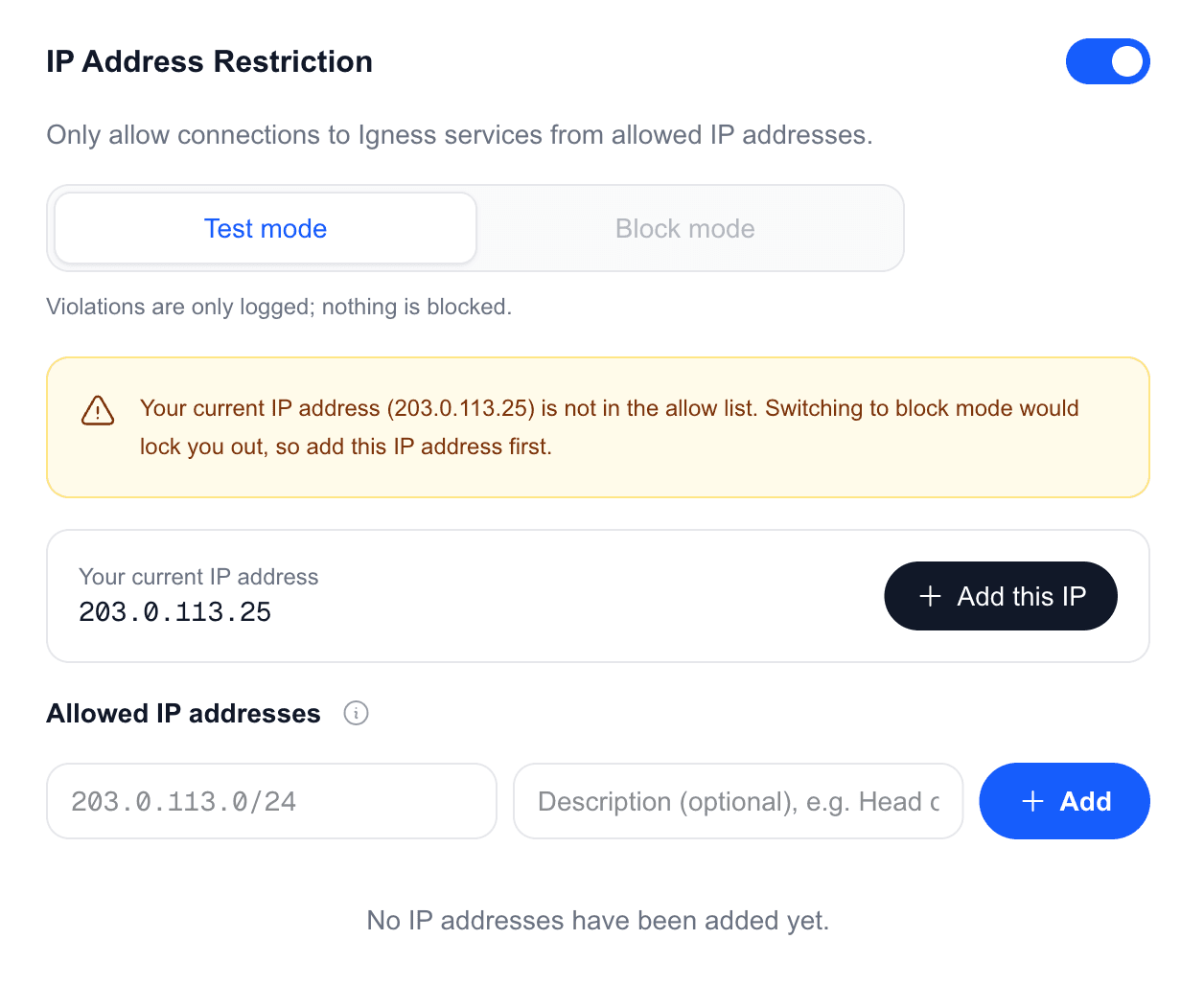
2. Register the IP addresses you want to allow
“Your current IP address” shows the address you are connecting from right now. The “Add this IP” button adds it to the allow list immediately.
From the input fields, you can register the following formats.
| Format | Example | Addresses allowed |
|---|---|---|
| A single IP address | 203.0.113.10 | That one address only |
CIDR notation /24 | 203.0.113.0/24 | The 256 addresses from 203.0.113.0 to 203.0.113.255 |
CIDR notation /28 | 203.0.113.16/28 | The 16 addresses from 203.0.113.16 to 203.0.113.31 |
Use CIDR notation when you want to allow a whole range of addresses at once. Start-to-end formats such as 203.0.113.10-203.0.113.20 are not supported. Register the range your network administrator or provider gave you exactly as it was given, in CIDR notation.
The description is optional. Entries such as “HQ office” or “Osaka branch (static IP)” make it clear later what each address is for. You can edit a description at any time with the pencil icon.
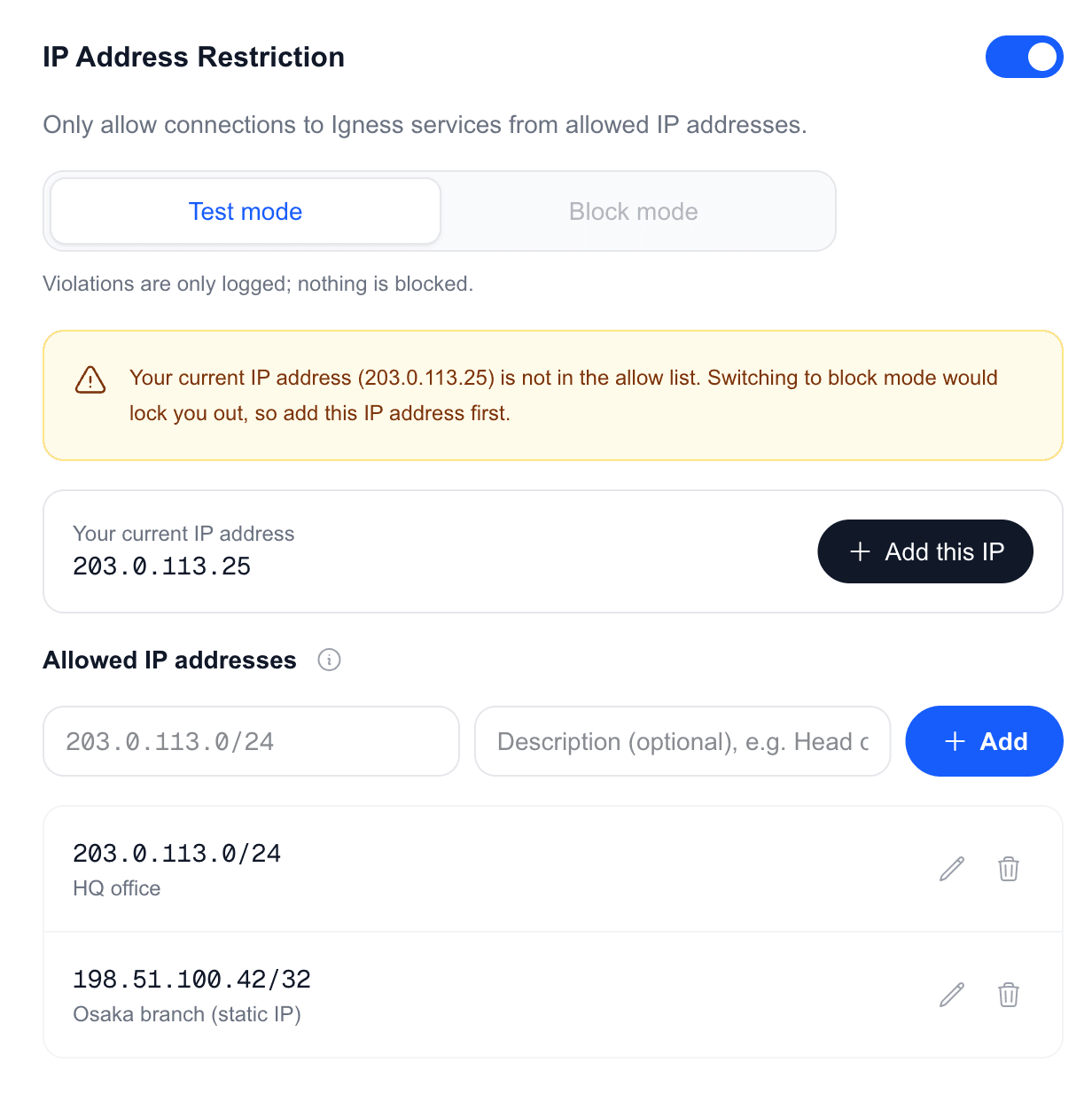
3. Stay in test mode for a while (recommended)
This step is optional, but it keeps you from cutting off work by switching on the restriction blind. The audit log shows whether any members connect from outside the office — working from home, mobile networks, or while traveling. If you want the restriction in force right away, skip ahead to the next step.
4. Switch to block mode
Once everything looks right, select “Block mode.” A confirmation dialog appears, and after you approve it, connections from outside the allow list are actually rejected.
What You Can Register
- Both IPv4 and IPv6 addresses are supported
- You can register up to 100 entries
- “Allow everything” entries such as
0.0.0.0/0cannot be registered (this prevents a misconfiguration from leaving you unprotected) - The same address cannot be registered twice
How You Are Kept from Locking Yourself Out
You cannot switch to block mode unless the IP address you are currently connecting from is in the allow list. If it is not, a warning appears and the block mode button cannot be selected.
For the same reason, while block mode is active you cannot delete an entry that would remove your own source IP from the allow list.
You also cannot switch to block mode with an empty allow list. In test mode, an empty allow list is allowed so that you can observe every source address first.
What Gets Restricted
While block mode is active, IP addresses outside the allow list can no longer do the following.
- Log in to the Blaze app or the account management screens
- Send messages in Blaze (requests to the AI)
- Perform operations in the account management screens
Blocked members see the message “Access from this IP address is not allowed. Please contact your organization administrator.” Have them share their source IP address with an admin so it can be added to the allow list.
Review the Change History
Changes to the IP restriction settings, along with access attempts from IP addresses that are not allowed, are recorded in the audit log on the “Security” tab. Use the “Open” button to see when, who, and what was changed. Audit log records cannot be edited or deleted.
Notes
- Mode changes and allow list edits can take a few minutes to take effect
- On many home and mobile connections, the source IP address changes periodically. Take care when allowing connections from environments without a static IP
- IP address restriction is a setting for the whole organization (contract). It cannot be configured per member