Search conversations, settings, and tests
Use the search panel to find conversations, settings, saved tests, Canvas documents, and files in one place.
Open the search panel
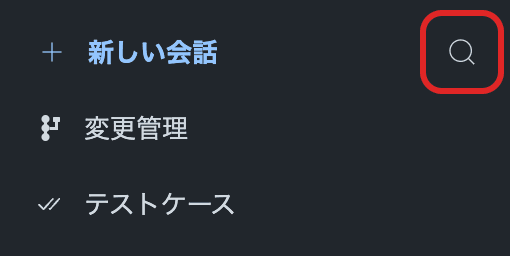
- Click the magnifying glass next to New Conversation in the sidebar. If the sidebar is closed, open it using the toggle at the top left.
- Type a query.
- Click a result to open the conversation, setting, or other item.
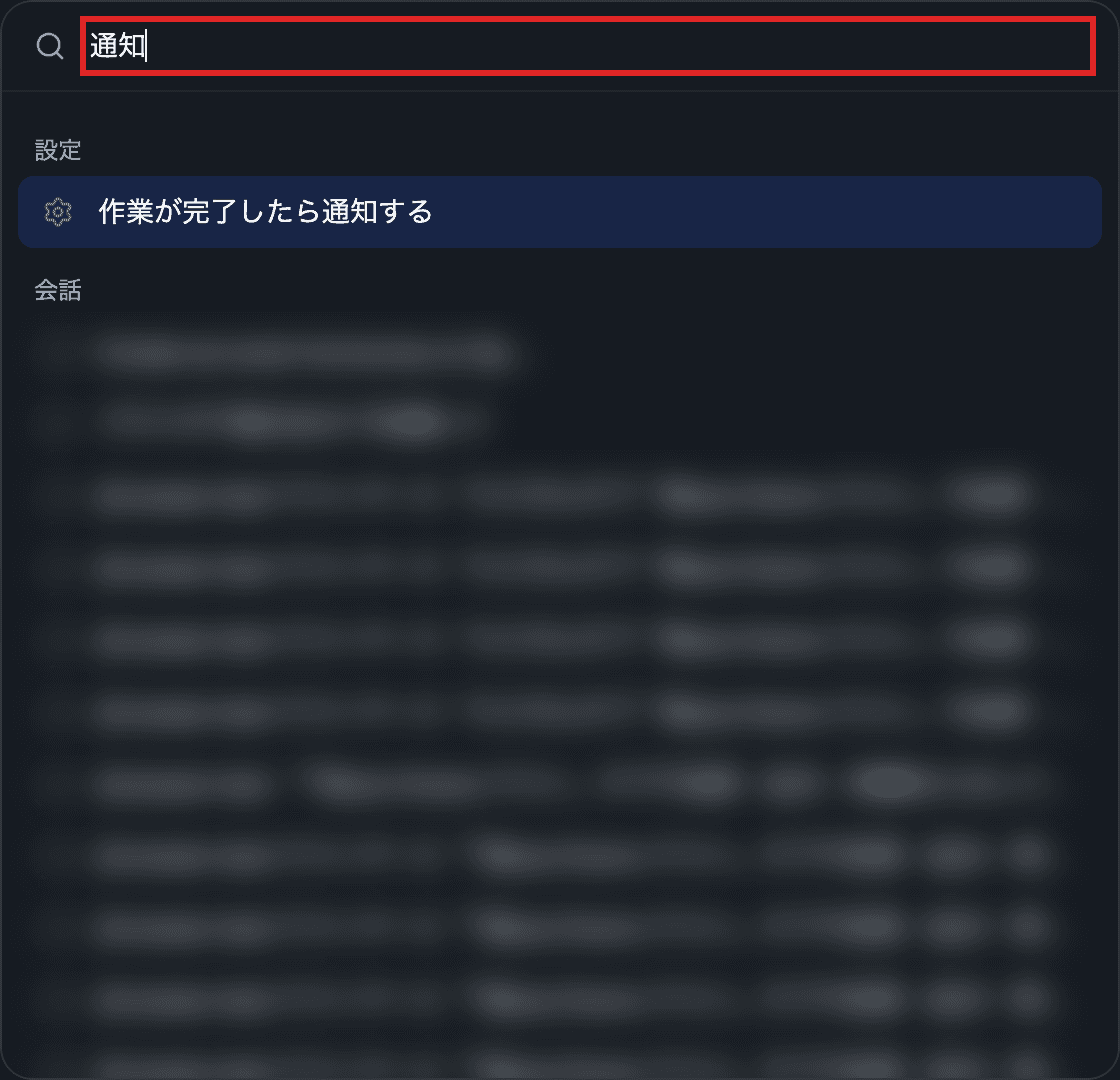
You can also open the search panel with ⌘K on Mac or Ctrl+K on Windows. Use the arrow keys and Enter to open a result, and Esc to close the search panel.
Conversation titles and other identifying information are blurred in the images.
What you can find
| Item | Search by |
|---|---|
| Conversations | Title or message content, or the Salesforce org’s display name, alias, or username |
| Settings | Setting name; selecting a result opens that setting |
| Test cases | Name; selecting a result opens its details |
| Canvas documents and files | Titles, filenames, and other searchable details. Canvas and file searches require at least two characters |
Conversation search includes conversations that have not loaded in the sidebar. Scroll down to load more results. Find archived conversations in Settings → Archive.
Run a test directly
Select a test result and press ⌘Enter on Mac or Ctrl+Enter on Windows to run it. See Browser tests.
Filter by tags
Start your query with # and choose a tag to find tagged messages and conversations. While a tag filter is active, ordinary searches for settings, tests, Canvas documents, and files are disabled.