Rerun saved tests
Open a test case you have created and rerun its saved operations. This guide covers replaying, editing, and sharing saved tests.
If you are running a test for the first time, see Run E2E tests in Browser test mode.
This guide uses an inquiry creation test for the Inquiry_Create screen flow as its example.
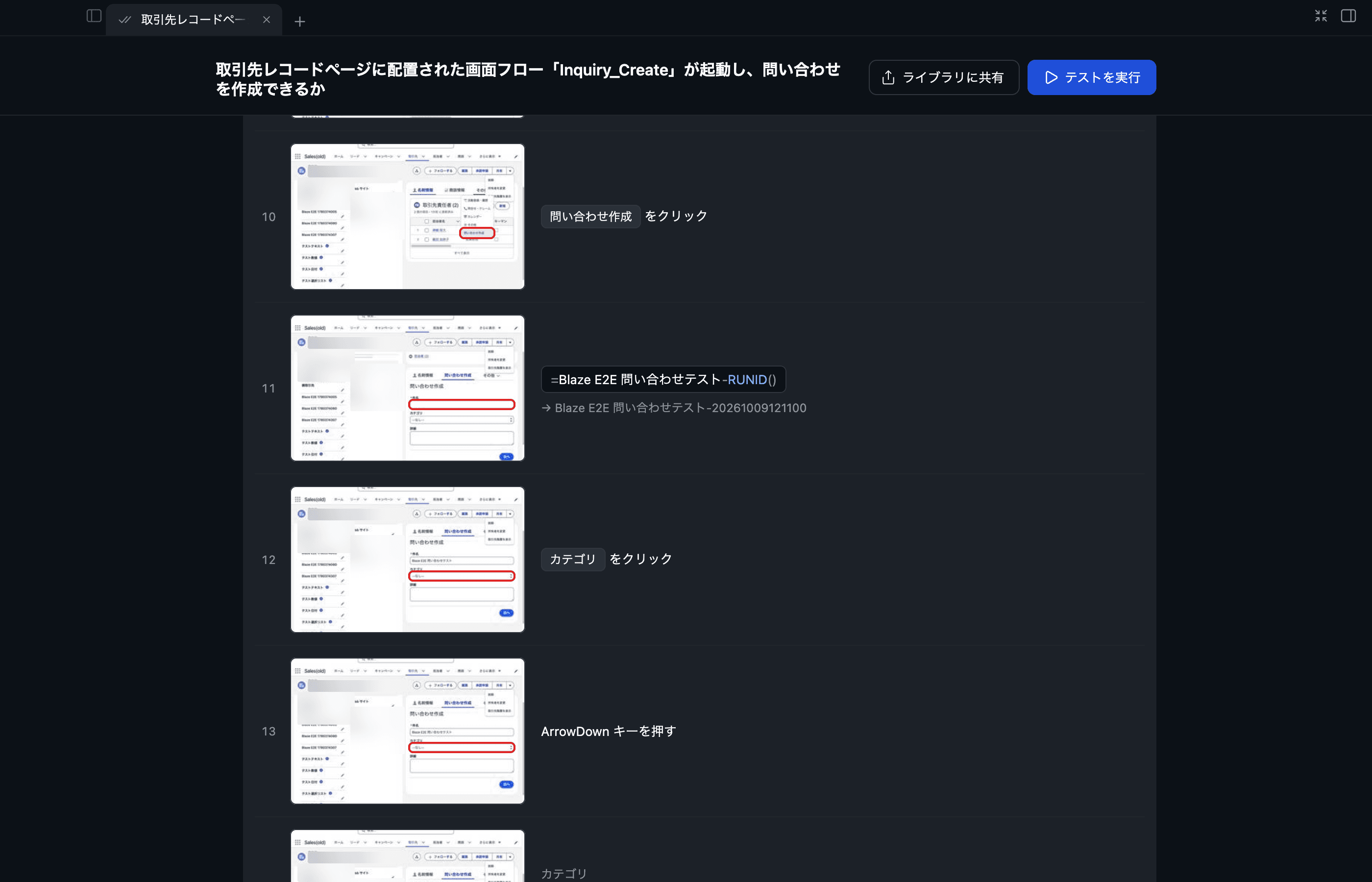
1. Rerun a saved test
- Click Test cases in the sidebar.
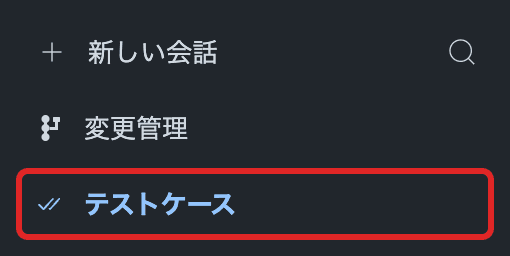
- Click a test in the list to open its details.
- Click Run test.

If it targets another org, use the displayed button to switch orgs and run it. If authentication has expired, sign in to that org again.
Recorded operations are replayed without AI first. If the screen or target has changed and replay cannot continue, Blaze handles the issue and returns to replay.
Tests operate the actual Salesforce screen. Rerunning a test that creates or updates records performs those actions again, so check the target org and input values.
2. Edit values and steps
Click an input value in the test details to open its editor.

Enter a value, check its preview, then click Save. Click Cancel to discard the edit.
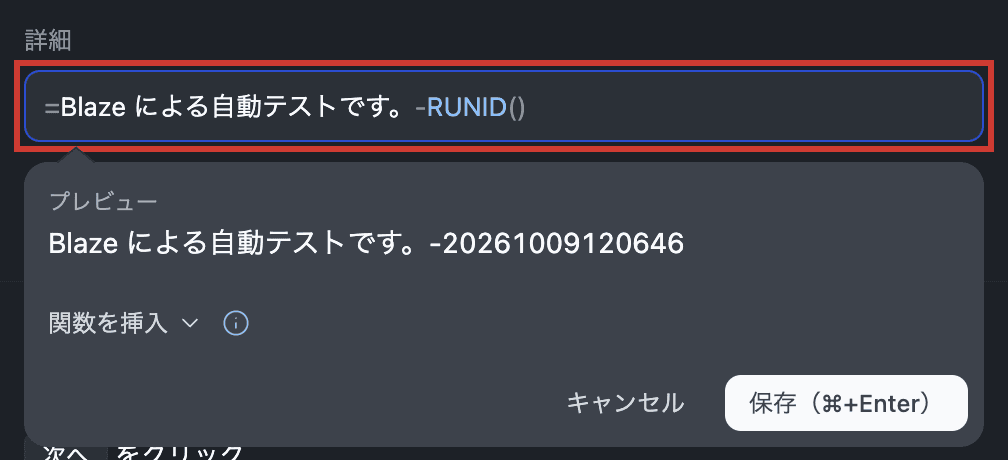
Use Add a field to fill to add another field. If it is not on the screen, add it to the Salesforce page layout first. Click a step thumbnail to enlarge the recorded screen.
Start a value with = to calculate it on each run:
| Example | Result |
|---|---|
=TODAY() | The run date |
=TODAY()+7 | Seven days after the run date |
=Test Inquiry-RUNID() | A different name each run |
=$User.Username | The Salesforce username running the test |
You can also ask Blaze to edit the open test, for example to remove step 2 or change the starting page.
3. Organize and share
- Use “⋯” in the list to rename, pin, or archive a test.
- Find archived tests in Settings → Archive.
- Click Share to Library in the details to share within your organization. When adding a test from the library, choose its target Salesforce org.

You can also find and open tests from the search panel.