Revert to an earlier version
Choose a point in your history to return your local files to the state they were in at that time.
When the version includes Salesforce metadata, the revert applies not only to your local files but also to the connected Salesforce org.
1. Before you revert
You cannot revert while any of the following remain. Save or discard them first.
- Changes in “Ready to Save”
- Changes in “Unsaved Files”
- External changes from Bring in Salesforce org changes that you have not brought in yet
2. Revert
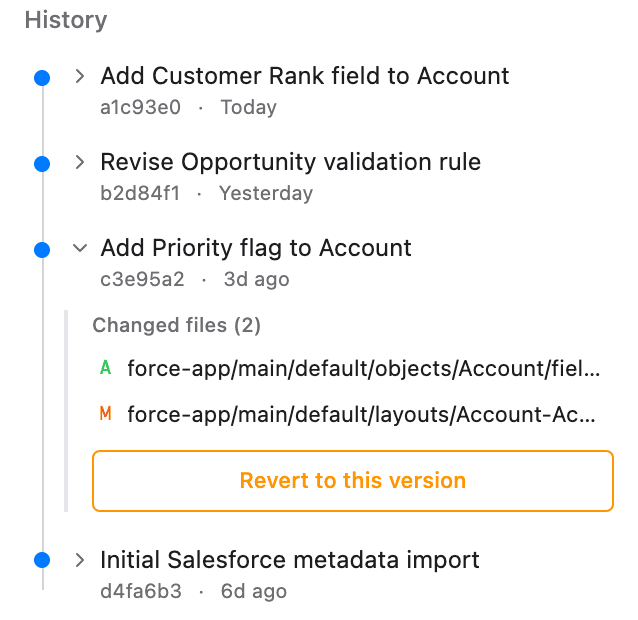
In “History”, press the point you want to return to. The files changed at that point and “Revert to this version” appear.
Press “Revert to this version” to open the confirmation.
In the confirmation, Blaze compares what will be reverted with the current org before showing the list.
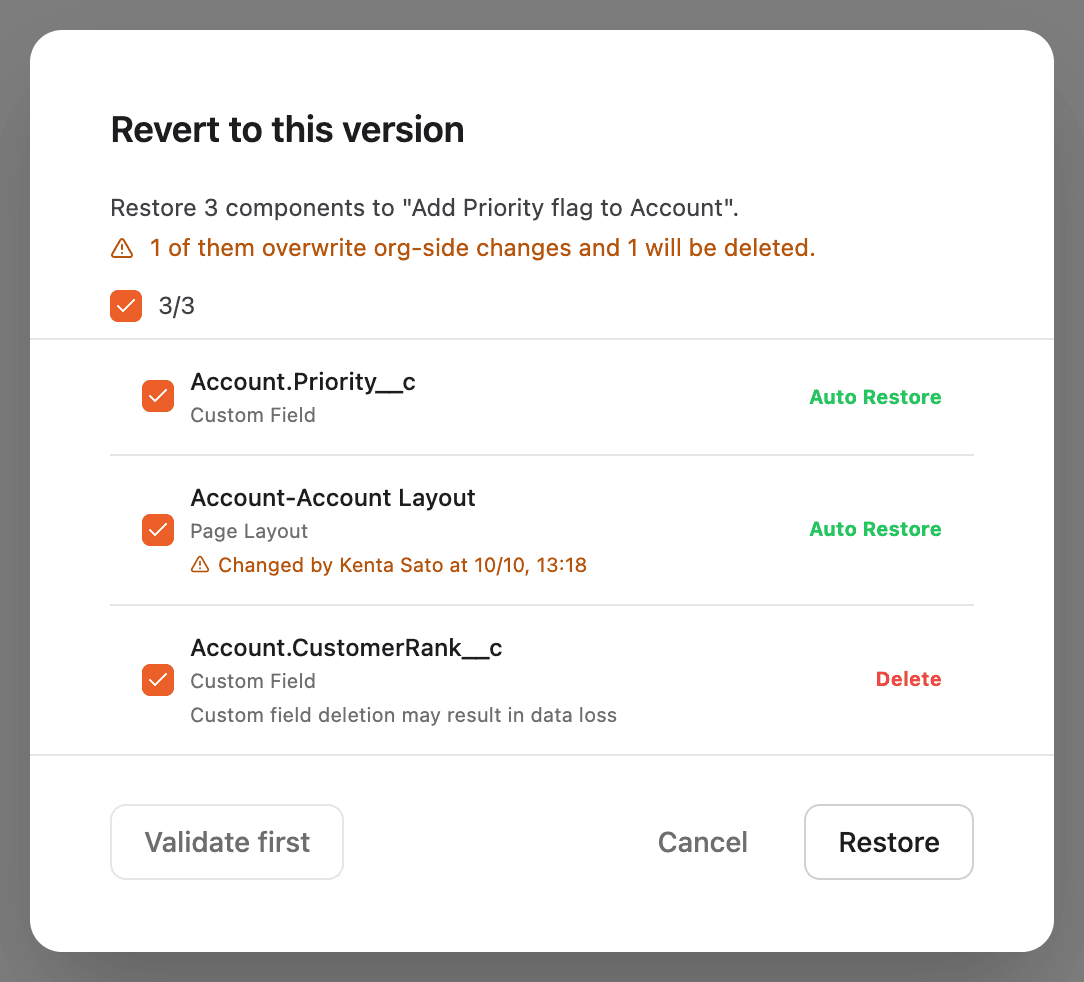
- The sentence at the top shows how many components will be restored, and how many of them overwrite org-side changes or will be deleted
- The right side of each row shows whether that metadata will be handled as “Auto Restore”, “Delete”, or “Manual Action”
- When the org has different content from the latest save on this computer, the row shows who changed it and when. Check that it is fine to overwrite
- Uncheck any row you do not want to revert
- Press “Validate first” to check whether the changes can be applied to the org before running the revert
When you have reviewed the list, press “Restore”.
3. After reverting
- The result is added to your history as one record starting with
Restore to - If something cannot be reverted automatically, Blaze shows what to do in Salesforce Setup
- Flows are created as a new inactive version. Review them in Setup, then activate them manually
- If something goes wrong midway, Blaze is built to restore the state from before you pressed “Restore”
4. FAQ
Q. Is anything left out of the org comparison?
Yes. Profiles are not compared with the org, and the row shows “Not compared with the org”. Components whose org state already matches the target are not listed, and only the “unchanged” count is shown.
Q. What happens to metadata excluded by .forceignore?
Salesforce metadata excluded by .forceignore is not applied to the org. The confirmation lists the affected files.
Q. Can I undo a revert?
Yes. The revert is also recorded in your history, so choose the point from before the revert and press “Revert to this version” again.