Check Salesforce org for changes
Metadata in your Salesforce org can change through Salesforce Setup or another team member’s work. Use Check Salesforce org for changes to compare it with this computer and bring in the changes you need.
This operation retrieves metadata from the org. It does not change your Salesforce org settings.
Check the org for changes
Connect to a Salesforce org and open Change Management from the left sidebar. If you have not started yet, click Start Change Management. See Change Management for details.
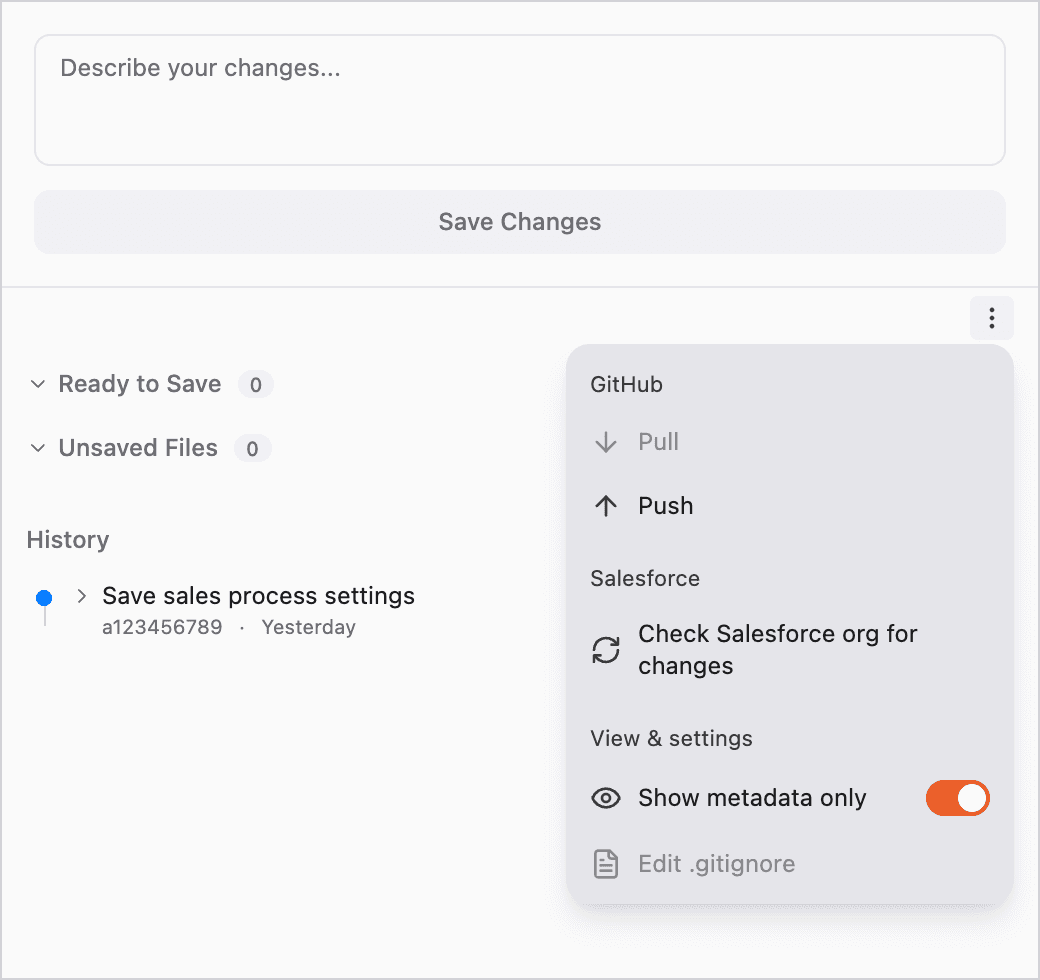
Open the menu below Save Changes and choose Check Salesforce org for changes.
Syncing with Salesforce… appears during the check. Wait for it to finish. The time needed depends on the amount of metadata.
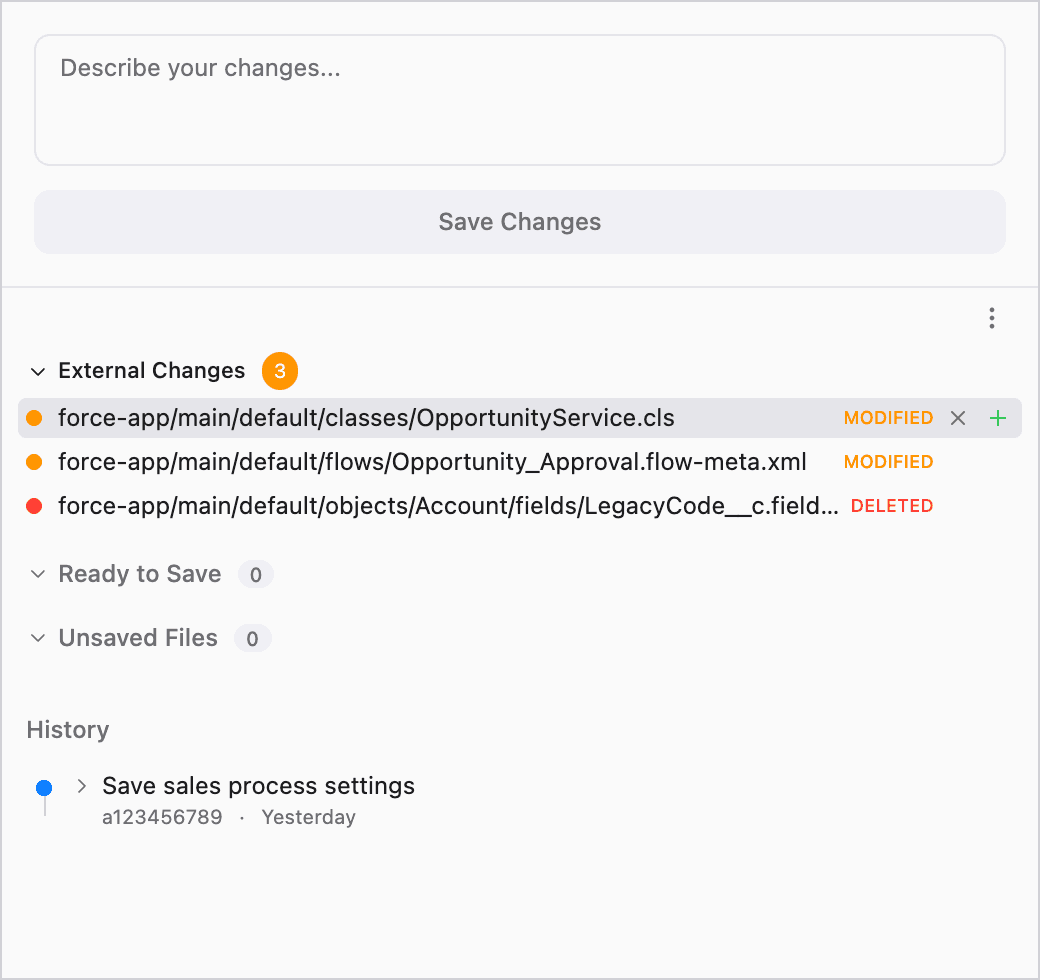
Changes found in the org appear under External Changes. Check the Modified or Deleted label on the right of each file.
Hover over a row to see its metadata type, path, available update date and author, and dependent components.
For a change you do not want to bring in, click × on the right. That change is hidden for this session.
Bring in the changes you need
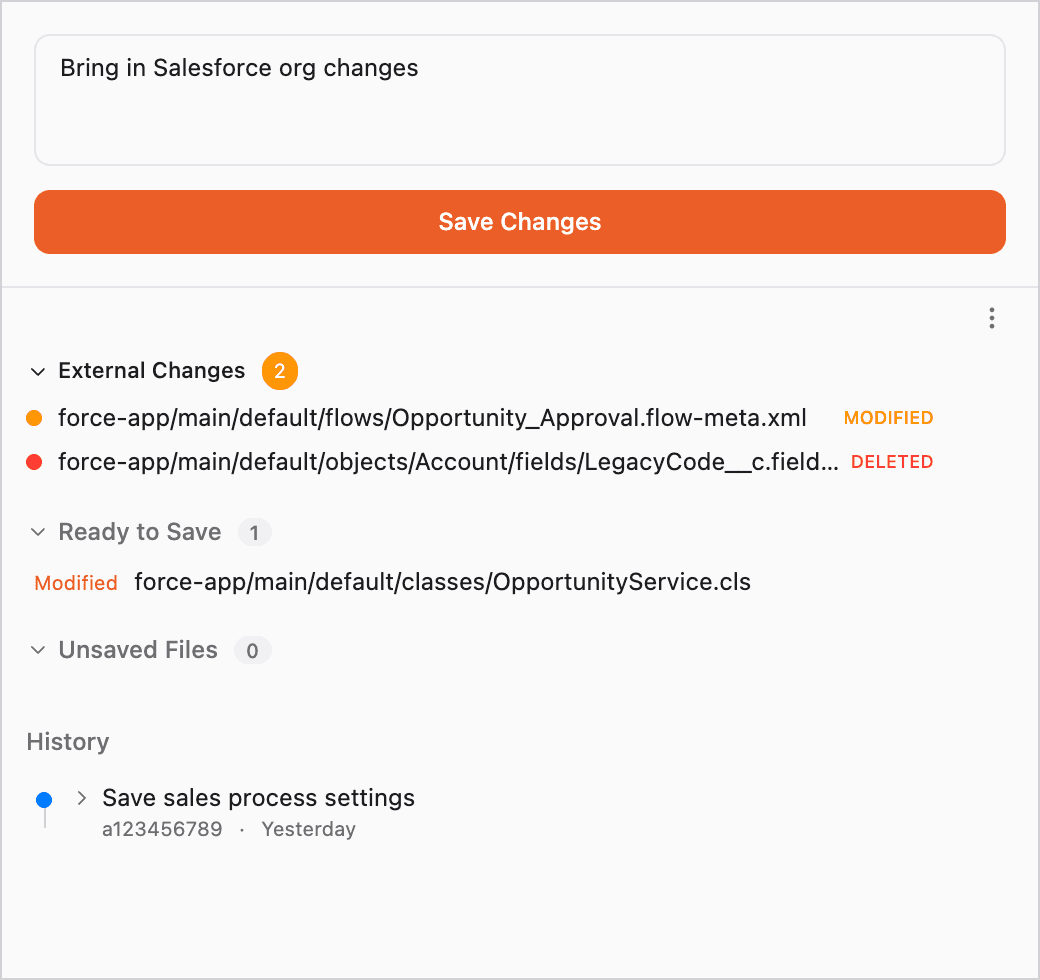
Hover over a row you want to bring in and click + on the right. The file moves to Ready to Save.
Enter a description and click Save Changes to record it in this computer’s history. See Save changes for details.
For a row deleted in the org, click the trash button to approve the deletion.
Approving a deletion also deletes the affected file on this computer. Check the target before saving. You can undo deletion approval only before saving.
When local edits conflict with org changes
If metadata you edited on this computer also changed in the org, click its row to open the details. Clicking + also opens this screen for a conflict.
Click View diff to review your local edits. This diff is for reviewing the edits on this computer.
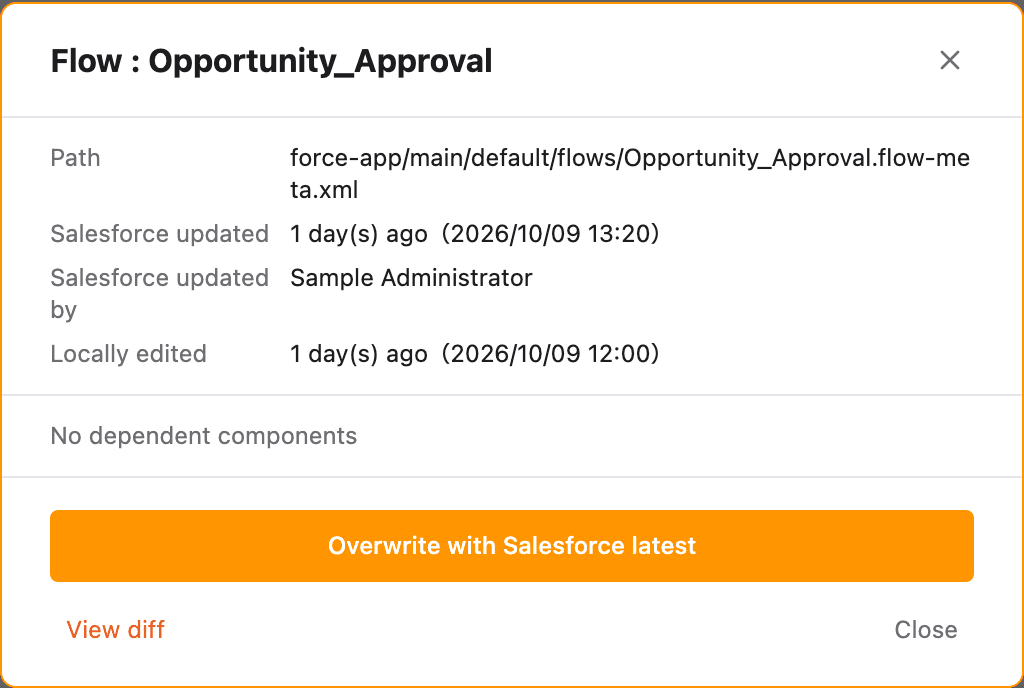
Overwrite with Salesforce latest discards your local edits and retrieves the org’s metadata. The retrieved content is automatically saved to history. Check for any edits you want to keep before proceeding.
To keep your local edits, click Close. You can hide a change for this session by clicking × in the list.
Frequently asked questions
Q. Can I check every change in the Salesforce org?
This feature checks metadata. It does not check changes to records such as accounts or opportunities.
The metadata types checked are based on files in your change management history. If the history does not identify specific types, Blaze checks all supported types. Email templates, documents, standard picklist values, and Settings metadata are excluded.
Q. What should I do if the check fails?
Check your connection to the Salesforce org and run Check Salesforce org for changes again. Also review the message in the failure notification.
Q. How is this different from pulling changes?
This operation brings changes from the Salesforce org into this computer. To bring in changes from your remote repository, see Pull changes.