Change Management BETA
⚠️ Change Management is currently in beta. The core features are in place, but we are still refining it. We recommend trying it out first in a low-impact org such as a Sandbox, rather than in production.
1. What is it?
A feature that tracks the changes Blaze makes, so you can review them and roll them back to an earlier state.
When you let the AI handle Salesforce development across many metadata files at once, you eventually hit moments like “what actually changed?” or “I don’t like this, take me back.” Change Management makes changes across your workspace visible per file, and lets you save (record) and revert (undo) them.
- Automatically tracks the files Blaze edits
- Lets you view the diff right there
- Lets you roll back to an earlier point in time with one click
2. Getting started
-
Connect to a Salesforce org (Change Management is unavailable until an org is connected)
-
Open the “Changes” tab in the left panel
-
Press “Start Change Management”
That’s it. From now on, whenever Blaze edits a file, that change shows up in the “Changes” tab.
3. Reading the screen
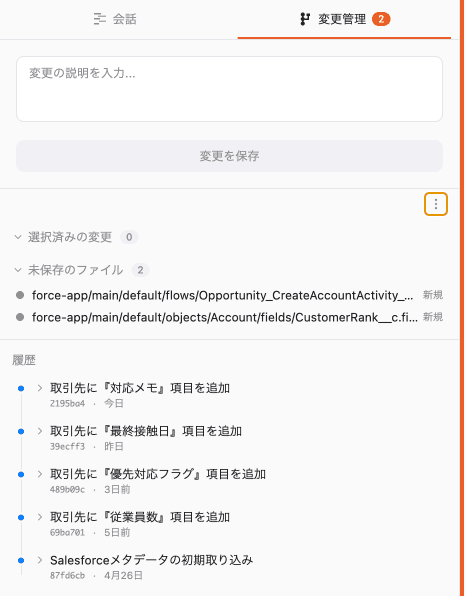
The “Changes” tab is made up of three main areas.
| Area | What it shows |
|---|---|
| Ready to Save | Changes you have selected to record |
| Unsaved Files | Changes you have not saved yet |
| Change History | The list of records you have saved over time |
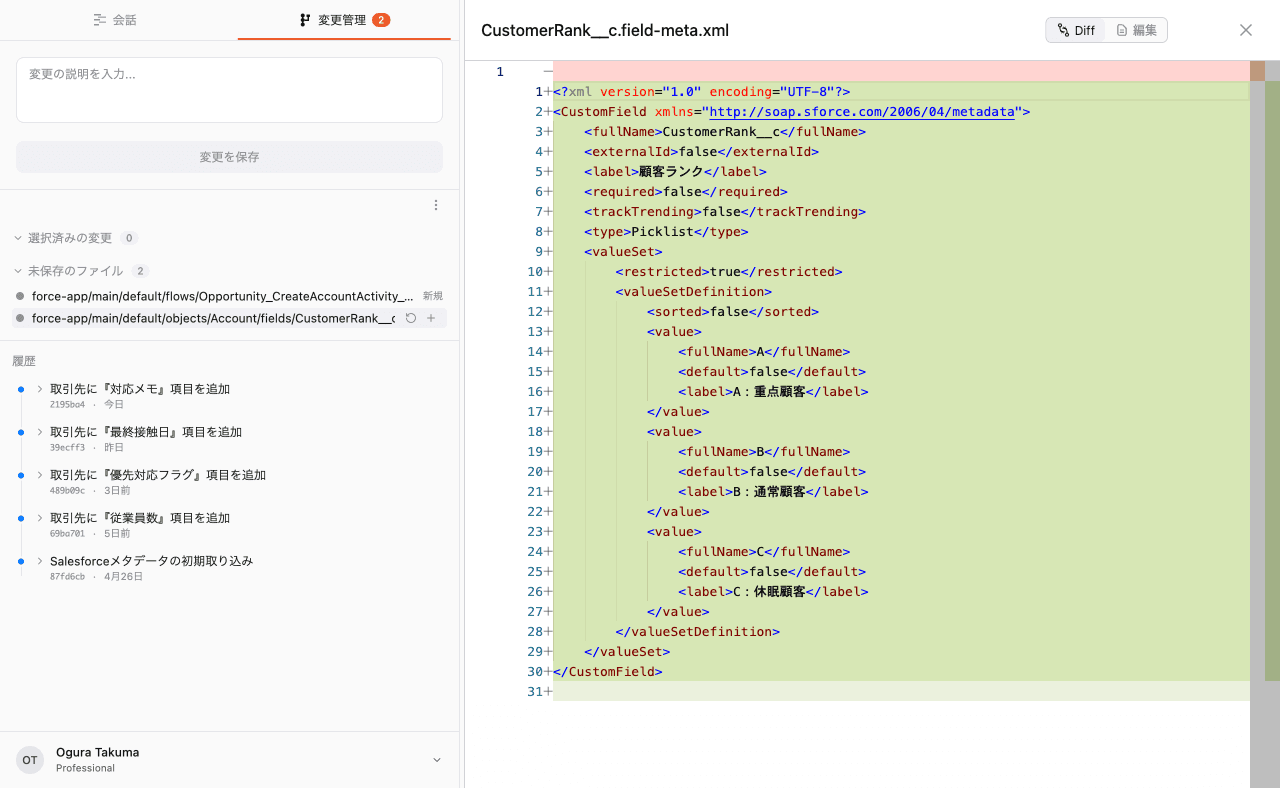
- Click a file to see its diff and check exactly what changed.
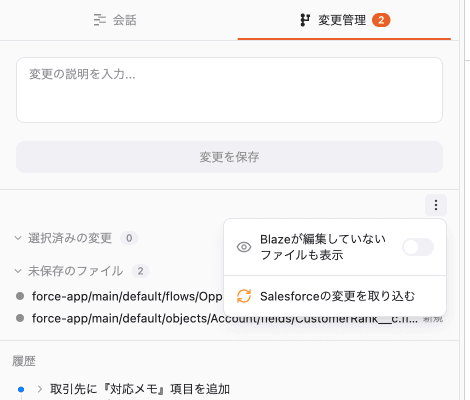
- By default, only the files Blaze edited are shown. Turn on “Show files not edited by Blaze” to also include metadata retrieved for reference.
4. Saving changes
-
Add the changes you want to keep to “Ready to Save” (you can add them in bulk)
-
Enter a short note describing the changes
-
Press “Save Changes” to record the current state into your change history
Once saved, you can return to that point later. Saving often at natural breakpoints is recommended.
You can undo unwanted changes with “Discard Changes” (you can also discard all unsaved changes at once). Discarded changes cannot be recovered, so use it with care.
5. Reverting to an earlier version
From the change history, pick the point you want to return to and press “Revert to this version”.
⚠️ When the version includes Salesforce metadata, the restore applies not only to your local files but also to the connected Salesforce org.
To let you revert with confidence, several safeguards are in place.
- Pre-deploy validation: Blaze checks whether the change can be applied and lets you review the result before running it.
- Org comparison: Blaze compares the Salesforce metadata being restored with the current org. If it finds an org-side update, it shows who changed it and when so you can review the overwrite risk first.
- Guidance for manual steps: for things that cannot be reverted automatically (such as flows and certain settings), Blaze shows what to do in Salesforce Setup.
- Recovery on failure: if something goes wrong midway, Blaze is built to restore the state from before you started.
6. Pull Changes from Salesforce
You can pull in changes made on the Salesforce org side — edits by other members, changes in the Setup screen, and so on.
-
Press “Pull Changes from Salesforce” to scan the org for changes
-
For each external change found, review the content, when it was updated, and by whom (use “View diff” to see the diff)
-
Select what you want to bring in and apply it. Deletions require approval, and you can also ignore a change for the current session
When your local edits and the Salesforce-side changes disagree, that is shown clearly. You can choose “Overwrite with Salesforce latest” when appropriate, which helps you avoid overwriting work by accident.
7. FAQ
Q. Do I need to install Git?
No. Everything Change Management needs is bundled with Blaze. It works out of the box with nothing to install.
Q. What is the difference between “Blaze Changes” and “All Changes”?
By default, only the files Blaze edited are shown. Turn on “Show files not edited by Blaze” to also include files Blaze did not edit directly, such as metadata retrieved for reference.
Q. Does “Revert to this version” affect the Salesforce org?
Yes. When the selected version includes Salesforce metadata, reverting also applies it to the connected Salesforce org. Blaze compares it with the org first, and you can run pre-deploy validation when needed. Blaze also shows manual steps for anything it cannot restore automatically, such as flows.
Q. Is anything excluded from pull or revert?
Some metadata, such as Profile, Report, and Settings, is not monitored when pulling changes from Salesforce. Files excluded by .gitignore and embedded Git repositories in the workspace are also left out of Change Management. Salesforce metadata excluded by .forceignore can be saved in Change History, but Blaze will not automatically apply it to the org.
Q. Some files don’t appear under Change Management on Windows
Files whose names use Windows reserved names (such as CON or NUL) are automatically excluded from Change Management to avoid problems.