Run E2E tests in Browser test mode
In Browser test mode, Blaze operates Salesforce screens in the built-in browser and checks the actions and results you request. Use it to check flows and fields, run E2E and regression tests, or perform screen operations for user acceptance testing (UAT).
Turn it on
- Connect to the target Salesforce org and open a conversation.
- Click “+” next to the conversation input.

- Click the Browser test mode switch to turn it on.
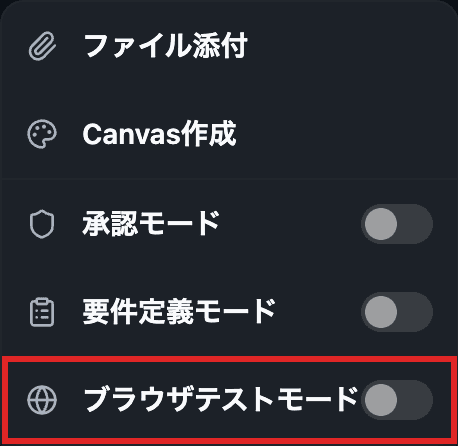
Ask Blaze to test
Describe the actions and expected result, then send your request. For example:
Open the Inquiry_Create screen flow from “Create Inquiry” on an account record, enter a subject and details, and submit it. Check that an inquiry is created.
Blaze operates the actual screen. If your request includes creating or updating records, those actions take place in the target Salesforce org.
You can save the operations as a test case. For saving, replaying, editing, and sharing, see Rerun saved tests.
Save as a test case
After the test finishes, enter a name and click Save in the card above the input.
After further checks in the same conversation, you can save a new test or update the existing one. Split and save lets you save groups of operations as separate tests. Partial operations can be saved with Save as unfinished.
Turn it off
Click “+” next to the input and turn off the Browser test mode switch.
The mode stays enabled when you switch conversations. Turn it off when you return to ordinary work.
Browser test mode can use the browser even when Allow Blaze to operate the browser is off in Settings. To allow browser operations in ordinary conversations, see Built-in Browser.