Built-in Browser
Open and work with Salesforce screens directly inside the Blaze app, without switching to an external browser.
1. What is it?
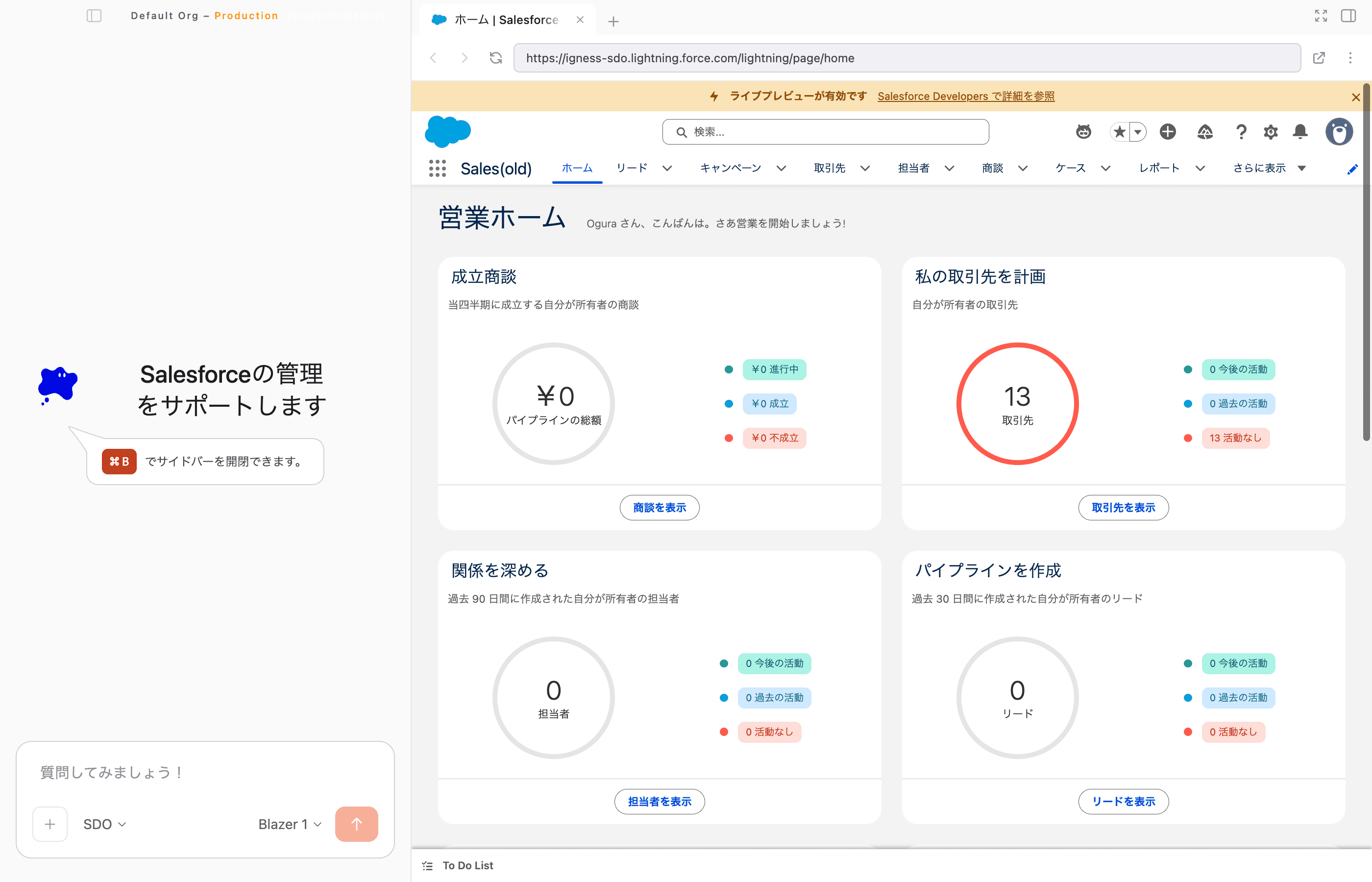
Previously, checking a Salesforce screen meant opening a separate external browser. With the built-in browser, you can open Salesforce screens in tabs in the right pane of Blaze, and check or operate them while chatting at the same time.
- When the AI opens a Salesforce screen as part of an operation, this browser pane opens automatically
- You can also open and close it manually from the button in the top right
- Canvas and the file viewer are also handled together as tabs within this browser pane
2. Opening it
Press the “Toggle browser” button in the top right to open or close the browser pane.
The first time you open it, a login button for the connected Salesforce org is shown. Press it to log in to that org with one click.
3. Using tabs
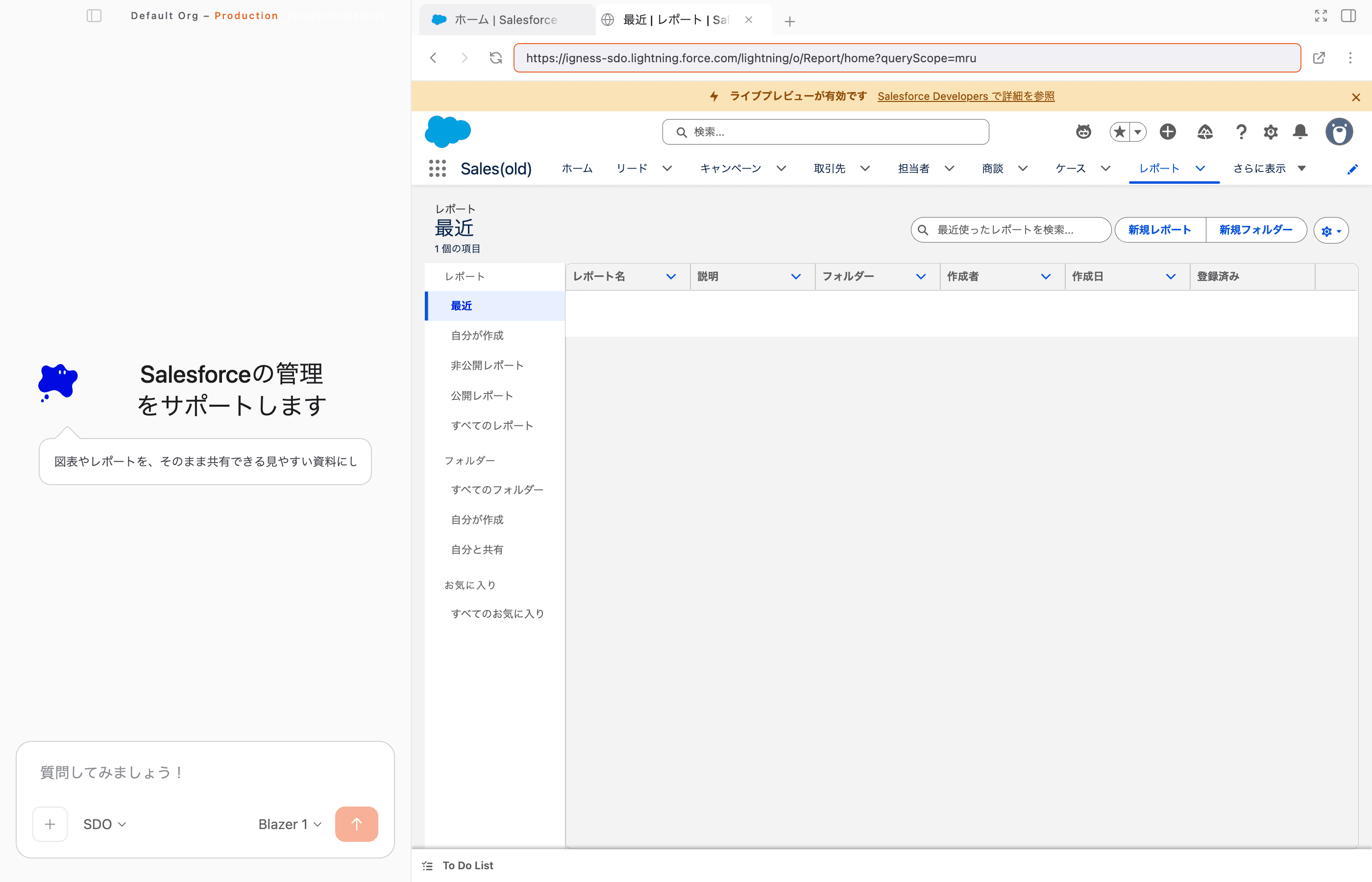
Use ”+” in the tab bar to open a new tab.
- Open multiple tabs and switch between them as you work
- Right-click a tab to duplicate it, close other tabs, or close tabs to the right
- You can also type an address directly into the URL field to go to any page
4. The “More actions” menu
The ”⋮” (more actions) button to the right of the URL field gives you the following:
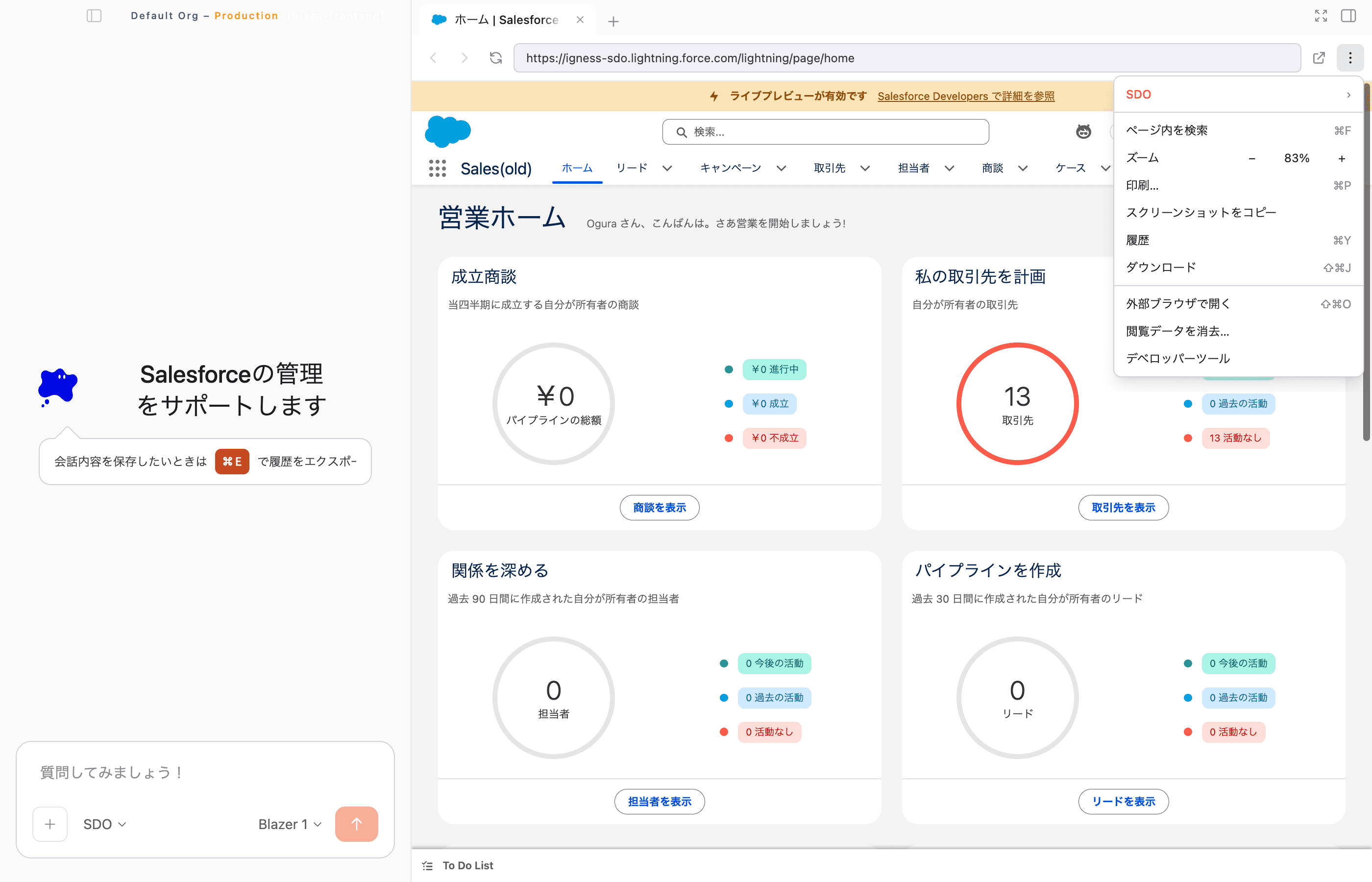
| Item | What it does |
|---|---|
| Switch org | Switches the connected Salesforce org |
| Find in page | Searches the current page by keyword |
| Zoom | Changes the display zoom level |
| Print… | Prints the current page |
| Copy screenshot | Copies the current view to the clipboard |
| History | View, search, and delete browsing history |
| Downloads | View, search, and delete download history |
| Open in external browser | Opens the current page in your default browser |
| Clear browsing data… | Clears cookies, cache, and history all at once |
| Developer tools | Opens developer tools |
5. Previewing LWC components
You can preview a Lightning Web Component you’re developing directly in the built-in browser.
- If the component hasn’t been placed on the target record page yet, Blaze walks you through the placement steps
- The preview status (preparing, open, or stopped) is shown at a glance
6. Downloads and permission requests
When a file download or a camera/microphone access request occurs, you can review it and approve or deny it from an on-screen banner.
7. FAQ
Q. How is this different from the browser I normally use?
Basic browsing (back/forward, find, print, and so on) works the same as in a regular browser. The key differences are that you can check and operate pages in the same window as the Blaze chat, and that it opens automatically when the AI operates Salesforce. You can hand off the current page to your regular browser anytime with “Open in external browser.”
Q. Are browsing history and download history stored separately from Blaze’s conversation history?
Yes. The built-in browser’s browsing history and download history are managed separately from your conversation history. You can view and delete each from “History” and “Downloads” in the “More actions” menu.
Q. Can I have multiple Salesforce orgs open at the same time?
Yes. You can log in to a different org in each tab. Switch orgs and log in from the “More actions” menu.