Show changes to non-metadata files
Choose which changes appear in “Unsaved Files”. By default, it shows only files inside the force-app folder. Turn off “Show metadata only” to see changes to other files as well.
1. Change the display setting
Open Change Management and press ”⋯” below “Save Changes”. Toggle “Show metadata only” under “View & settings”.
When on, the list shows only changes inside force-app. When off, it also shows changes to other files included in change management. Blaze keeps this setting when you reopen the app.
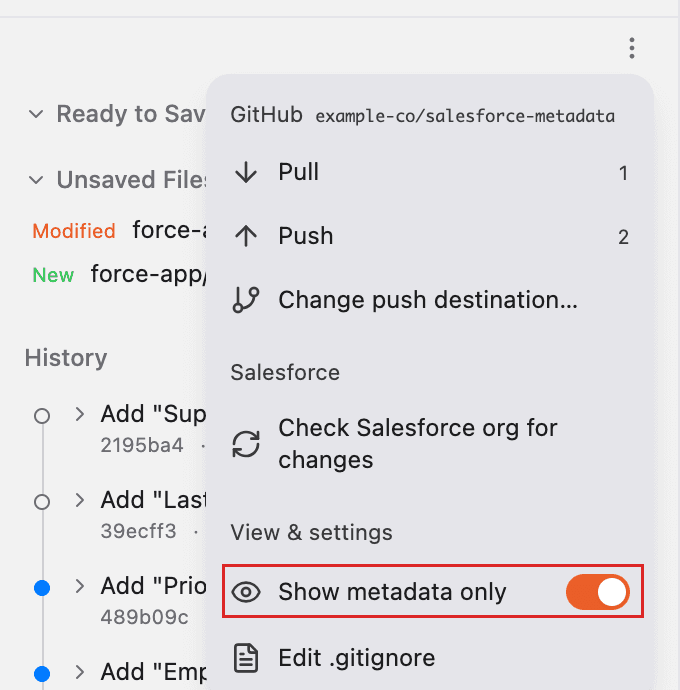
“Show metadata only” checks whether a file is inside force-app, rather than checking its file type. For example, changes to notes in docs or to sfdx-project.json appear when you turn it off.
2. Check how it affects saving and bulk actions
| Area or action | What changes |
|---|---|
| Unsaved Files | When on, it shows only changes inside force-app. When off, it also shows other changes. |
| Ready to Save | It always shows every change you have selected. |
| Add all to save target | It adds the unsaved changes currently displayed. Metadata retrieved for review is excluded. |
| Discard all unsaved changes | It discards the unsaved changes currently displayed. Metadata retrieved for review is excluded. |
| History | It always shows saved records. |
If you add a file outside force-app to “Ready to Save” while the switch is off, then turn it back on, the file remains in “Ready to Save”. “Save Changes” records the selected changes. See Save changes for the steps.
Discarded changes cannot be recovered. Showing more files also increases the scope of bulk discard. Check the files in the confirmation dialog before discarding them.
3. Frequently asked questions
Q. Are files deleted when they disappear from the list?
No. Changing the display setting does not delete local files or saved records. To exclude files from change management, see Choose files whose changes will not be saved.
Q. Some files are still missing when the switch is off
Files without changes do not appear. Untracked files excluded by .gitignore do not appear either. Embedded Git repositories inside the workspace are also excluded.
Q. Where can I find metadata retrieved for review?
Turn off “Show metadata only” to also see metadata retrieved for review. This includes files inside force-app under retrieved.
You cannot add these files to the save target all at once. Press “Adopt into force-app” for an individual file to copy it into the regular force-app folder and add it to “Ready to Save”.