Save changes
Choose the changes you want to keep and press “Save Changes” to record the current state in your history. Once saved, you can return to that point later.
If you have used Git before: “Add to save target” corresponds to add, and “Save Changes” corresponds to commit.
1. Choose the changes to save
Hover over a row in “Unsaved Files” and press ”+” at the right end. The file moves to “Ready to Save”.
To choose everything at once, hover over the “Unsaved Files” heading and press “Add all to save target”.
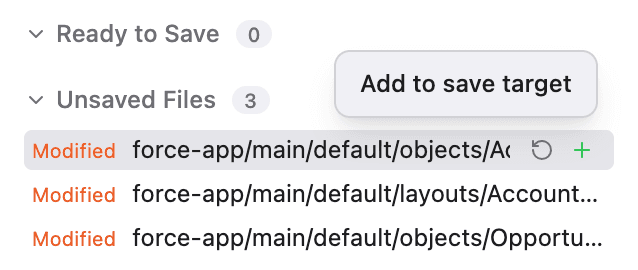
To undo a choice, hover over the row in “Ready to Save” and press ”−”. The file goes back to “Unsaved Files”.
2. Save
Enter a short note describing the changes in the box at the top, then press “Save Changes”. On a Mac, you can also press ⌘ + Enter.
The files in “Ready to Save” are added to the top of your history as one record.
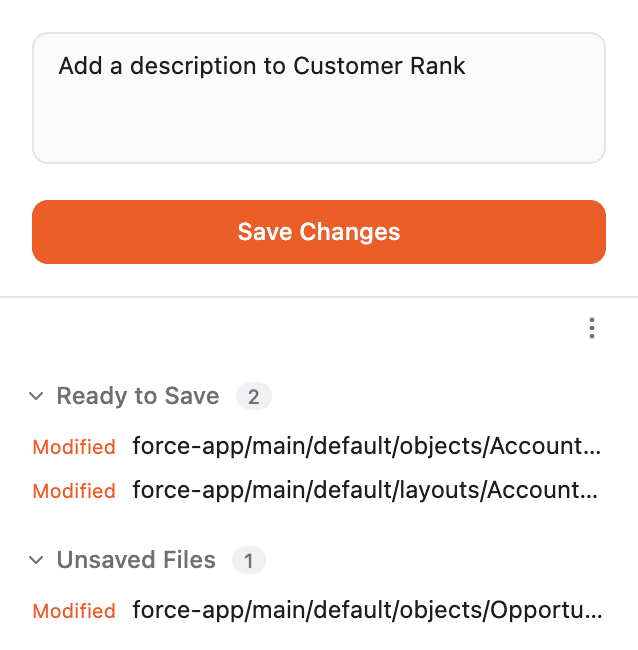
You cannot save while the note is empty or while “Ready to Save” has no files. Saving often at natural breakpoints is recommended.
3. Check the diff
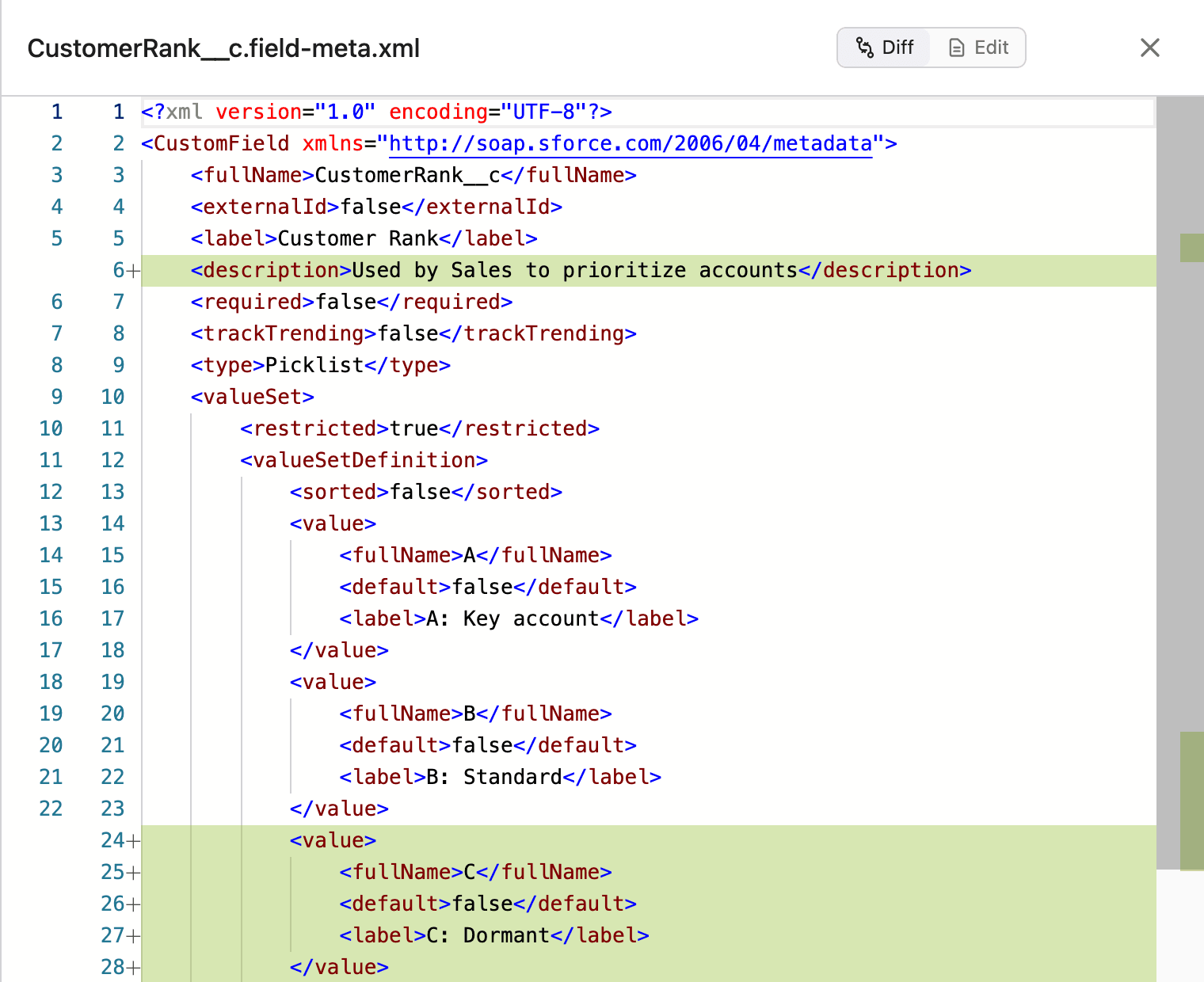
Click a file name to see its diff and check exactly what changed. Added lines are shown in green.
By default, “Unsaved Files” shows only Salesforce metadata, which means the files in the force-app folder. To show other files as well, turn off “Show metadata only” under “View & settings” in the ”⋯” menu. “Ready to Save” always shows everything, regardless of this setting. See Show changes to non-metadata files for details, including how this affects bulk actions.
4. Discard changes
To undo an unwanted change, hover over the row and press “Discard this change”. For a newly created file, the same button is “Delete this file”. To undo all unsaved changes at once, hover over the “Unsaved Files” heading and press “Discard all unsaved changes”.
Discarded changes cannot be recovered. Before you press “Discard” or “Delete” in the confirmation, check that there is nothing you want to keep. Records you have already saved are not affected.
5. FAQ
Q. Does saving apply the changes to my Salesforce org?
No. Saving only records the changes in the history on this computer. Your Salesforce org is not changed.
Q. What changes when I turn off “Show metadata only”?
It is on by default. When it is on, “Unsaved Files” shows only Salesforce metadata in the force-app folder. When you turn it off, the list also shows other changes, such as metadata retrieved for reference and exported files.
Q. Can I share saved changes with my team?
Yes. You can push your saved changes to the repository you push to and share them. See Push changes.