Choose files whose changes will not be saved
Use .gitignore to specify files such as logs and temporary files that you do not want to record in change management. It applies to files that are not yet tracked. Excluding a file does not delete it from your workspace.
To change only what the list displays, see Show changes to non-metadata files.
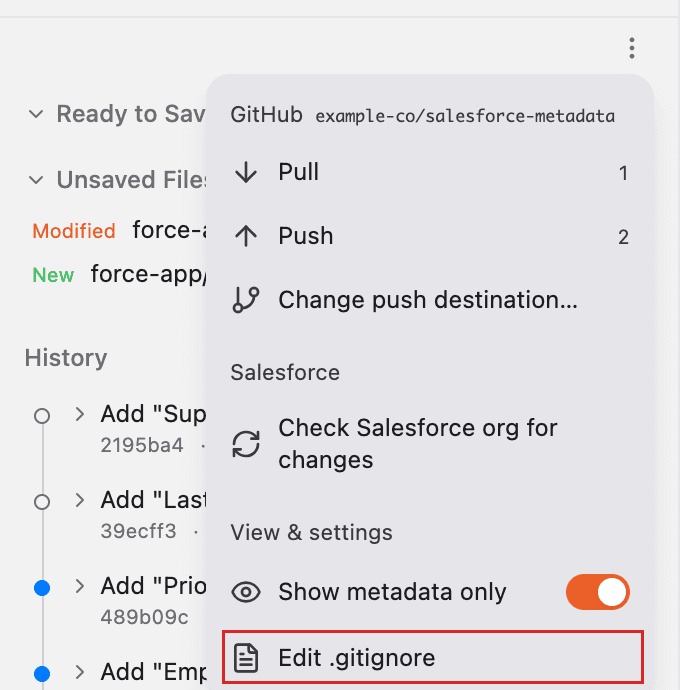
1. Open .gitignore
Open Change Management and press ”⋯” below “Save Changes”. Press “Edit .gitignore” under “View & settings” to open the workspace’s .gitignore in the editor.
2. Add files to exclude and save
Keep the existing content and add one file or folder pattern per line. For example:
# Exclude the temporary files folder at the workspace root.
/tmp/

# Exclude files with the .csv extension.
*.csv

# Exclude a specific file at the workspace root.
/local-notes.md
Lines starting with # are comments. /tmp/ specifies the tmp folder at the workspace root. *.csv specifies files with the .csv extension anywhere in the workspace.
After editing, press the save icon at the top right of the editor. You can also use ⌘S on Mac or Ctrl+S on Windows. Saving in the editor is separate from “Save Changes” in Change Management.
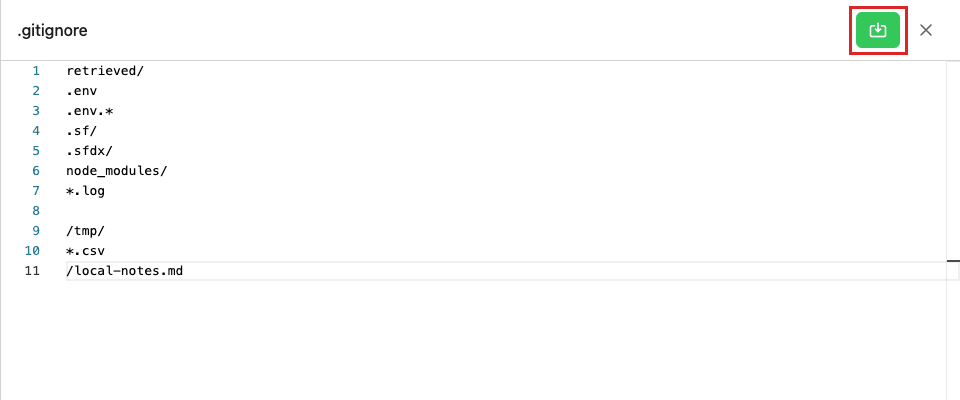
After saving, check the change list. Matching untracked files no longer appear as ordinary “Unsaved Files”.
Save before closing the editor. Closing it without saving loses your edits.
3. Check whether the file is already tracked
Adding a pattern to .gitignore does not stop tracking files that have already been saved or added to “Ready to Save”. Later changes to those files can still be saved and pushed.
It also does not remove files from earlier records or history already pushed. Check files containing credentials or other content that should not be shared before pushing.
To push the .gitignore settings themselves, save in the editor, then turn off “Show metadata only”. Add .gitignore from the list to “Ready to Save”, record it with “Save Changes”, and push. See Save changes and Push changes.
4. Frequently asked questions
Q. Are any files excluded by default?
When initializing a workspace, Blaze adds exclusions for .env, .env.*, .sf, .sfdx, node_modules, logs, key files, and other files. It preserves existing settings. Open .gitignore to check the actual content.
Q. How do I include an excluded file again?
Delete the matching line and save in the editor. If other exclusion rules also match the file, check those rules as well. When “Show metadata only” is on, files outside force-app remain hidden from the list.
Q. Why does retrieved metadata appear even though retrieved is excluded?
Blaze lists metadata retrieved for review separately from ordinary changes. This includes files inside force-app under retrieved. Turn off “Show metadata only” to see them.
Press “Adopt into force-app” for an individual file to copy it into the regular force-app folder and add it to “Ready to Save”.
Q. Does this also exclude files from being applied to Salesforce?
No. .gitignore controls Git change management. It is separate from .forceignore, which excludes files from being applied to Salesforce. See Revert to an earlier version for how this affects reverting.