Push changes
Sending the changes you saved on this computer to the repository you push to is called a push. You can use it to share changes with your team or keep a copy in the repository. Pushing does not change your Salesforce org.
At this time, you can only push to GitHub repositories.
1. Before you start: create a repository on GitHub
Create a new repository on GitHub to push to. Do not add a README, .gitignore, or license. Leave the repository empty. You cannot make the first push to a repository that already contains files.
2. Pushing for the first time
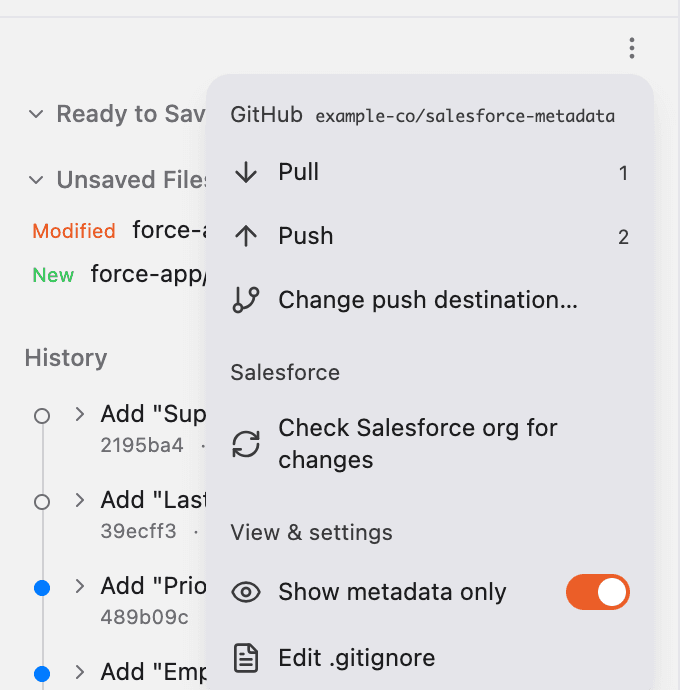
Press ”⋯” below “Save Changes”, then press “Push” under “GitHub”. The numbers next to “Pull” and “Push” show how many changes you can bring in and how many you have not sent yet.
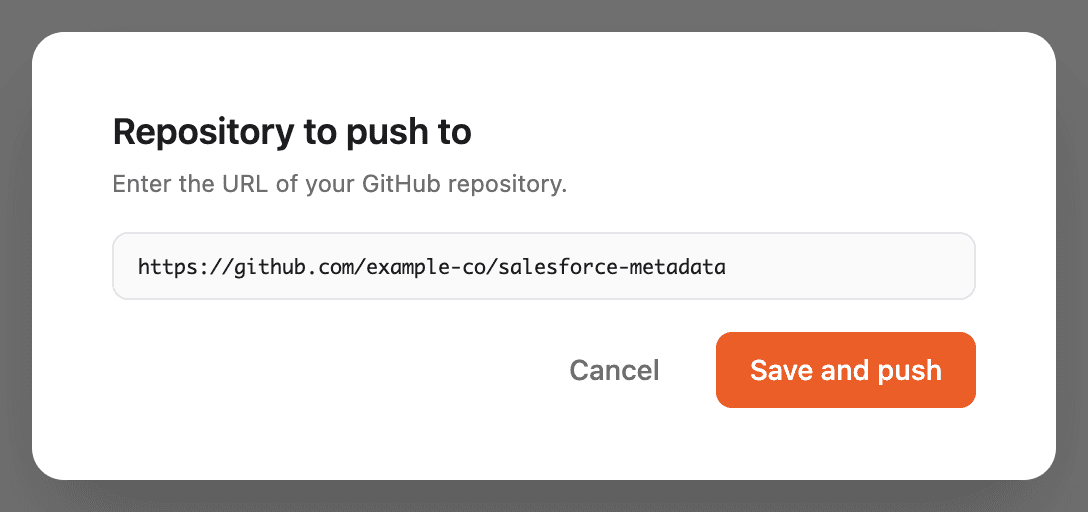
In “Repository to push to”, enter the URL of the repository you created as https://github.com/owner/repository, then press “Save and push”.
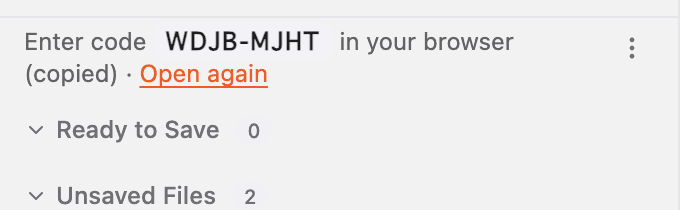
If you have not signed in to GitHub yet, a GitHub page opens in your browser and Blaze shows a code. Enter the code in your browser and allow Blaze. The code is already copied for you. If you closed the browser, press “Open again”.
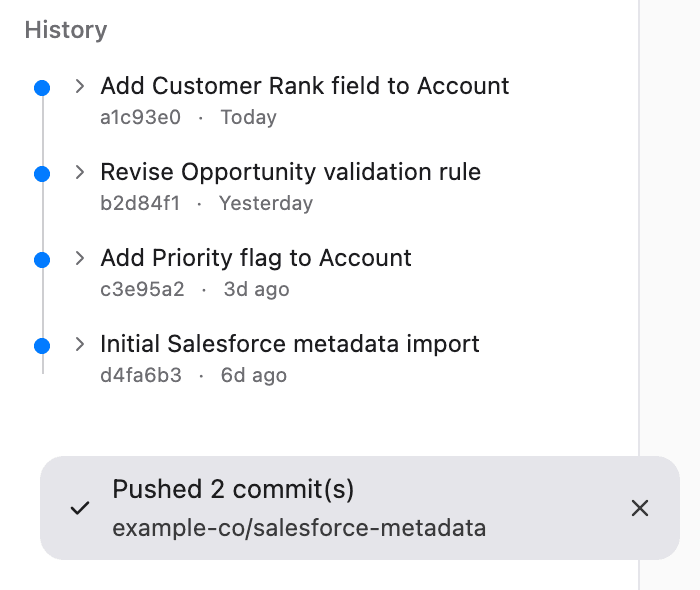
Once you have signed in, the push continues automatically. When it finishes, Blaze shows “Pushed N commit(s)” at the bottom left of the screen.
The GitHub sign-in is the same one used by GitHub in Connecting external apps. After you sign in once, you only need to press “Push” next time.
3. Spotting saves you have not pushed yet
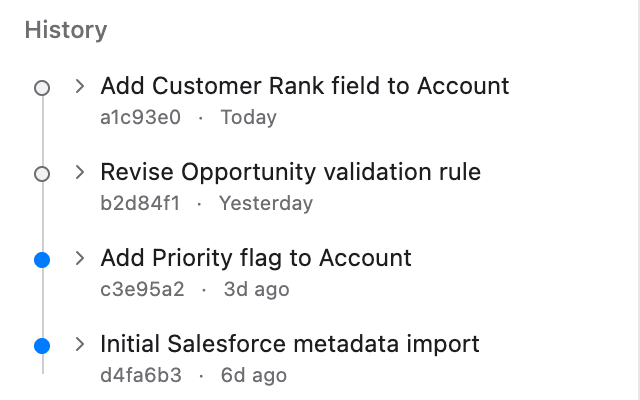
In the history, saves marked with a gray hollow circle have not been sent to the repository yet. They turn into blue circles after you push.
4. Changing the push destination and choosing files not to send
- To change the push destination: press “Change push destination…” in the ”⋯” menu and enter the URL again
- To choose files not to push: exclude untracked files with
.gitignore. Adding a pattern does not exclude files already saved or added to “Ready to Save”. See Choose files whose changes will not be saved for the steps
5. Troubleshooting
5.1 Couldn’t push
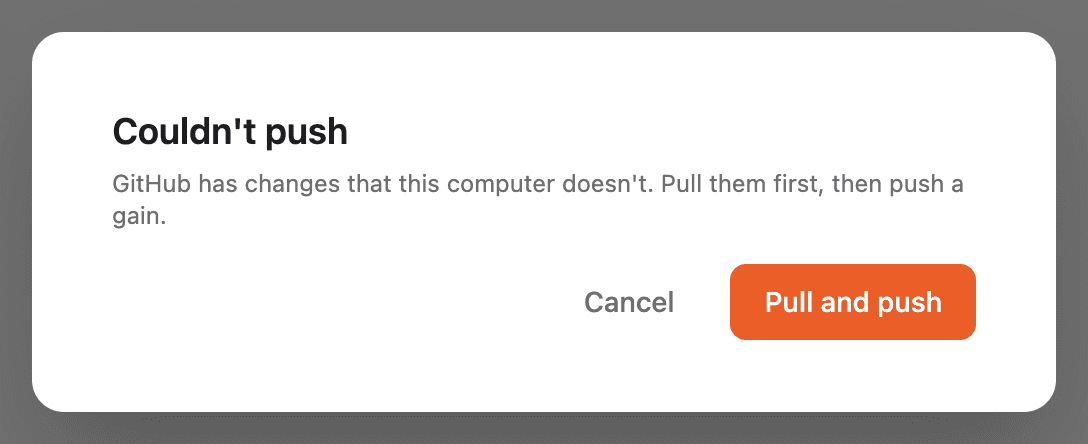
The repository you push to has changes that this computer doesn’t. Press “Pull and push” to bring in those changes and push again. If the incoming changes and the changes you saved on this computer touch the same settings, a screen opens so you can choose which to keep. After you choose and press “Pull”, the push continues. See Pull changes for how to choose.
5.2 Credentials found
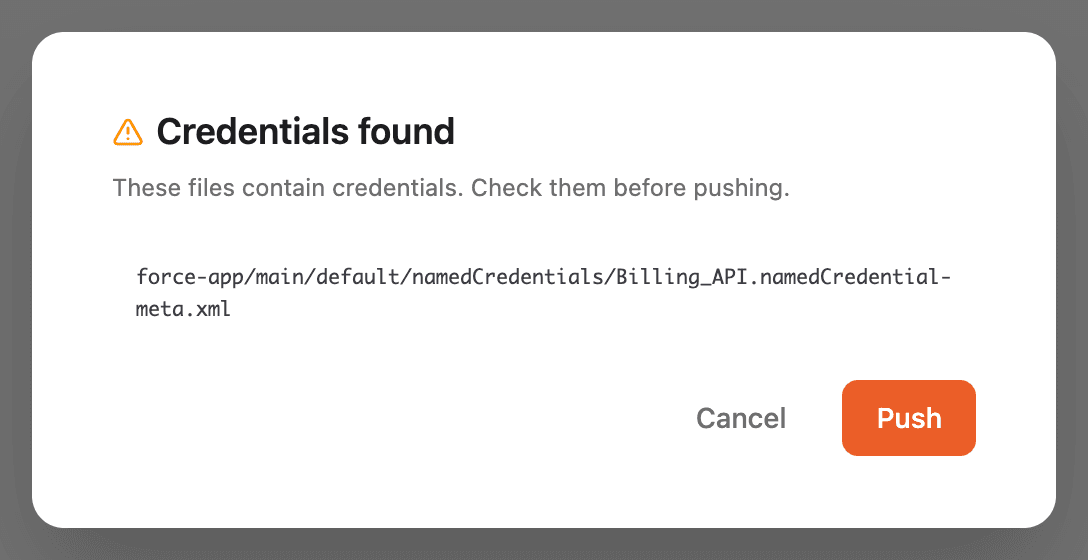
Some saves you have not pushed yet contain files with values such as passwords or client secrets. Check the listed files, and press “Push” only if it is fine to push them. If they contain values that must not be sent, press “Cancel” and do not push.
5.3 Can’t use this repository
The repository was not found, or Blaze by Igness is not allowed to use it. Press “Choose repositories” and allow the repository you want to use. If you entered the wrong URL, you can fix it with “Change”.
5.4 This repository has a different history from this computer
The push destination contains a history that was created separately from this computer. Create a new empty repository and change the push destination.
5.5 GitHub didn’t respond, or you couldn’t sign in
Wait a moment and push again. On a corporate network, check that connections to github.com and api.github.com are allowed.
6. FAQ
Q. Does pushing change my Salesforce org?
No. Pushing only sends files from this computer to the repository you push to. Your Salesforce org is not changed.
Q. Can I push to services other than GitHub?
Not at this time. You can only push to GitHub repositories whose URLs start with https://github.com/.
Q. Can other members use the same repository from their Blaze?
Not at this time. Change Management started in each person’s Blaze has its own history, so when another member’s Blaze pushes to or pulls from the same repository, Blaze shows that the repository has a different history. Changes that members make outside Blaze, such as on the repository website or in VS Code, can be brought in with a pull.
Q. Which destinations need to be allowed on our corporate network?
Pushing to and pulling from GitHub requires connections to github.com and api.github.com.