Pull changes
Bringing the changes in the repository you push to into this computer is called a pull. You can use it to apply the changes other members sent to the repository to your local files. Pulling does not change your Salesforce org.
At this time, you can only pull from GitHub repositories.
1. Before you pull
- Pull is available after you set a repository to push to. If you have not set one yet, push first by following Push changes
- You cannot pull while a file that the pull would change has unsaved changes. Save the changes or discard them first
2. Pull
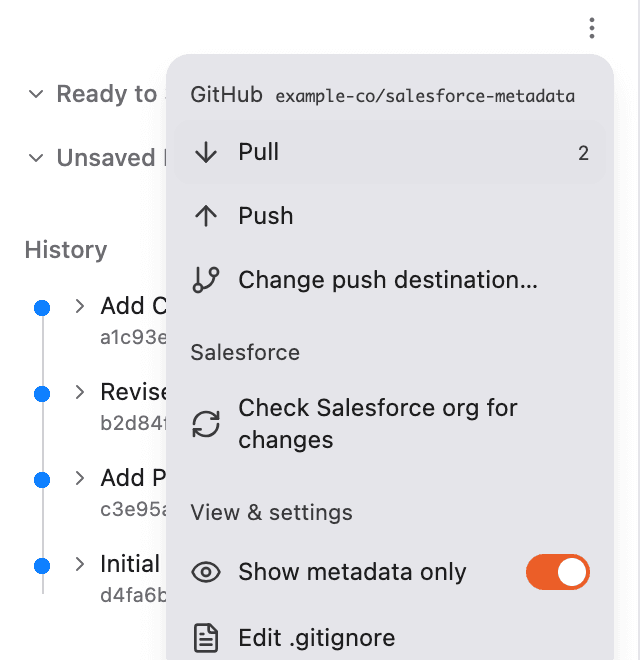
Press ”⋯” below “Save Changes”, then press “Pull” under “GitHub”.
The number next to “Pull” is how many saves you can bring in from the repository. While “Changes” is open, Blaze checks the repository every 3 minutes and updates this number.
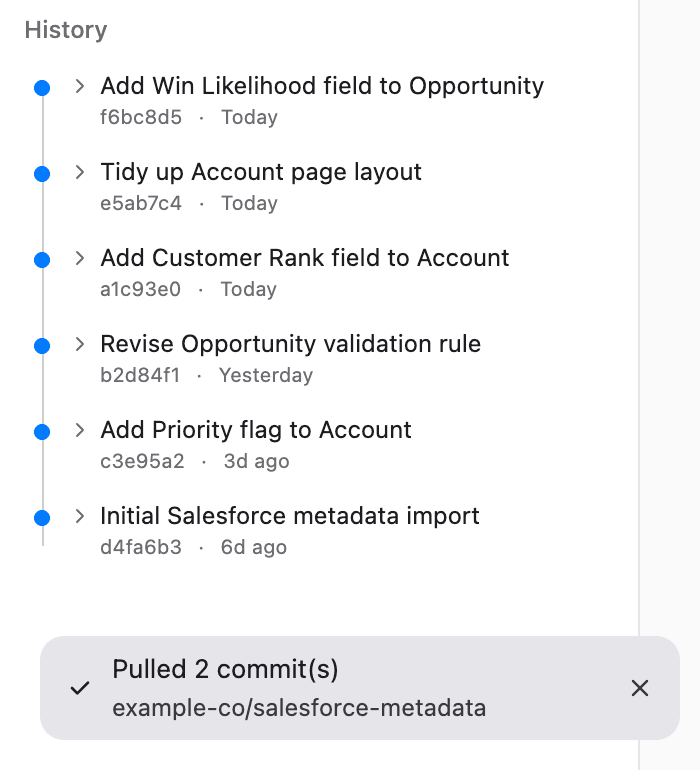
When it finishes, Blaze shows “Pulled N commit(s)” at the bottom left of the screen. The saves you brought in appear in your history.
When both this computer and the repository have new saves, one more save that combines both is added to your history.
Pulled changes are applied only to the files on this computer. To apply them to your Salesforce org, you need to deploy them. Ask Blaze to “deploy the pulled changes to the org”.
3. When the same settings were changed
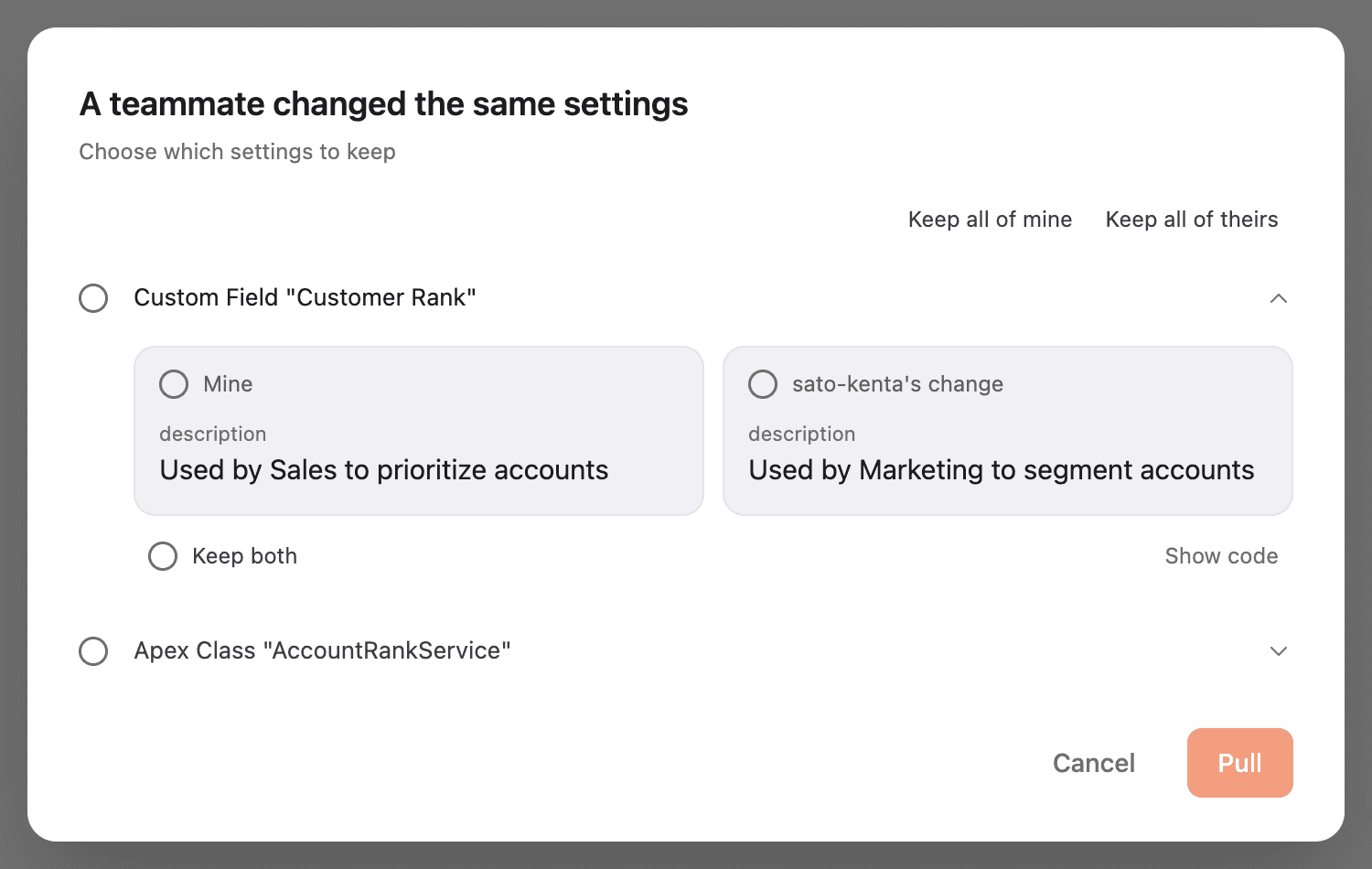
Sometimes the incoming changes and the changes you saved on this computer change the same part of the same setting. In that case, Blaze does not bring them in automatically. Instead, it opens “A teammate changed the same settings” and asks which to keep.
Your local files do not change until you press “Pull” on this screen.
-
The settings changed on both sides are listed. The first one is already open. The left card is “Mine” and the right card is the other member’s change. The right card shows the name of the person who last changed that setting in the repository
-
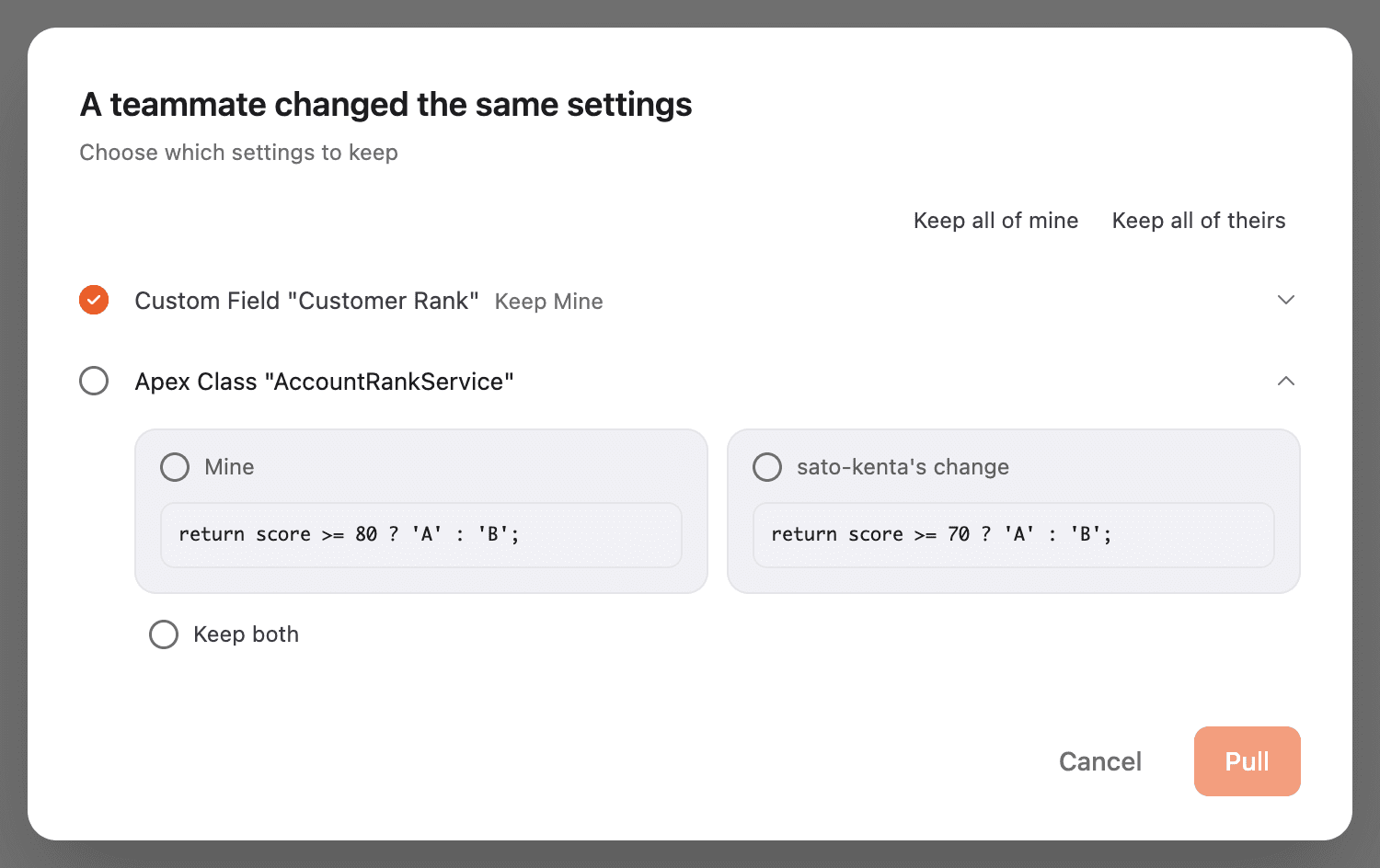
Press the card you want to keep. The setting closes and the next one opens. For code such as Apex classes, the changed lines are shown as they are
-
Once you have chosen every setting, “Pull” becomes available. Press it to bring in the changes. When it finishes, Blaze shows “Pulled N commit(s)” at the bottom left
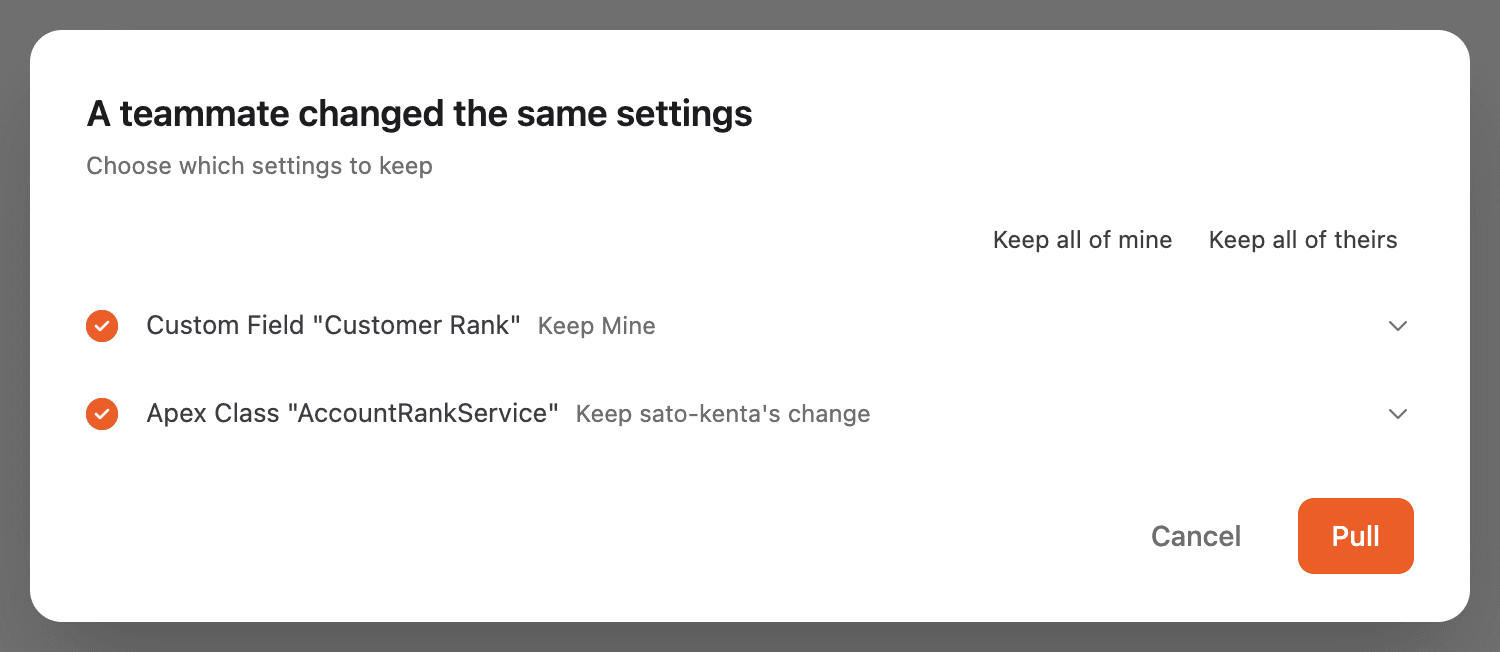
These options are also available while you choose:
- “Keep all of mine” / “Keep all of theirs”: sets every setting to the same side at once
- “Keep both”: appears when both sides are text changes. Keeps your change followed by the other member’s change. The same element may appear twice, so check the content after pulling
- “Show code”: for settings such as a field description, shows the original XML as well
- Press a setting you have already chosen to open it again. You can change your choice until you press “Pull”
- “Cancel”: stops the pull. Your local files do not change. The same screen opens the next time you pull
4. Troubleshooting
4.1 Couldn’t pull because of unsaved changes
A file that the pull would change has unsaved changes. Save your changes first, then pull again.
4.2 Couldn’t pull for another reason
When “Couldn’t pull” appears at the bottom left of the screen, press “Details” in the notification to see the reason. For “different history”, “GitHub didn’t respond”, and similar messages, see Troubleshooting in Push changes.
5. FAQ
Q. Does pulling change my Salesforce org?
No. Pulling only brings the changes in the repository into the files on this computer. To apply them to your org, deploy them after pulling.
Q. Whose changes can I bring in?
You can bring in changes that members sent to the repository outside Blaze, such as on the repository website or in VS Code. Using the same repository from another member’s Blaze is not supported at this time.
Q. How is this different from “Check Salesforce org for changes”?
Pull compares the repository you push to with this computer. “Check Salesforce org for changes” compares your Salesforce org with this computer. See Bring in Salesforce org changes.