Generate images
Describe an image in a conversation with Blazer 1 to generate it. You can view the result in the chat and open it in the pane on the right.
1. Describe the image
Choose Blazer 1 from the model selector beside the input, then send a description of the image and its purpose. You can specify colors, style, and aspect ratio in your message.
For example:
- “Create a blue and white illustration for an internal workshop announcement. Use a landscape 16:9 format with no text.”
- “Create a square image with a plant motif for the cover of a presentation.”
Images are square unless you specify an aspect ratio. Each generation creates one image.
2. Open the result
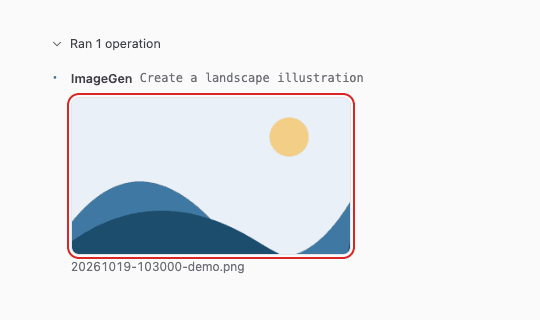
When generation finishes, click the image in the chat’s operation history. If the history is collapsed, click “Ran N operations” to expand it.
3. Change the display size and find the saved file
View the image in the pane on the right.
- “Fit” sizes the image to fit the pane.
- “Actual size” displays the image at its original pixel size.
- Click “Show in Finder” on Mac or “Show in File Explorer” on Windows to locate the saved file.
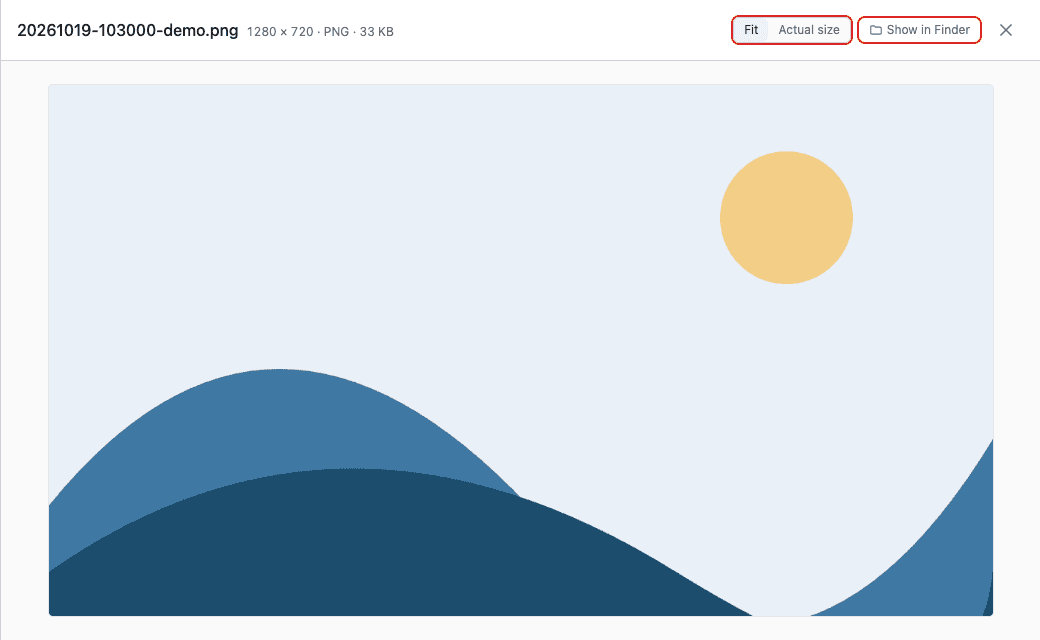
Images are saved in files/generated-images inside the workspace. The viewer shows the file name, dimensions, format, and file size.
4. Usage information
Image generation counts toward your usage. Stopping after generation has started may still count toward usage if the provider generates the image. Generating another version counts as a new generation.
- Image generation is unavailable in domestic mode.
- Your image description is sent to an external image generation model. Include the information needed to create the image.
- If generation fails because of a usage limit, the provider’s safety policy, or another reason, the reason appears in the operation history.
See View Blaze’s operation history for help expanding the history.