Set User Permissions
Every user in an organization has one of two roles: “Admin” or “Member”. The roles differ in what you can do on the account management screens. Both roles can use every feature of the Blaze app.
How Roles Are Assigned
- The user who creates the organization becomes an admin.
- Users who join through an invitation URL become members.
- Admins can change other users to admin or member. An organization can have any number of admins.
- Each user has one role per organization. If your organization also uses LAMP or BRAIN, the same role applies there.
Check Your Role
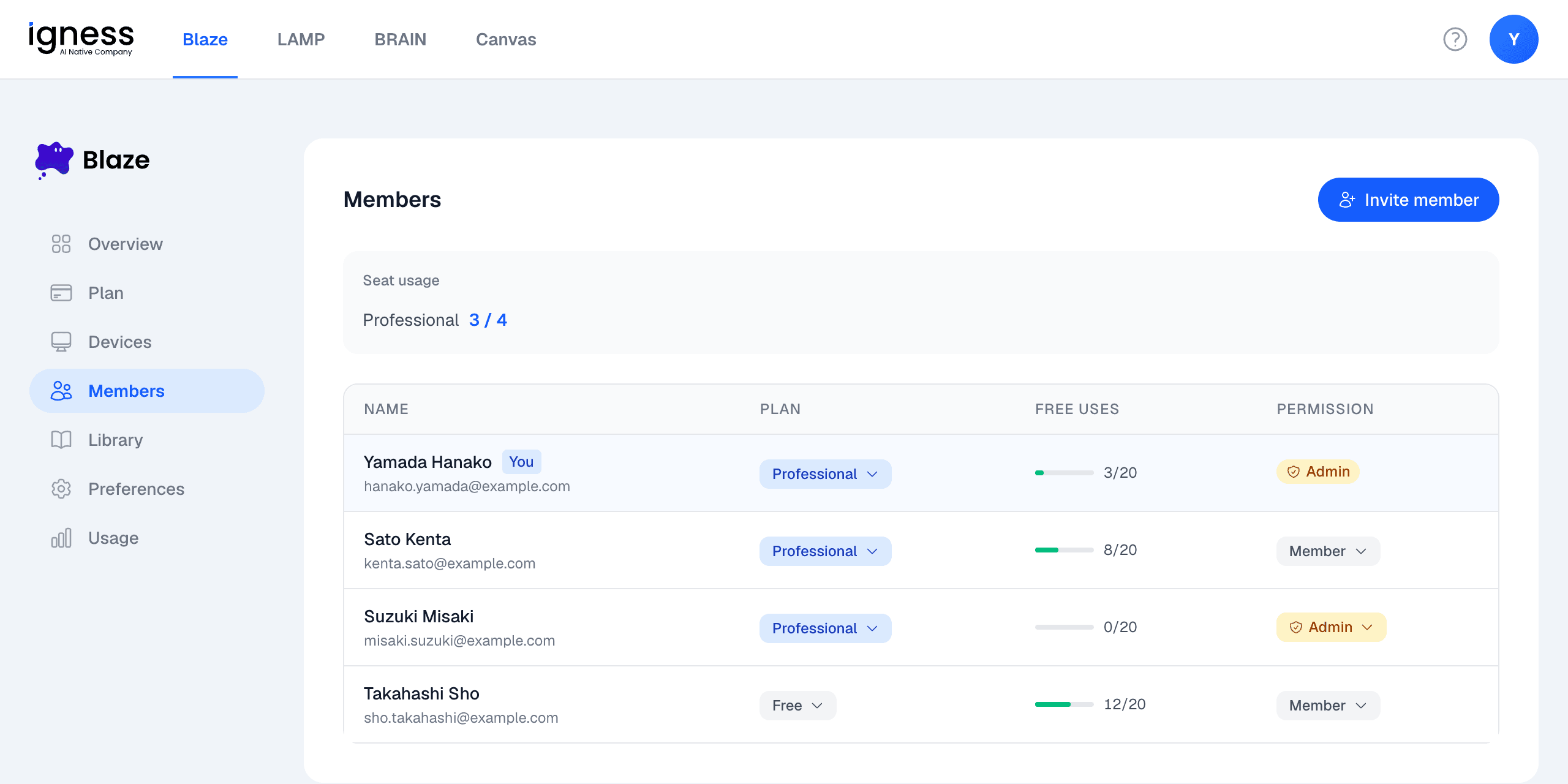
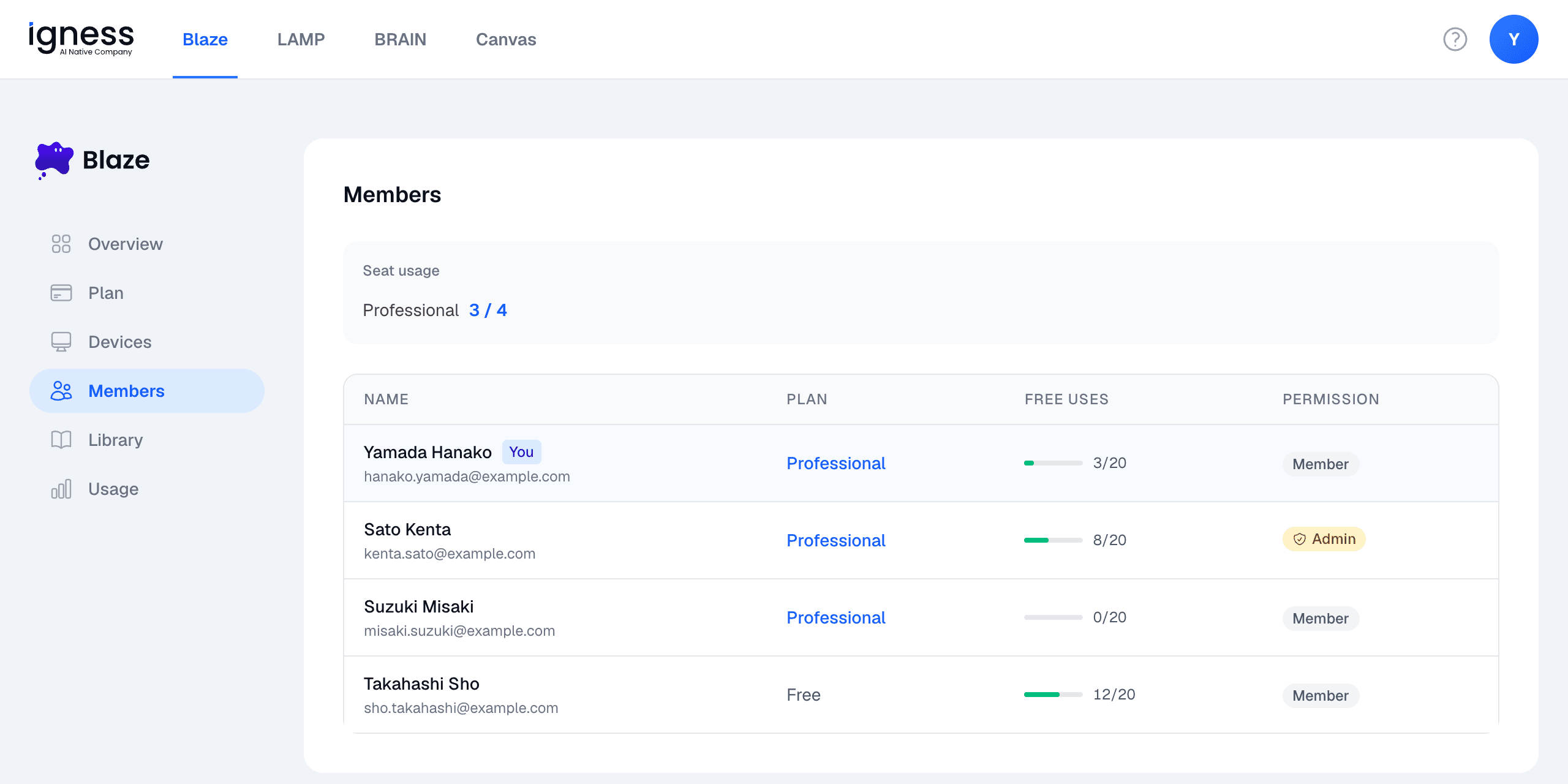
Open “Members” in the sidebar. Your role is shown in the “Permission” column of the row marked “You”.
The same screen looks different for admins and members.
Change a Role
An admin clicks the “Permission” column of the user on the “Members” screen and selects “Admin” or “Member”.
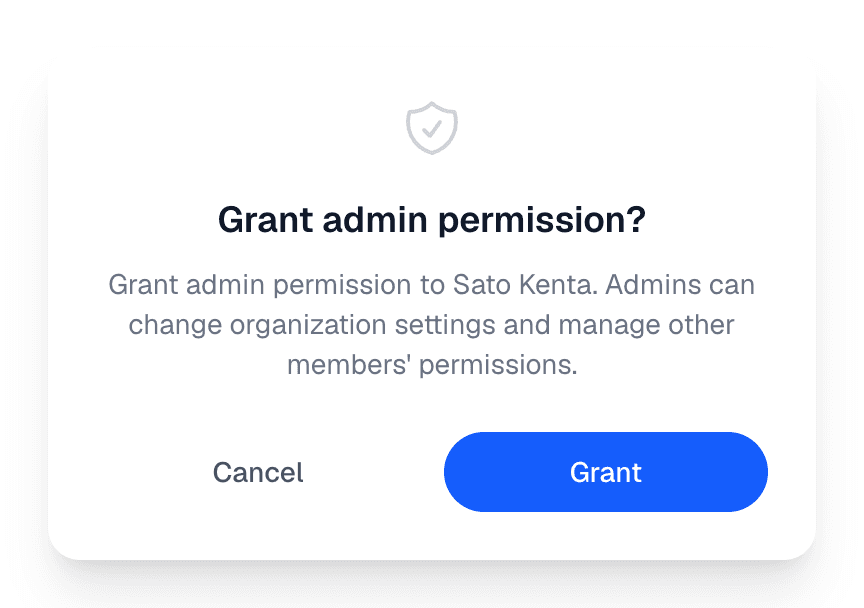
When the confirmation dialog appears, click “Grant” to make the user an admin, or “Revoke” to change them back to a member.
What Only Admins Can Do
Only admins can do the following. On a member’s screen, the buttons and menus for these actions are hidden, or the settings are view only.
| Action | For members |
|---|---|
| Invite members | Not available |
| Change members’ roles | Not available |
| Assign or remove licenses for members | Can assign a license only to themselves, when one is available |
| Delete members | Not available |
| Change the organization name and currency | View only |
| Purchase licenses, change the number of licenses, or cancel | Not available |
| View invoices and payment methods | Not available |
| Set the additional credit limit | View only |
| Change model and environment settings | The “Preferences” menu is not shown |
| Restrict access by IP address | View only |
| View the audit log | Not available |
| Permanently delete Skills and prompts in the Library | Not available |
What Both Admins and Members Can Do
- Use every feature of the Blaze app
- View the Library, add items to Blaze, and archive items
- View usage
- View the member list
For the steps for each action, see the following articles.
- Invite users to your organization
- Set Your Organization Info
- Purchase Blaze
- Manage licenses
- Credit limits and additional credits
- Model & environment settings
- Restrict Access by IP Address
- Review the Audit Log
- Managing the Library
- Cancel Blaze
Admin Settings Apply to All Members
Model and environment settings, IP address restrictions, and the additional credit limit apply to every member of the organization. Members cannot change them. If you cannot select a model you want to use, or you cannot connect, contact an admin of your organization.
You Cannot Change Your Own Role
Admins cannot change their own role to member. If you no longer want to be an admin, ask another admin to change your role.
If your organization has only one admin, first make another user an admin, then ask that user to change your role.