Managing the Library
This article covers browsing, adding, archiving, and deleting on the web account management screen. To share (upload) a Skill or prompt from the Blaze app, see Sharing and Adding from the Library. For a high-level overview, see Sharing Prompts and Skills Within Your Organization.
The “Library” screen in the sidebar lists and manages the Skills and prompts that members of your organization have shared from the Blaze app.
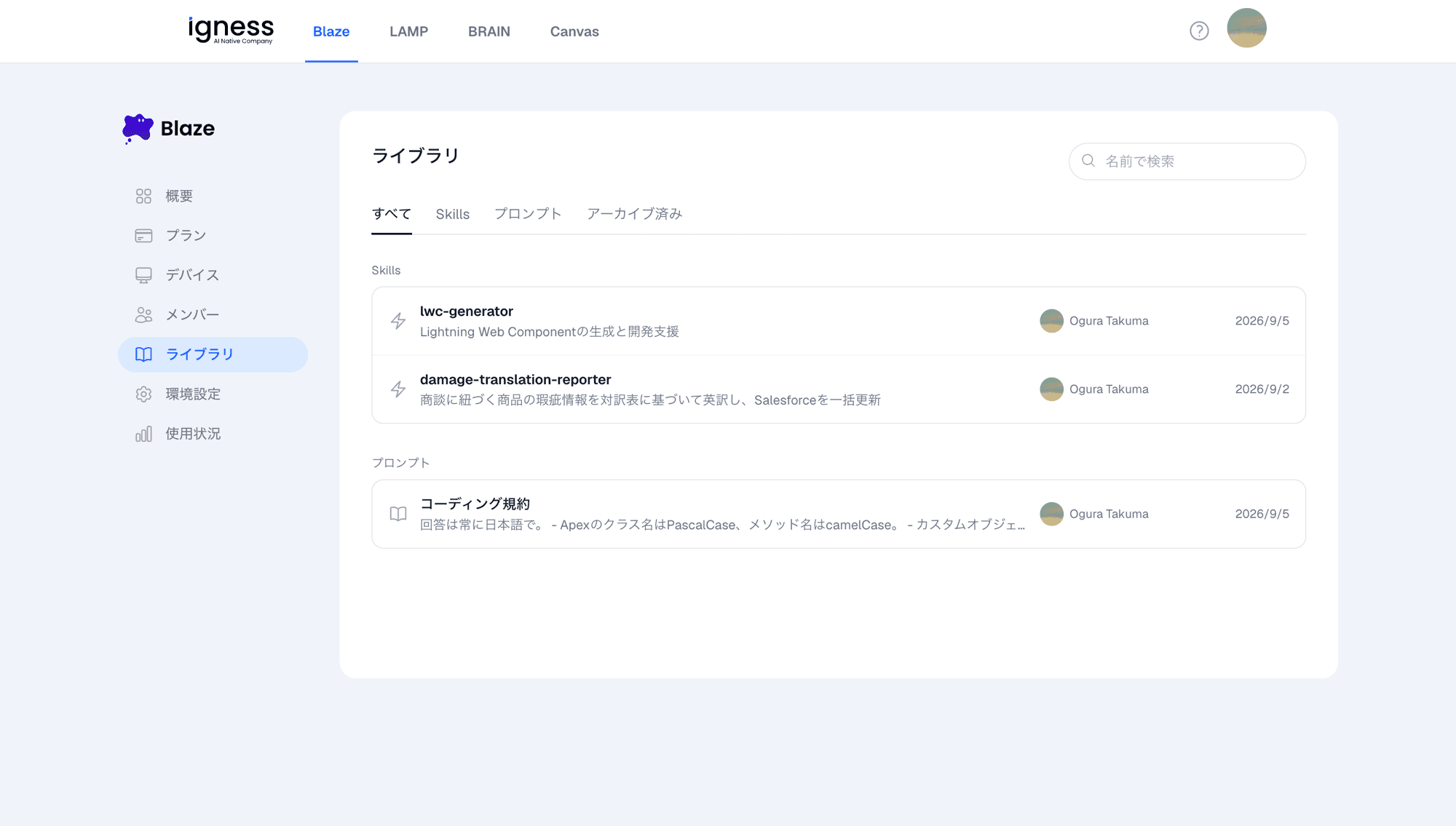
Reading the list
The list table shows the following columns.
| Column | Description |
|---|---|
| Name | The name of the shared Skill / prompt |
| Type | “Skill”, “Prompt”, or “Organization prompt” |
| Updated by | The member who last updated it |
| Updated at | When it was last updated |
Use the search box at the top to filter by name, and the “Filter by type” dropdown to switch between “All / Skills / Prompts”.
If nothing has been shared yet, you’ll see “No prompts / skills have been shared yet.” For the steps to share something from the Blaze app, see Sharing and Adding from the Library.
View details
Click a row to open its detail panel.
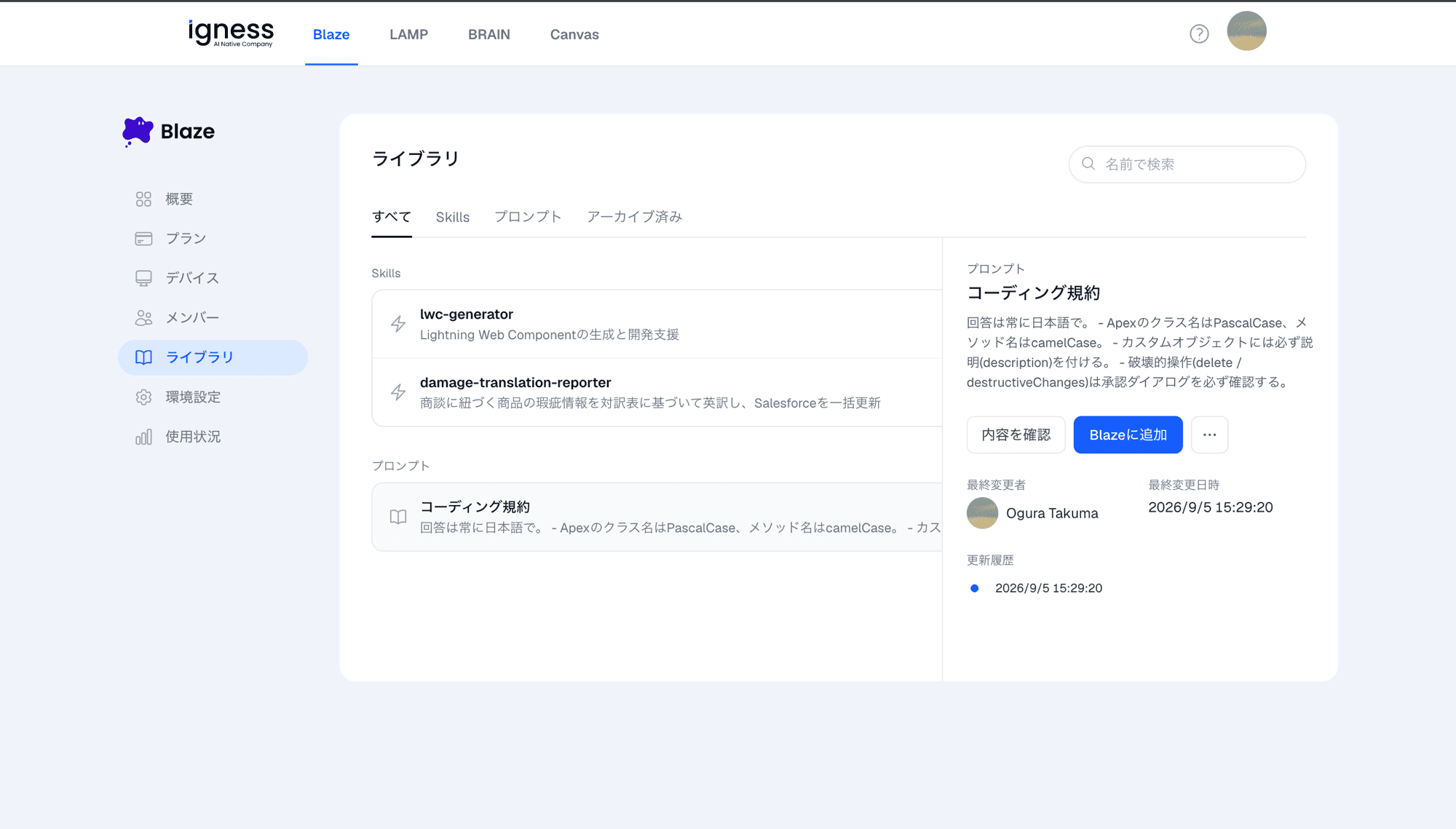
- Description, updated-by / updated-at, and update history
- “View content” for a content preview
- For an organization prompt, the “Source Salesforce org” it was shared from is also shown
Add to Blaze
Click “Add to Blaze” in the detail panel to open a confirmation dialog (name, type, last updated, updated by).
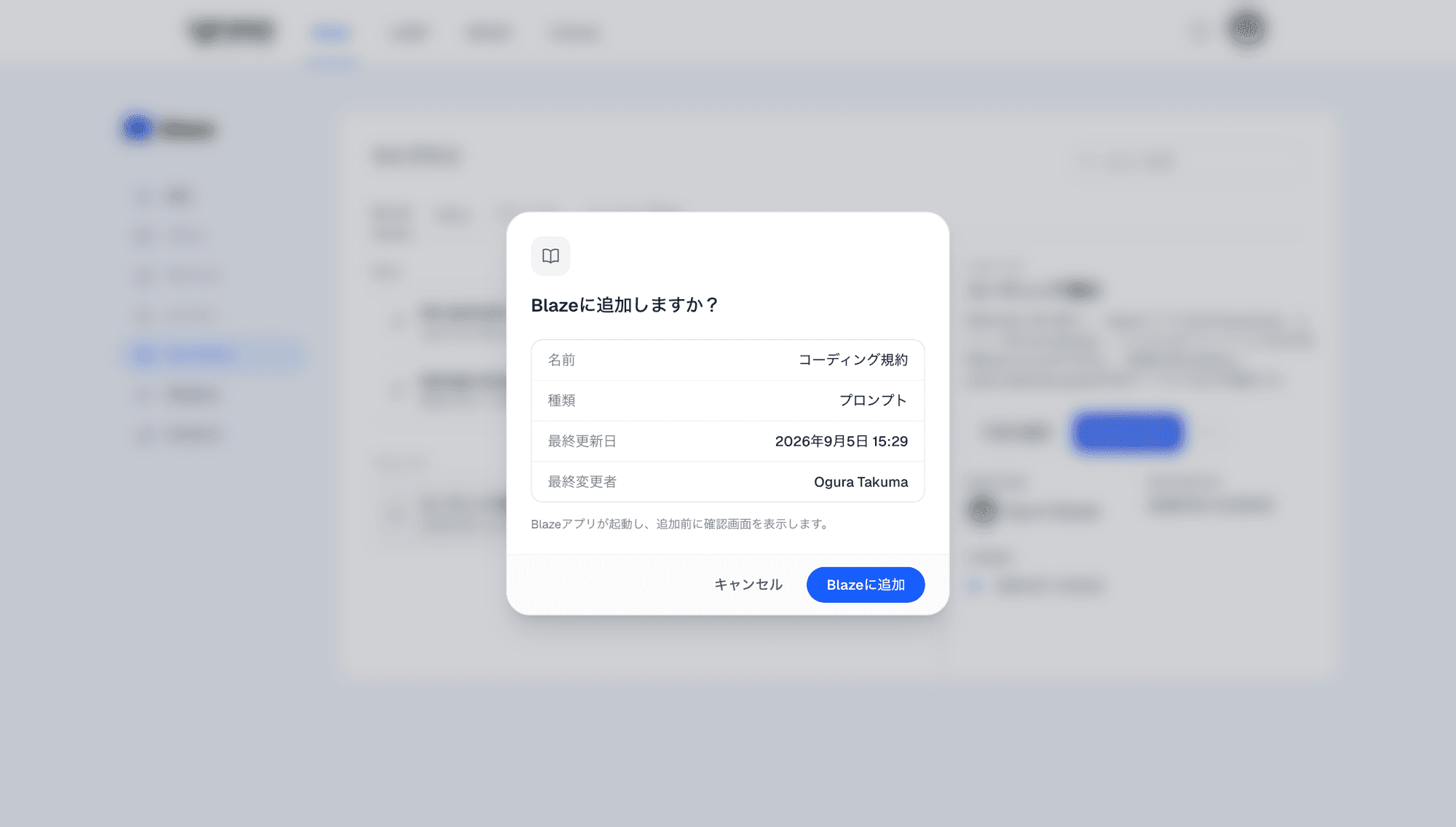
Confirming launches the Blaze app, which shows its own confirmation screen before adding it. For the app-side steps, see Sharing and Adding from the Library.
Update history and restoring a version
The detail panel’s “Update history” shows every previous update.
- Pick two versions and click “Review changes” to see a diff
- Click “Restore this version” to save the selected past version’s content as a new version (history is never overwritten)
- Restoring applies to every member of the organization
Archiving
If something is no longer needed but you want to keep its history, use the ”…” (more actions) button at the top of the detail panel, then “Archive”.
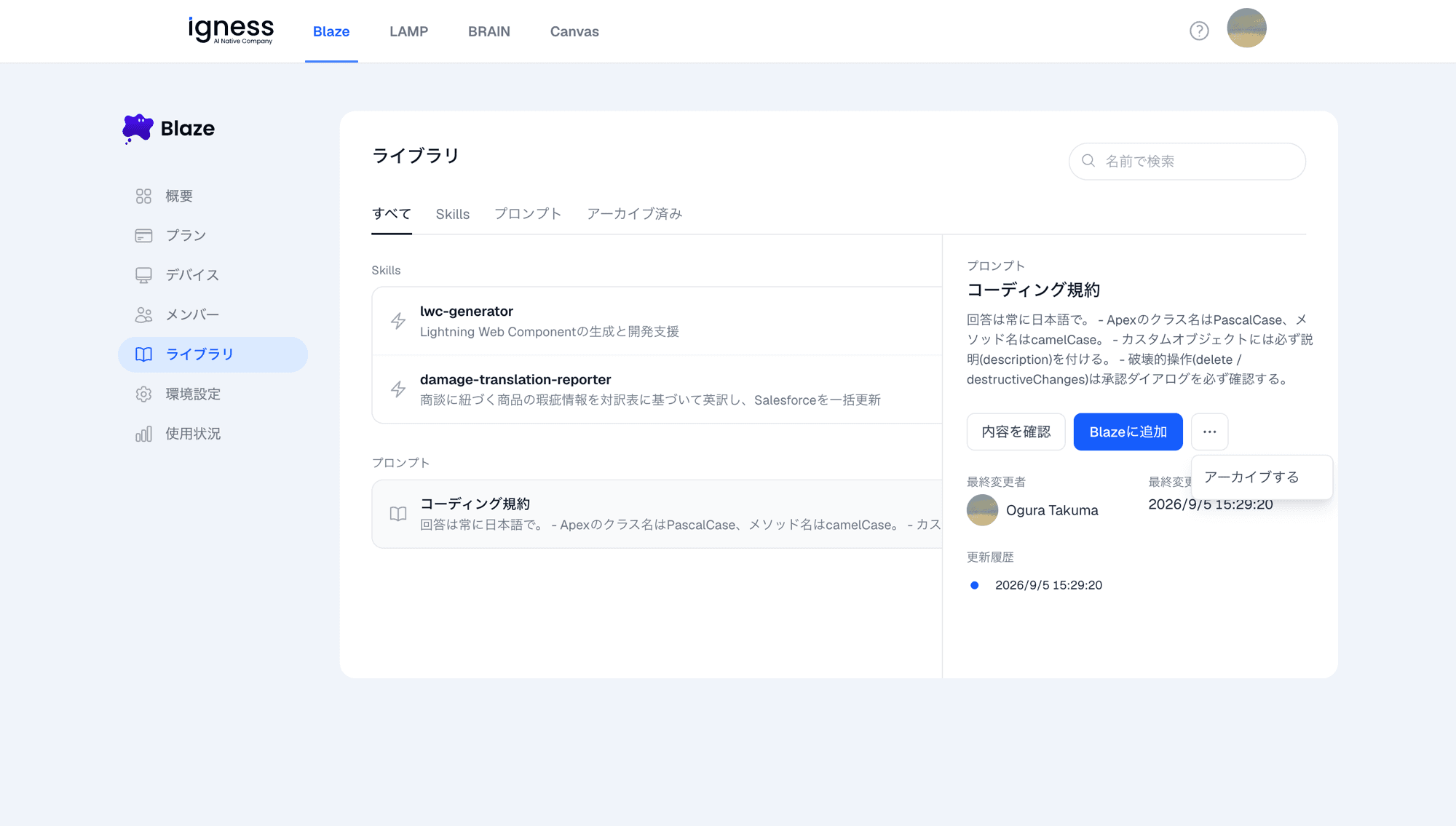
Confirm in the dialog that appears.
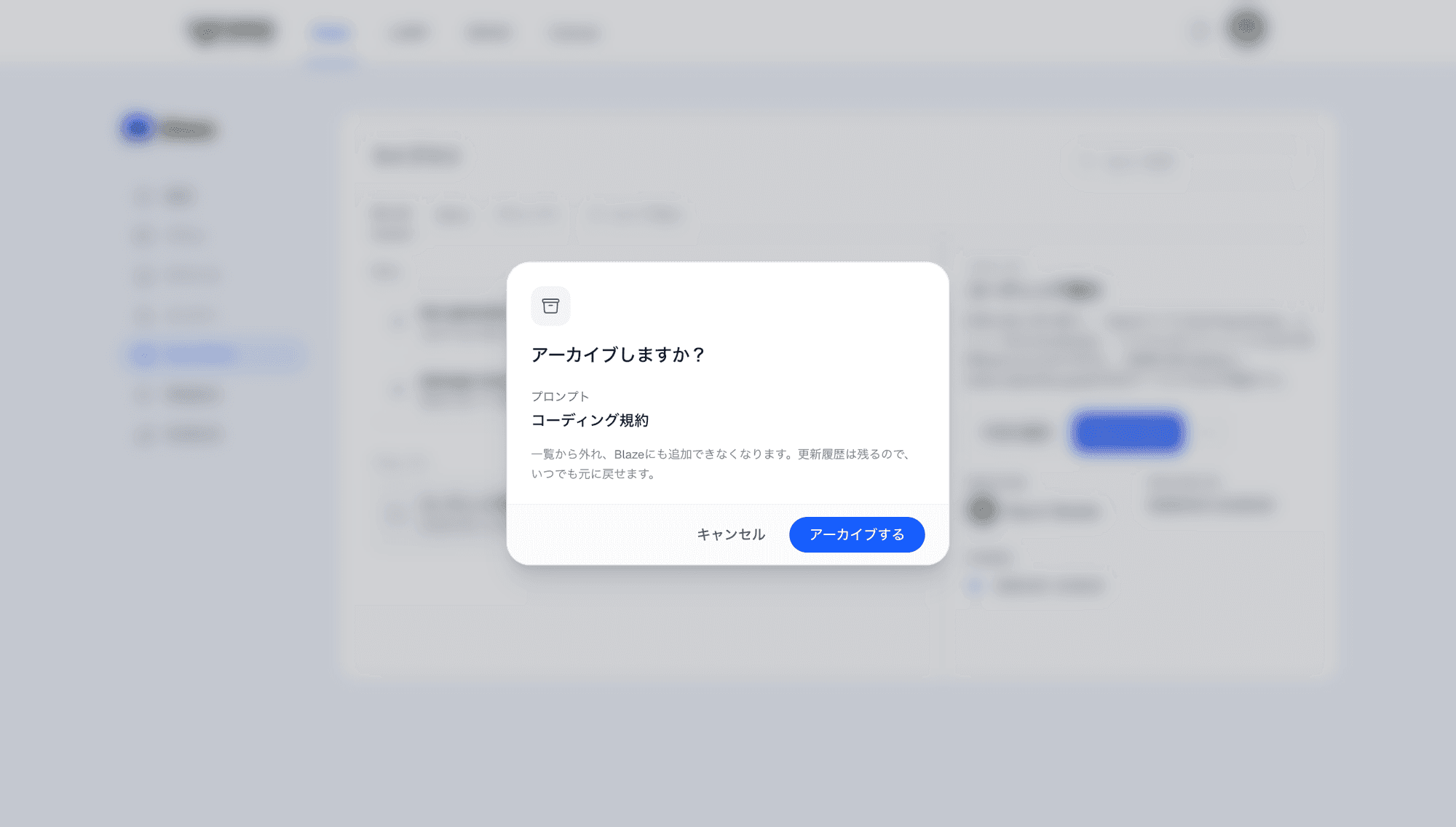
- Archiving removes it from the list and it can no longer be added to Blaze
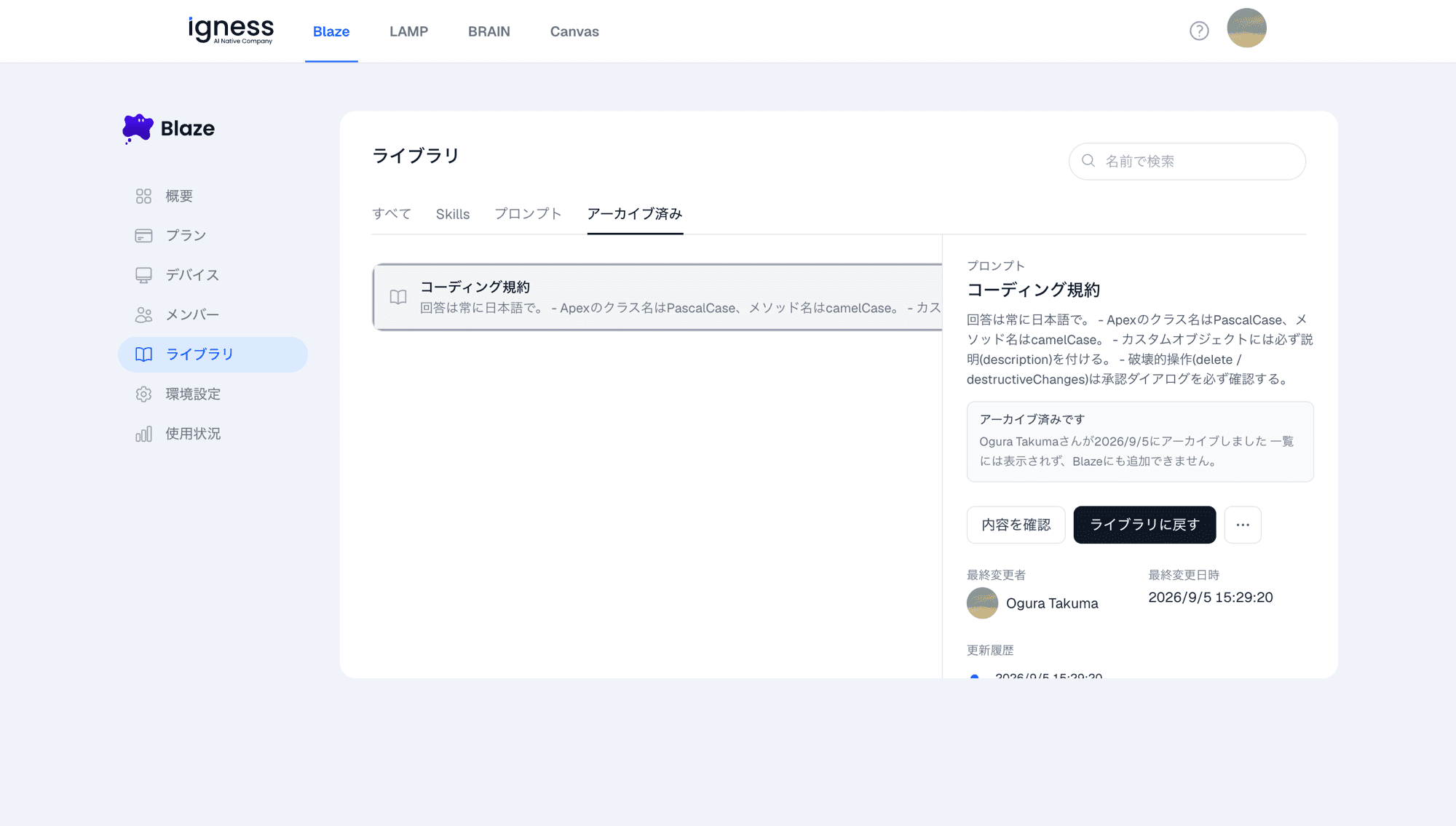
- Its update history is kept, so you can bring it back anytime with “Restore to library” in the detail panel
- Archived items can be viewed from the “Archived” tab
Permanent deletion
Once you’re sure you’ll never need it again, use the same ”…” menu, then “Delete permanently”.
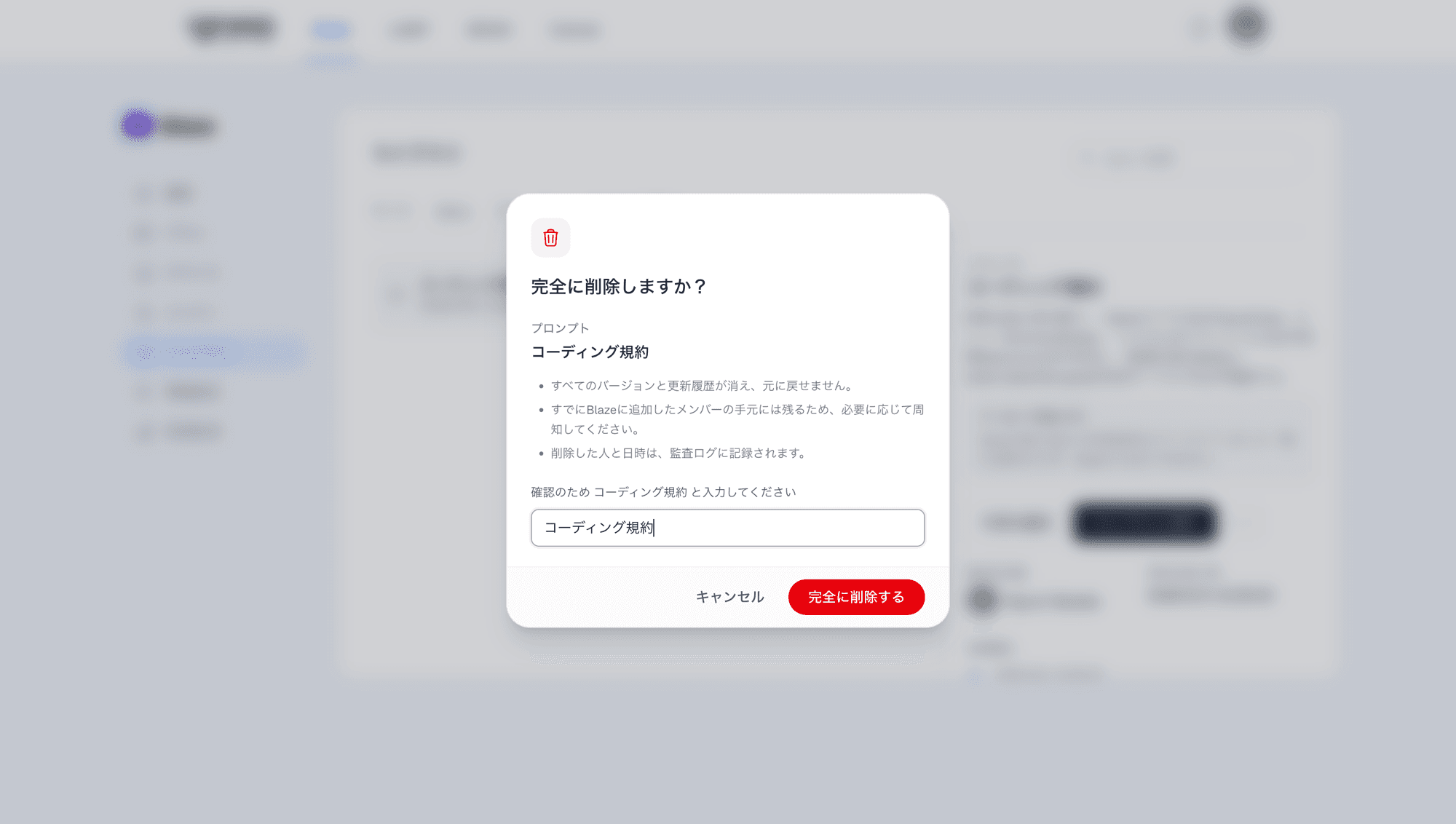
- Type the asset’s name exactly as shown, to confirm
- Click “Delete permanently” — every version and its history are gone for good, and this cannot be undone
Notes:
- Copies already added by members remain on their machines. Let them know if you need those removed too.
- Who deleted it and when is recorded in the audit log.
FAQ
Q. Archive or delete — which should I use?
When in doubt, archive first. Archiving just removes it from the list and can always be undone, while permanent deletion cannot. Only delete permanently once you’re certain it will never be needed again.
Q. “Updated by” shows “Unknown user”
This happens when the account that shared or updated it can no longer be identified — for example, if that person has left the organization. It’s not a sign of a problem.