Credit limits and additional credits
Blaze gives your organization a weekly usage allowance. When the allowance runs out, an admin decides whether AI stops or continues using additional credits.
Weekly usage allowance
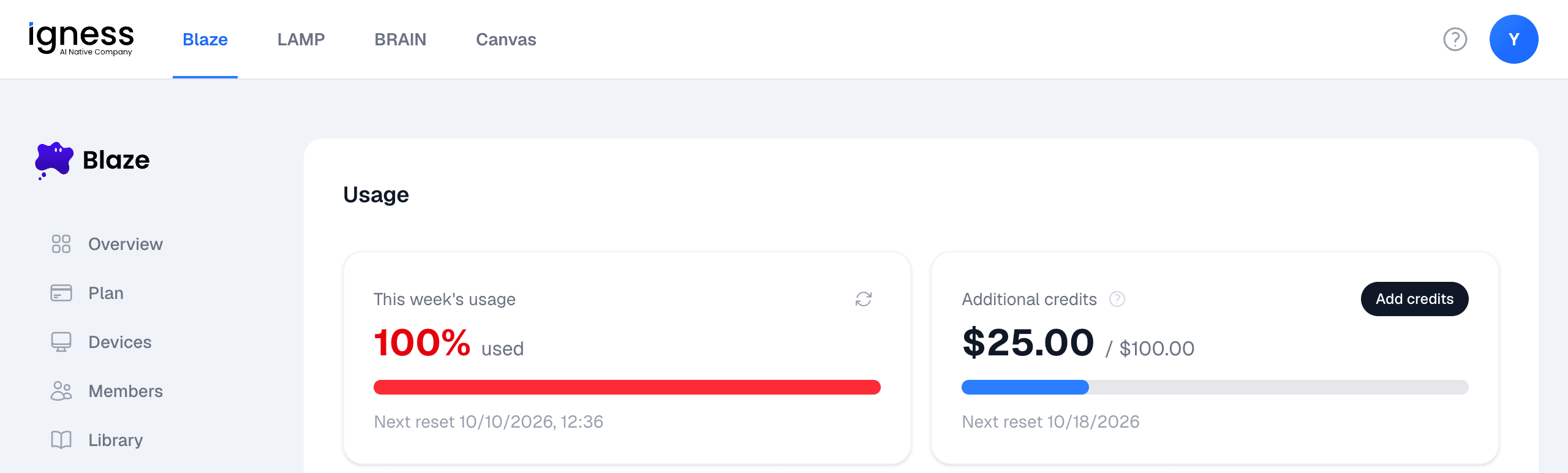
The size of the allowance depends on the number of licenses you purchased, and it is shared by all members of the organization. The allowance resets every week, and you can see the next reset date and time under “This week’s usage” on the “Usage” screen.
When the allowance runs out
By default, AI stops running for the whole organization once the allowance is used up. Credits are not topped up automatically.
The Blaze app then shows “You’ve reached your additional credit limit, so execution stopped.” Blaze becomes available again when the allowance resets the following week. To resume right away, ask an admin to set an additional credit limit.
Keep working with additional credits
When an admin sets an additional credit limit, members can keep using Blaze after the weekly allowance runs out, until that limit is reached. You are billed only for the additional credits you actually use.
The additional credit limit applies per month and resets every month. You can see the next reset date in the “Additional credits” card on the “Usage” screen. When the limit is reached, AI stops running, but it resumes as soon as an admin raises the limit.
By default the limit is 0, so no additional credits are used and AI stops running once the weekly allowance is used up.
If you signed up through a partner, you set the limit in credits instead of an amount of money.
Set the limit
Only admins can do this.
- Open “Usage” in the Blaze account portal.
- Click “Add credits” in the “Additional credits” card.
- Enter the additional amount you allow per month in “Amount to add”, then click “Save”.
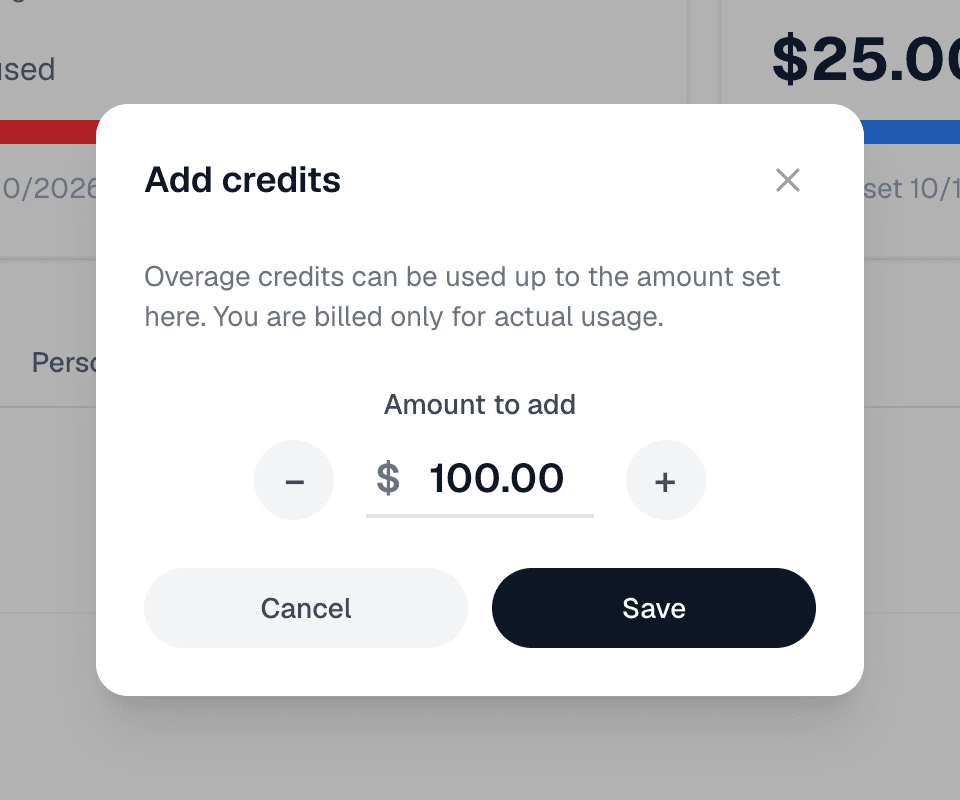
You can change the limit at any time. Setting it to 0 turns additional credits off again. Limit changes are recorded in the audit log.
Check your usage
“This week’s usage” on the “Usage” screen shows how much of the weekly allowance has been used. The “Additional credits” card shows the additional credits used this month and the limit you set. Further down the screen, you can also see usage by user, connected environment (Salesforce org), and skill, along with a history of each conversation. For details, see Check your usage.
There are no email or other notifications when you approach a limit, so please check the “Usage” screen.