Sign in & authentication
Choose a sign-in method
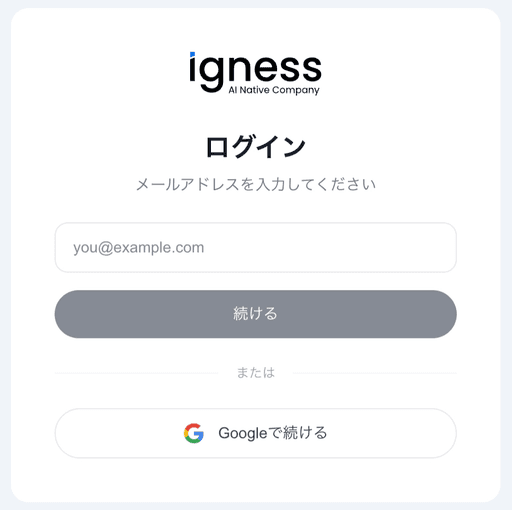
Blaze supports two authentication methods.
| Method | Description |
|---|---|
| Google account | Easy sign-in with Google OAuth |
| Sign in using a 6-digit code sent to your email address |
Sign in with Google
-
Launch Blaze and click “Sign in”.
-
A browser opens automatically and shows the sign-in screen.
-
On the sign-in screen, click “Continue with Google”.
-
Google’s sign-in page appears.
-
Pick the Google account you want to use and sign in.
-
Once you grant access, you’re returned to Blaze automatically.
-
Sign-in completes and the main screen appears.
💡 After authentication finishes in the browser, Blaze receives focus automatically.
Sign in with email
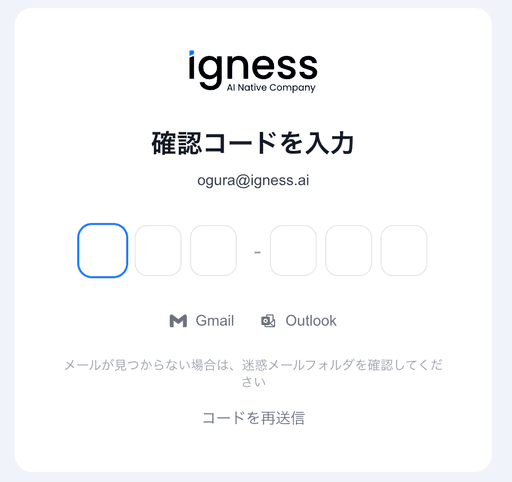
Step 1: Enter your email address
-
Click “Next” — a verification code is sent to the email address.
-
On the sign-in screen, enter your email address.
Step 2: Enter the verification code
-
Enter the 6-digit code you received by email.
-
Once you’ve typed all 6 digits, authentication starts automatically.
-
On success, you’re taken to the main screen.
💡 Pasting the verification code fills the 6-digit field automatically.
Troubleshooting
-
The sign-in screen doesn’t appear
-
Doesn’t return to the app after Google authentication
-
The verification code didn’t arrive
-
“This email is not registered” appears