Connecting and managing Salesforce orgs
Connect an org
To start using Blaze, you first need to connect a Salesforce org. Follow the steps below.
1. Open the org selector
-
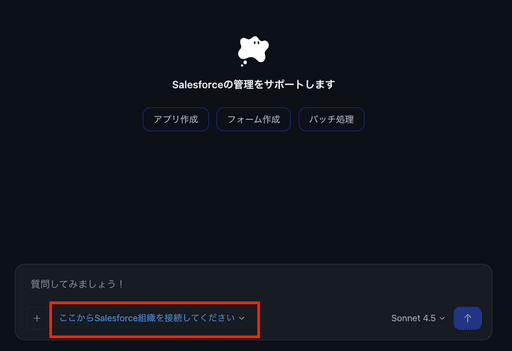
Click the org selector below the message input and choose “Connect a new org”.
-
On the first connection, click the “Connect a Salesforce org from here” button to open the connection screen.
-
You can also start a new connection from Settings > Salesforce Authentication via the “New connection” button.
2. Choose the environment

The connection screen opens. Pick one of the two environments.
| Environment | Description |
|---|---|
| Production | Connect to a production Salesforce org |
| Sandbox | Connect to a Sandbox environment for testing or development |
3. Sign in to Salesforce
-
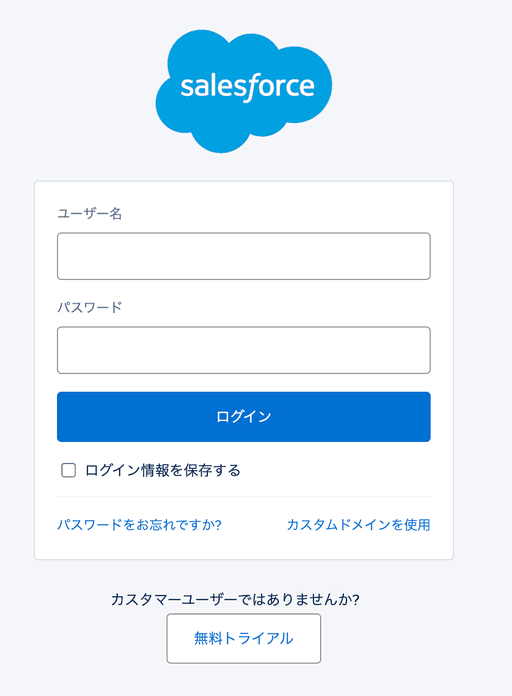
Once you choose Production / Sandbox, Blaze starts the connection to Salesforce.
-
Your browser opens automatically and shows the Salesforce sign-in page.
-
Sign in with your Salesforce username and password.
-
After you grant access, you are returned to Blaze.
-
A “Connection complete” message appears, and you can confirm the org info (username, instance URL).
-
The org is now connected.
Switch orgs
If you have multiple Salesforce orgs connected, you can switch quickly from the org selector in the sidebar.
Steps
-
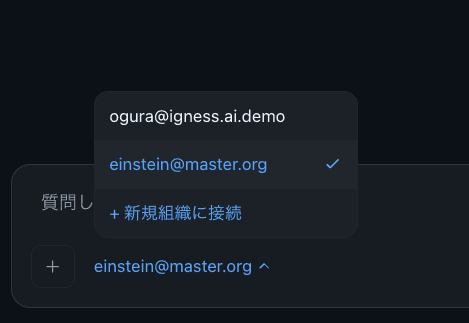
Click the current org name (username) shown at the bottom of the sidebar.
-
The dropdown lists every connected org.
-
Click the org you want to switch to.
-
“Switching org…” appears, and once finished the new org name is shown.
✅ A check mark (✓) is shown next to the currently selected org.
Manage orgs (Settings page)
Settings > Authentication shows every connected org as a card and supports the following actions.
Toggle an org on or off
The toggle on the right of each org card hides or shows that org.
-
ON (enabled): the org appears in the org selector dropdown and can be switched to.
-
OFF (disabled): the org is hidden from the dropdown but the connection itself is preserved.
💡 If you want to keep a production org connected without accidentally selecting it, switch it OFF. Turn it back ON whenever you need it again.
Disconnect an org
To remove an org completely, disconnect it.

-
Hover over an org card to reveal the trash icon.
-
Click the trash icon to open the confirmation dialog.
-
Verify the org name and instance URL, then click “Disconnect”.
⚠️ Disconnecting cannot be undone. To reuse the org you’ll need to re-authenticate. If you simply don’t want to use it for a while, switching it OFF is recommended.
Troubleshooting
Authentication times out
Authentication has a maximum time limit of 5 minutes. If it times out, close the modal and try again.
”Port already in use” appears
The port used for the OAuth redirect is being used by another application. Try the following:
- Restart your computer and reconnect
- Close other applications (such as VSCode)
- Wait for a moment and try connecting again
My org doesn’t appear in the dropdown
Check whether the org has been switched OFF on the Settings page. Orgs that are OFF are hidden from the dropdown. Toggle the switch back ON from Settings > Authentication.
FAQ
How many orgs can I connect?
There is no limit on the number of connections. You can connect as many orgs as you need, including production, Sandbox, and Developer Edition orgs.
Should I use Production or Sandbox?
- To connect to a production org → choose “Production”
- To connect to a Sandbox or development org → choose “Sandbox”
- If you’re not sure, check the Salesforce login page URL:
login.salesforce.comis Production, whiletest.salesforce.comis Sandbox.
What happens to my data when I switch orgs?
Each org’s data is managed independently. Switching orgs does not affect data in any other org.
What’s the difference between Disconnect and OFF?
- OFF: Hides the org from the dropdown only. The connection is preserved, and you can use it again immediately by turning it back ON.
- Disconnect: Completely terminates the connection to the org. To use it again you’ll need to re-authenticate from scratch.