Launcher
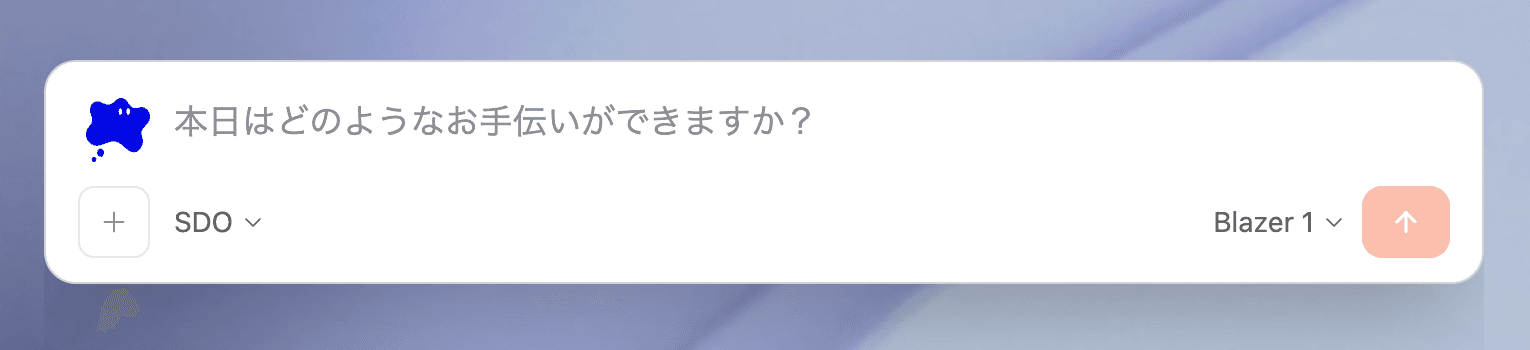
1. What is it?
A keyboard shortcut summons a small input window so you can hand a request to Blaze on the spot.
2. How to open it
A. Default shortcut
Double-tap the Control key (within 300 ms).
Note: The shortcut can be customized from the settings screen.
B. Tray icon
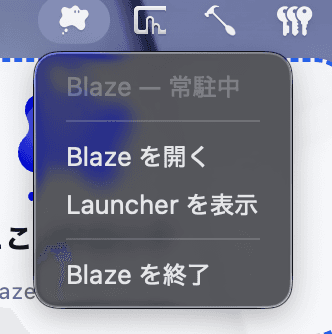
Click the Blaze icon in the menu bar (macOS) or system tray (Windows) and choose “Show Launcher”.
C. Drop a file on the Drop Shelf
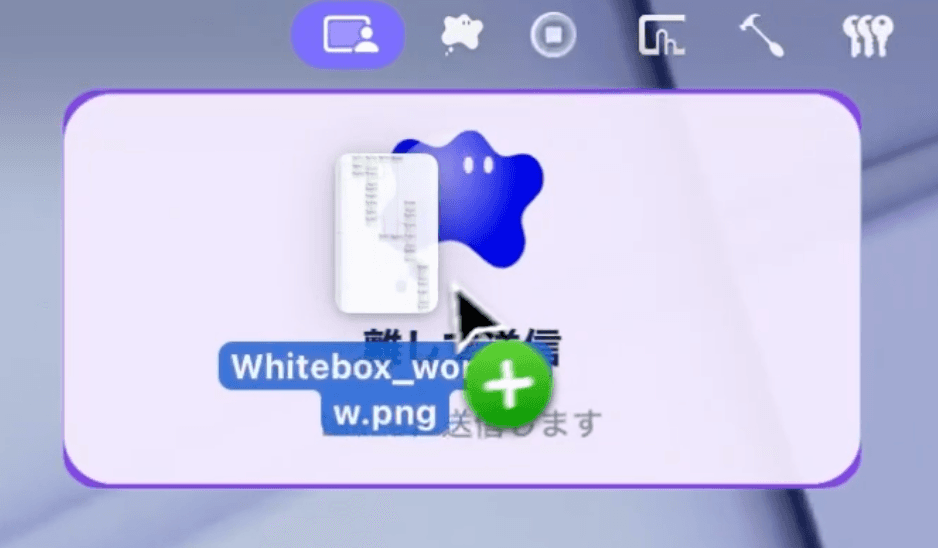
Drag a file onto the “Drop here” area near the tray to open the Launcher with the file already attached.
3. Launcher layout
-
Input field: type your message here
-
- Attach button: attach up to 5 files / images / Canvases
-
Org selector: switch the Salesforce org
-
Model selector: switch the AI model
-
Send button: click to send
4. Keyboard shortcuts (inside the Launcher)
| Key | Action |
|---|---|
| Enter | Newline |
| Shift + Enter | Send |
| Cmd / Ctrl + Enter | Send |
| Shift + Tab | Switch conversation mode (normal → approval → Requirement Mode) |
| / | Open the Skill picker |
| ↑ ↓ (while picker is open) | Navigate Skill suggestions |
| Tab (while picker is open) | Run the selected Skill immediately |
| Esc | Close the Launcher |
5. Common usage
A. Quick text request
Double-tap Control to open it, type your message, press Cmd+Enter (Win: Ctrl+Enter) to send. The AI starts working in the main window.
B. Attach files and send
-
Open the Launcher
-
Click + or drop files
-
They appear in the attachment list (up to 5)
-
Optionally add a message and send
C. Trigger a Skill with /
Type / to see available Skills in a dropdown.
Use the arrow keys to choose, then press Tab to run that Skill immediately (e.g. /release-note, /build-and-test, etc.).
D. Combine default Skill + auto-send for the ultimate Drop Shelf
In settings, set a default Skill and turn on “Auto-send when files are attached”:
-
Drop a file on the Drop Shelf and it runs without you typing anything
-
Example: drop an image and “auto OCR + summarize” runs in one action
E. Switch to Requirement Mode
Inside the Launcher, press Shift + Tab twice to switch to Requirement Mode. Great for capturing requirements right after a meeting.
6. Settings (Settings → Launcher)
Every option can be tuned in the “Launcher” section of the settings panel.
Open shortcut

-
Click “Change shortcut” and press any combination to record it
-
Single-key double-taps (e.g. double-tap Shift) are also supported
-
While recording, “Recording… (Esc to cancel)” is shown
-
“Reset to default” returns the original shortcut
Auto-send on attach

-
Turn on “Auto-send when files are attached” to fire immediately, without typing or clicking send
-
A default Skill must be configured
-
Examples: images → “OCR + Markdown”, PDFs → “summarize + extract”
-
Choose which Skill to run when files are attached
Background behavior
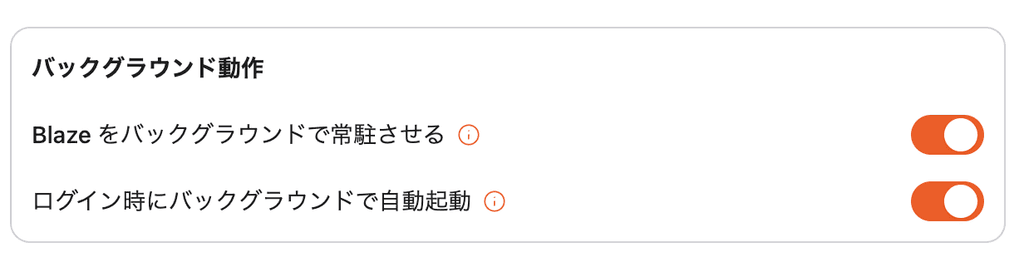
- ✅ Keep Blaze running in the background
→ Even after closing the main window, the Launcher keeps running
- ✅ Auto-launch in the background at sign-in
→ As soon as your PC starts, the shortcut is ready
7. FAQ
Q. How is this different from the main window?
The Launcher is a small window for sending requests. You browse and manage conversation history in the main window. Anything sent through the Launcher flows into a thread in the main window automatically.
Q. Does it interfere with the main window’s running task?
The Launcher runs as an independent window/process, so it never blocks Blaze.
Q. The shortcut doesn’t work
Another app (Alfred / Raycast, etc.) or an editor that uses Control heavily may be conflicting. From the settings panel, switch to a different key (e.g. double-tap Shift, Ctrl+Alt+Space).