Requirement Mode
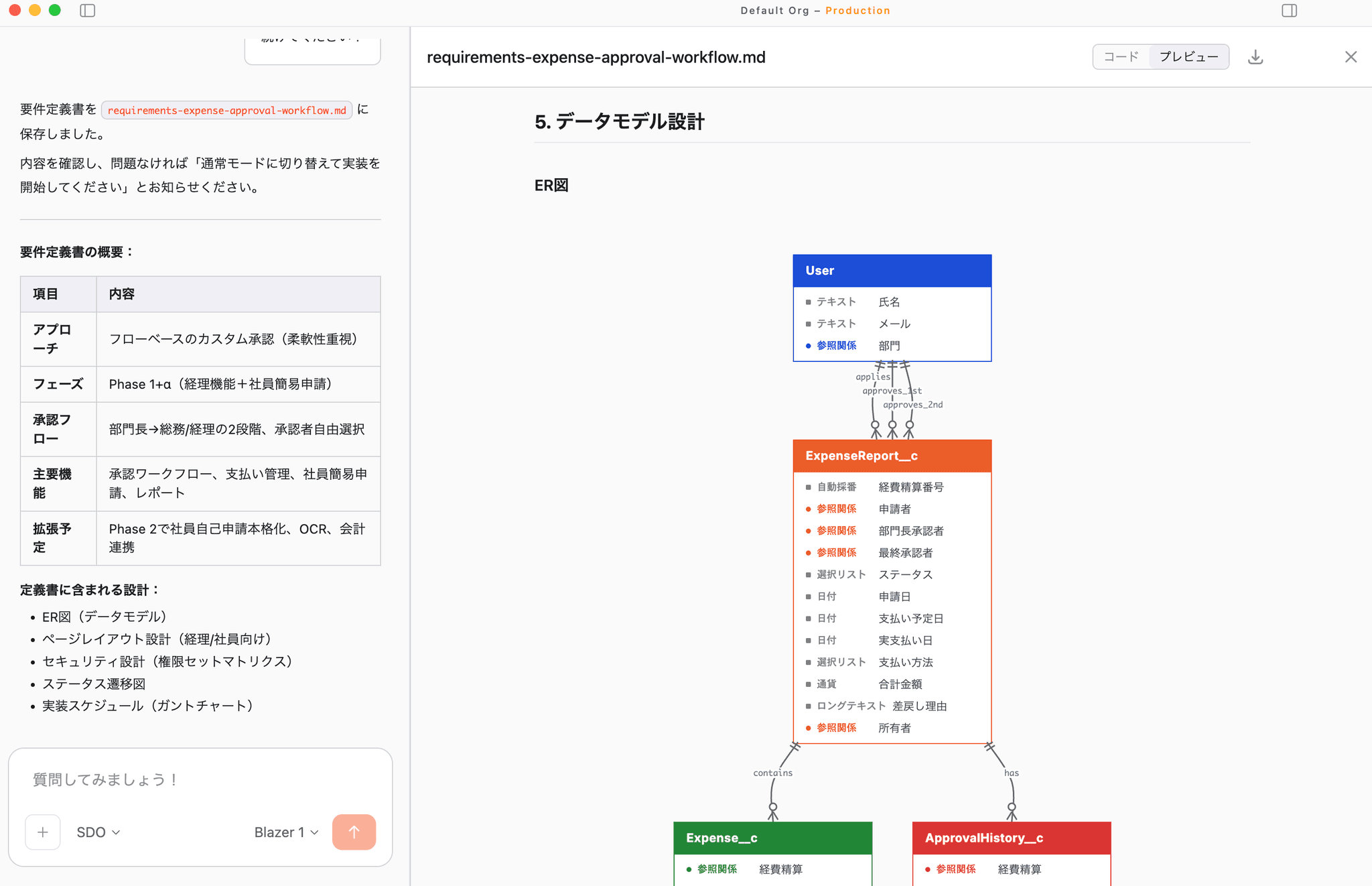
1. What is it?
Requirement Mode switches Blaze into an “agent that draws out and documents requirements”.
-
The preparation stage before customer interviews
-
Turning meeting notes into clean requirement documents
-
Documents to align understanding across vendors
-
Drafts for RFPs and proposals
This mode is purpose-built for the upstream phase before any code gets written, so you can move forward with the AI as a partner.
Differences from normal mode
| Aspect | Normal mode | Requirement Mode |
|---|---|---|
| Purpose | Implementation, investigation, automation | Organizing and documenting requirements |
| Available tools | All tools | Limited (AskUserQuestion / Write / Read / Glob / Grep / Docs / read-only Bash) |
| Output | Code, metadata, execution results | Requirement documents (Word / PDF / Markdown) |
| Behavior | Applies changes immediately | Drills down with questions, then documents |
| Diagrams | None | Mermaid diagrams supported (flow, ER, etc.) |
Tools are intentionally restricted, so destructive operations against your org are blocked. You can focus safely on interviewing and documentation.
2. How to enter it
Switch conversation modes with Shift + Tab
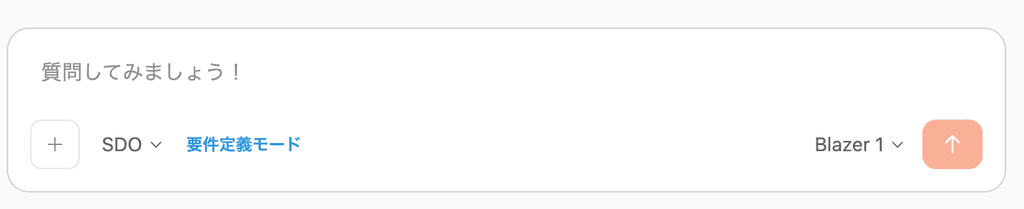
In the main window or Launcher, press Shift + Tab to cycle through conversation modes.
Press Shift + Tab again to return to approval / normal mode.
3. The 5-step basic workflow
Step 1. Enter the mode
Press Shift + Tab twice to enter Requirement Mode.
Step 2. Tell Blaze what kind of requirement document you want
Examples:
“I want to improve sales opportunity management in Salesforce. Draft a requirement document.”
“Looking at the existing Account / Opportunity, organize the requirements for the lead conversion flow.”
Step 3. Answer the AI’s questions
Blaze interviews you about:
-
Business assumptions
-
Stakeholders
-
Mandatory / optional requirements
-
Existing systems and constraints
-
What should be out of scope
…simply answer in turn and the requirements get organized.
Step 4. Review and refine the draft
Blaze produces a complete requirement document. Refine it with follow-up instructions like:
-
“Add a section here”
-
“Make the non-functional requirements more concrete”
-
“Draw an ER diagram”
You can iterate as many times as you need.
Step 5. Export the document
Choose a format from the “Download” menu in the conversation panel.
| Format | Use case |
|---|---|
| Customer delivery, internal approval, printing | |
| Word (.docx) | When the customer will edit it / standard SI format |
| Markdown (.md) | Paste into GitHub, Notion, or an internal wiki |
Specify a filename and location in the save dialog and you’re done.
4. What’s inside the output
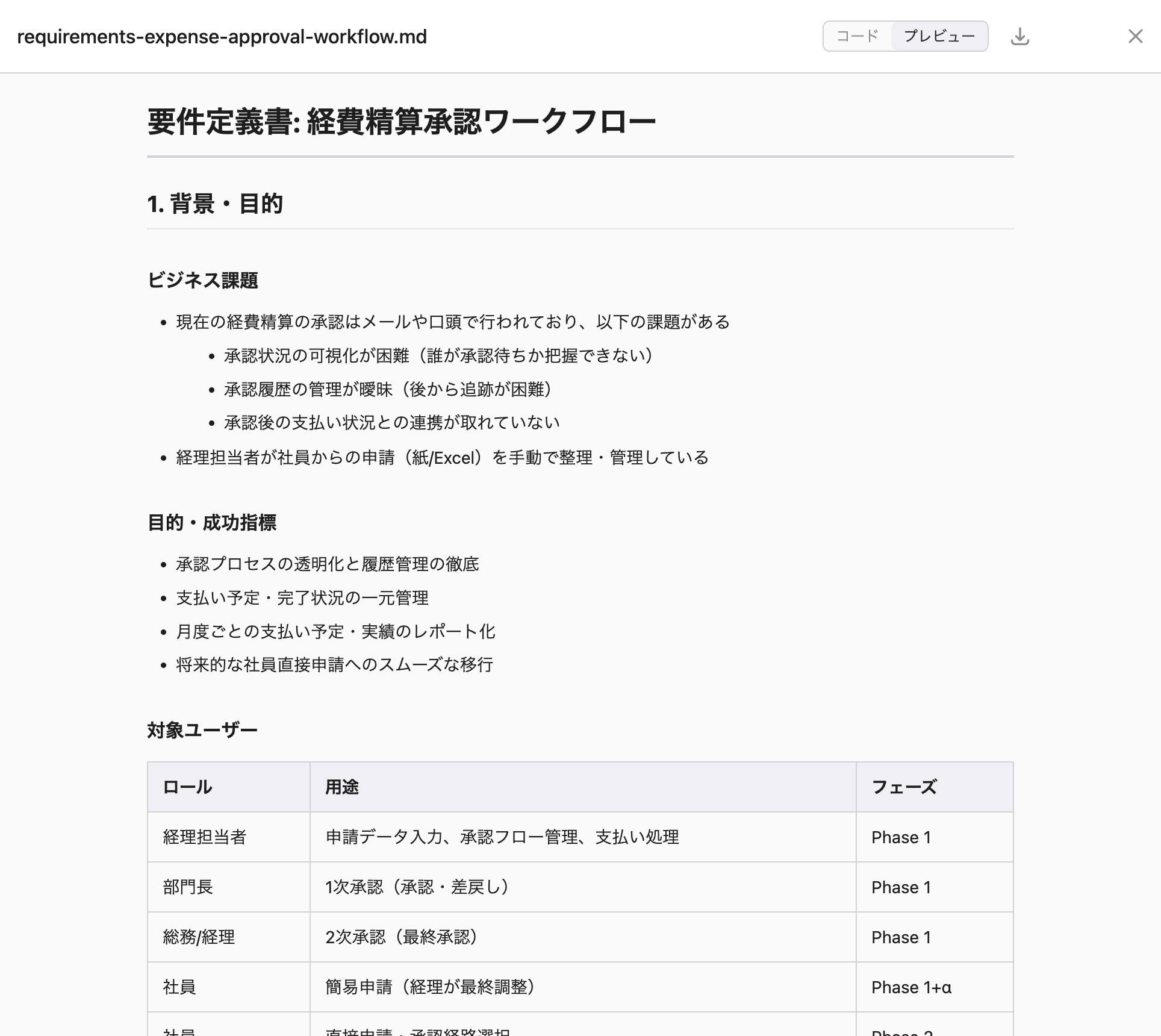
Output from Requirement Mode is tuned for print-ready / deliverable-quality documents.
5. Common patterns
A. Turn a wishlist into concrete requirements instantly
Take notes during a meeting → paste into Requirement Mode afterwards → let the AI format it → ship as Word. Wishes turn into specs immediately.
B. Drafting an RFP / proposal
Tell Blaze the goal, KPI, scope, and constraints, and you get a proposal-format outline in 5 minutes.