Download Blaze (Mac)
First-time download

Fill out the form on the official site and create an account.
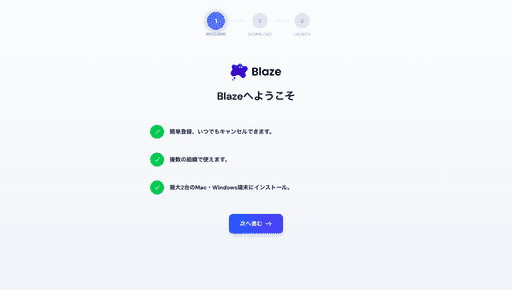
Once your account is created you’ll see this screen.
Click “Continue”.
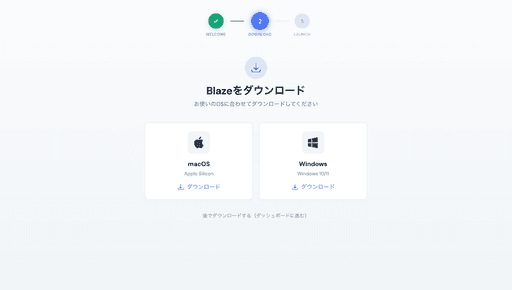
Click “macOS”. Blaze starts downloading.

When the download begins this screen appears.
Open the Blaze .dmg file from your Downloads folder by double-clicking it.
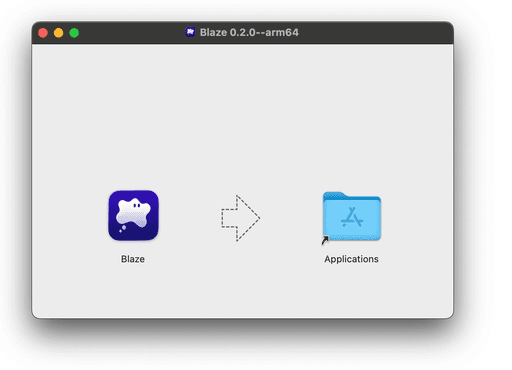
Opening the dmg shows a window like the one below.
Drag Blaze into the Applications folder, then launch it.
If you use Blaze through your organization
[Admin steps]
The administrator creates an invitation link to provision users.

From the Blaze account console members page, click “Invite member”.
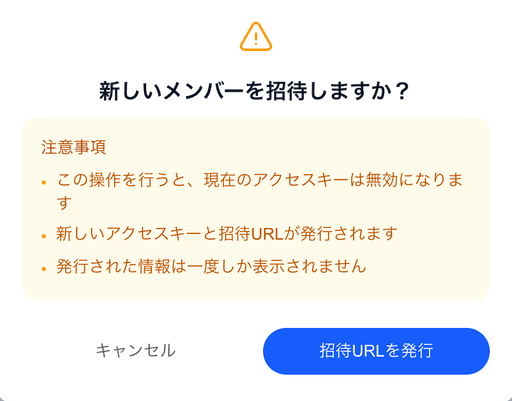
A dialog opens. Click “Generate invite URL”.
An invite URL is generated. Copy it and share with the members you want to invite.
[New-user steps]

Clicking the URL from your administrator opens this screen.
-
If you already have an account:
-
Sign in with email or Google authentication.
-
If you don’t have an account yet:
-
Click “Create account” at the bottom of the screen.
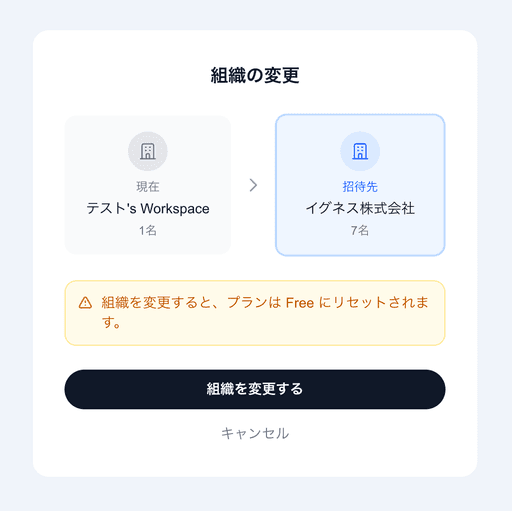
After signing in or creating a new account, you’ll see this screen.
Click “Switch organization”.

When this screen appears, your organization account is ready.
Click “Go to dashboard”.
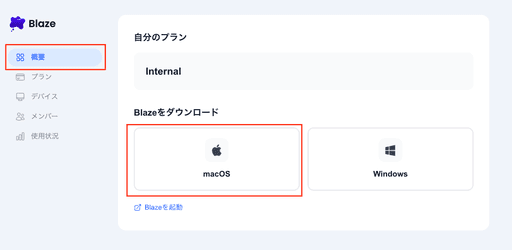
You’ll be taken to this screen.
In the “Overview” tab, click the “macOS” icon to download the Blaze installer.

The latest version of Blaze is downloaded.
If you see this screen, you’re good to go.
Open the downloaded dmg file. A window like this appears.
Drag Blaze into the Applications folder, then launch it.