Run commands automatically with Hooks
Hooks allow you to run custom commands automatically at specific moments, such as when you send a message or when Blaze finishes responding. For example, you can send a Slack notification when a task completes, or run a validation script before executing certain tools.
Security Note Hook commands run directly on your computer with your user permissions, without an approval prompt. Only add hooks and scripts whose contents you trust.
Add a hook
You can create a hook simply by describing what you want to do in natural language through chat.
- Click your profile icon at the bottom left, choose Settings → Hooks, then click Add at the top right.
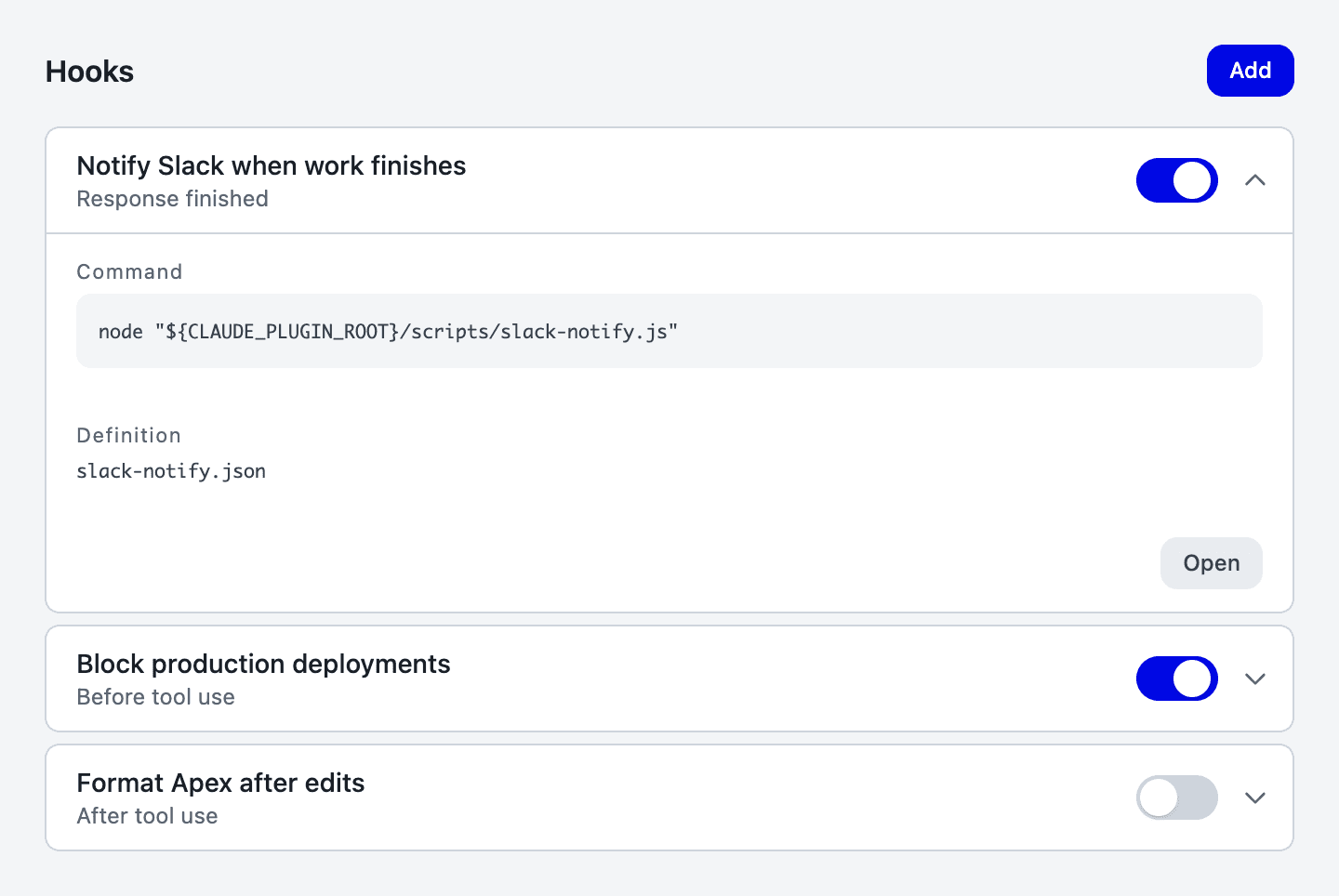
- Settings closes, and
/hook-creatoris automatically filled into the chat input. - Describe when and what you want to run, then send the message.
/hook-creator Notify Slack when a response finishes- Blaze automatically creates the necessary definition file and script (if additional information like a Slack webhook URL is needed, Blaze will ask you in the chat).
- Once created, the new hook appears in the Hooks list in Settings.
When hooks can run (Events)
Hooks run in response to specific actions and events in Blaze.
| Label | When it runs |
|---|---|
| Message sent | After you send a message, before Blaze begins processing |
| Before tool use | Right before Blaze executes a tool (e.g., file edits or terminal commands) |
| After tool use | Immediately after a tool succeeds |
| Tool failed | Immediately after a tool fails |
| Waiting for your input | While Blaze is waiting for your approval or answer |
| Response finished | When Blaze completely finishes its response |
| Subagent finished | When a subagent completes its work |
| Ended with an error | When a response ends with an error |
Notes
- Hooks trigger based on events inside Blaze. They cannot be scheduled for specific times (e.g., every morning at 9:00 AM) or triggered directly by external services (e.g., incoming webhooks).
- Hooks do not run while Blaze is closed.
Manage hooks
In Settings → Hooks, click any hook in the list to view its command and definition file.
| Action | How it works |
|---|---|
| Turn on / off | Use the switch on the right side of the row (inactive hooks will not run). |
| View definition | Open the row and click Open to view the definition file in the in-app browser. |
| Modify a hook | Ask Blaze to modify it in chat, or edit the definition file directly. |
Control behavior with exit codes (Block or retry)
When a hook command exits with code 2, you can block Blaze from proceeding or feed the text from standard error (stderr) back to Blaze as a reason to continue or revise its work.
| Timing | Behavior with exit code 2 |
|---|---|
| Message sent | Stops the message from going to the AI, and displays the reason on screen |
| Before tool use | Cancels the tool execution, and sends the reason to Blaze |
| After tool use / Tool failed | Appends the reason to the tool result passed back to Blaze |
| Response finished / Subagent finished | Sends the reason back to Blaze and has it continue working (up to 8 times) |
- Other exit codes: If a command exits with code
0(success) or any code other than2, fails to start, or exceeds the timeout, Blaze continues its normal flow without stopping. - Timeout limit: Unless specified, the execution timeout limit is 600 seconds.
Edit a definition file directly
For advanced customization, you can directly create and edit definition files.
Storage and format
Definition files are saved in ~/.blaze/hooks as individual JSON files per hook. Blaze supports hooks with the command type.
{
  "description": "Notify when a response finishes",
  "hooks": {
    "Stop": [
      {
        "hooks": [
          {
            "type": "command",
            "command": "node \"${CLAUDE_PLUGIN_ROOT}/scripts/notify.js\"",
            "timeout": 30
          }
        ]
      }
    ]
  }
}${CLAUDE_PLUGIN_ROOT}: A built-in environment variable pointing to the hooks directory (~/.blaze/hooks). You can use it to specify script paths.- Automatic reload: Blaze reloads definition files whenever an event occurs, so changes take effect immediately on the next execution without restarting the app.
Event names in definition files
Specify execution triggers using the following event names in your JSON file:
| Label | Name in definition file |
|---|---|
| Message sent | UserPromptSubmit |
| Before tool use | PreToolUse |
| After tool use | PostToolUse |
| Tool failed | PostToolUseFailure |
| Waiting for your input | Notification |
| Response finished | Stop |
| Subagent finished | SubagentStop |
| Ended with an error | StopFailure |
Troubleshooting
If there is an issue with a hook definition, an error appears in the list and the hook will not run until fixed. Follow the guide below based on the error message:
| Error | Cause and solution |
|---|---|
| Invalid JSON | The definition file is not valid JSON. Open the row, click Open, and check for trailing commas or mismatched braces { }. |
| “hooks” must be an object | The definition file is missing the "hooks" key or it is not formatted as an object. Update it to match the structure in the example above. |
| Only events that Blaze does not support are defined | The definition file contains event names not supported by Blaze. Replace them with valid event names from the table above. |