Connect Marketing Cloud Engagement
Connect Marketing Cloud Engagement to request work from Blaze. This connection is a beta feature.
Your administrator prepares the connection, then you sign in from Blaze.
Prepare to connect
Ask your administrator for the MCP URL, the URL used to connect. If you do not have it yet, share Prepare the connection as an administrator with them.
Connect from Blaze
1. Choose the app
Click your profile at the bottom-left of Blaze, then open Settings → Connections.
Under Add apps, search for Marketing Cloud Engagement and click Connect for that app.
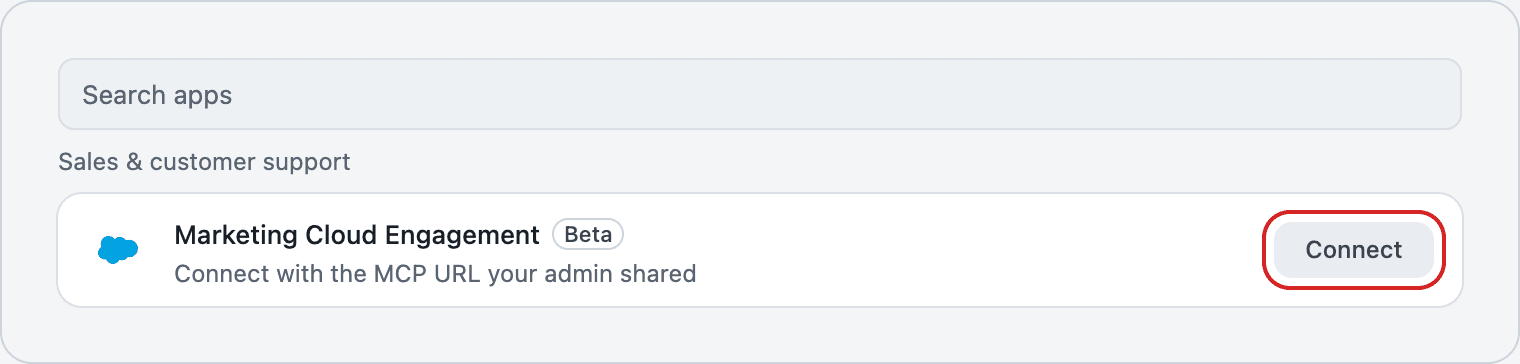
2. Enter the connection URL
Paste the URL into MCP URL shared by your admin, then click Sign in with browser.
The URL in the image is a sample. Use the URL shared by your administrator.
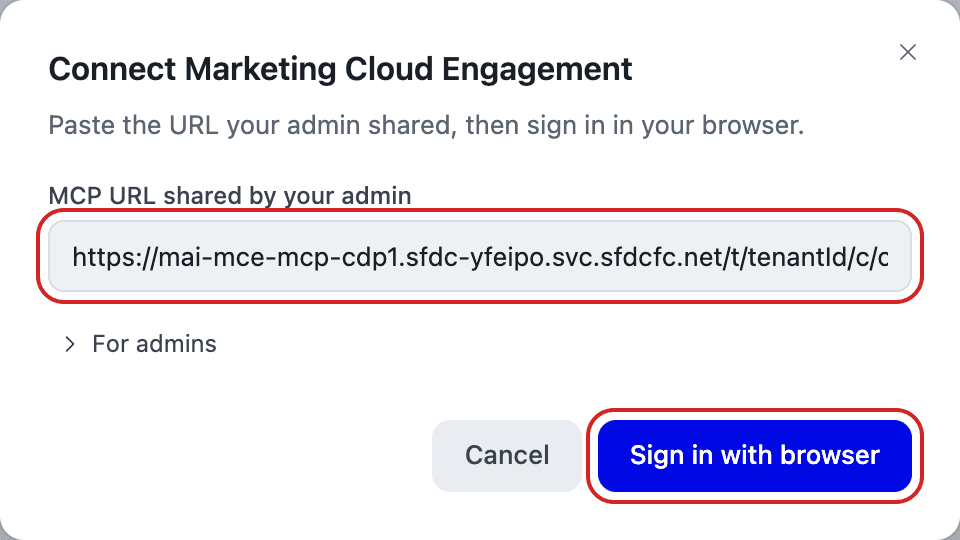
3. Sign in and check the connection
Sign in to Marketing Cloud Engagement in your browser and follow the prompts to authorize the connection.
Return to Blaze. When Marketing Cloud Engagement appears under Connected, setup is complete. You can now request work in a conversation. Available operations depend on the permissions your administrator configured.
Prepare the connection as an administrator
- Follow the official Salesforce setup guide to configure Marketing Cloud Engagement.
- Share the MCP URL for connecting an AI assistant from the guide with your users.
If you cannot connect
- The URL does not work: Ask your administrator to check the connection URL.
- You closed the sign-in page: Click Open again in Blaze.
- You see Sign-in required: Click Sign in again.
See Connecting External Apps for disconnecting or temporarily disabling an app.