Configure desktop notifications
Blaze sends desktop notifications when a task finishes and also when it pauses for your input, such as approval or an answer to a question. You can turn these notifications on or off separately.
Open notification settings
Open the profile menu at the bottom-left, then select Settings → General.
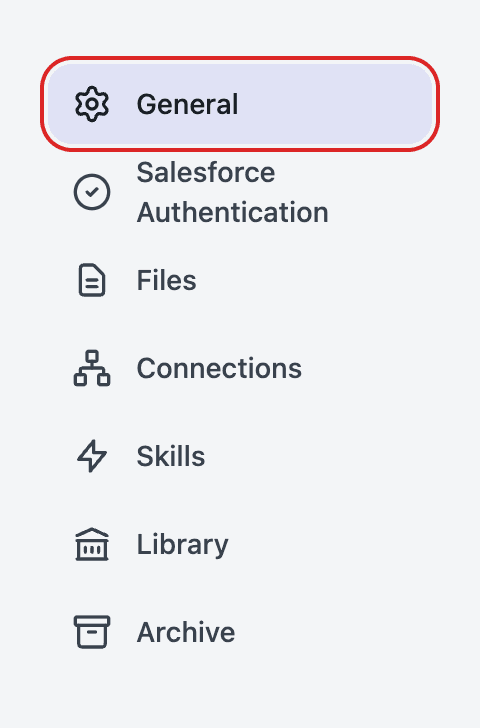
Scroll to Notifications. Turn on the notifications you want to receive, or turn off the ones you do not need.
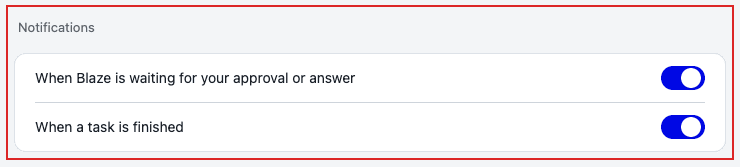
Choose when to receive notifications
| Setting | When it notifies you |
|---|---|
| When Blaze is waiting for your approval or answer | When Blaze pauses because it needs your input, such as approval for an action or an answer to a question. |
| When a task is finished | When the task running in a conversation finishes successfully. |
Both are on by default. If you previously turned off task completion notifications, that setting is preserved.
Open a conversation from a notification
A notification shows “Approval needed”, “Blaze has a question”, or “Task finished”, along with the conversation name. Click the notification to open Blaze and switch to that conversation.
Notifications are suppressed while Blaze is in the foreground and you are viewing the relevant conversation. They appear when you are viewing another conversation or Blaze is not in the foreground.
If notifications do not appear
Check that the notification setting is on in Blaze. Also check that macOS or Windows allows notifications from Blaze, and that Focus or another notification suppression mode is not silencing them.