Change keyboard shortcuts
You can review Blaze keyboard shortcuts in Settings and change them to the keys you prefer.
Change a key
Open your profile at the bottom left, then choose Settings → Shortcuts.
Use Search actions at the top to filter the list.
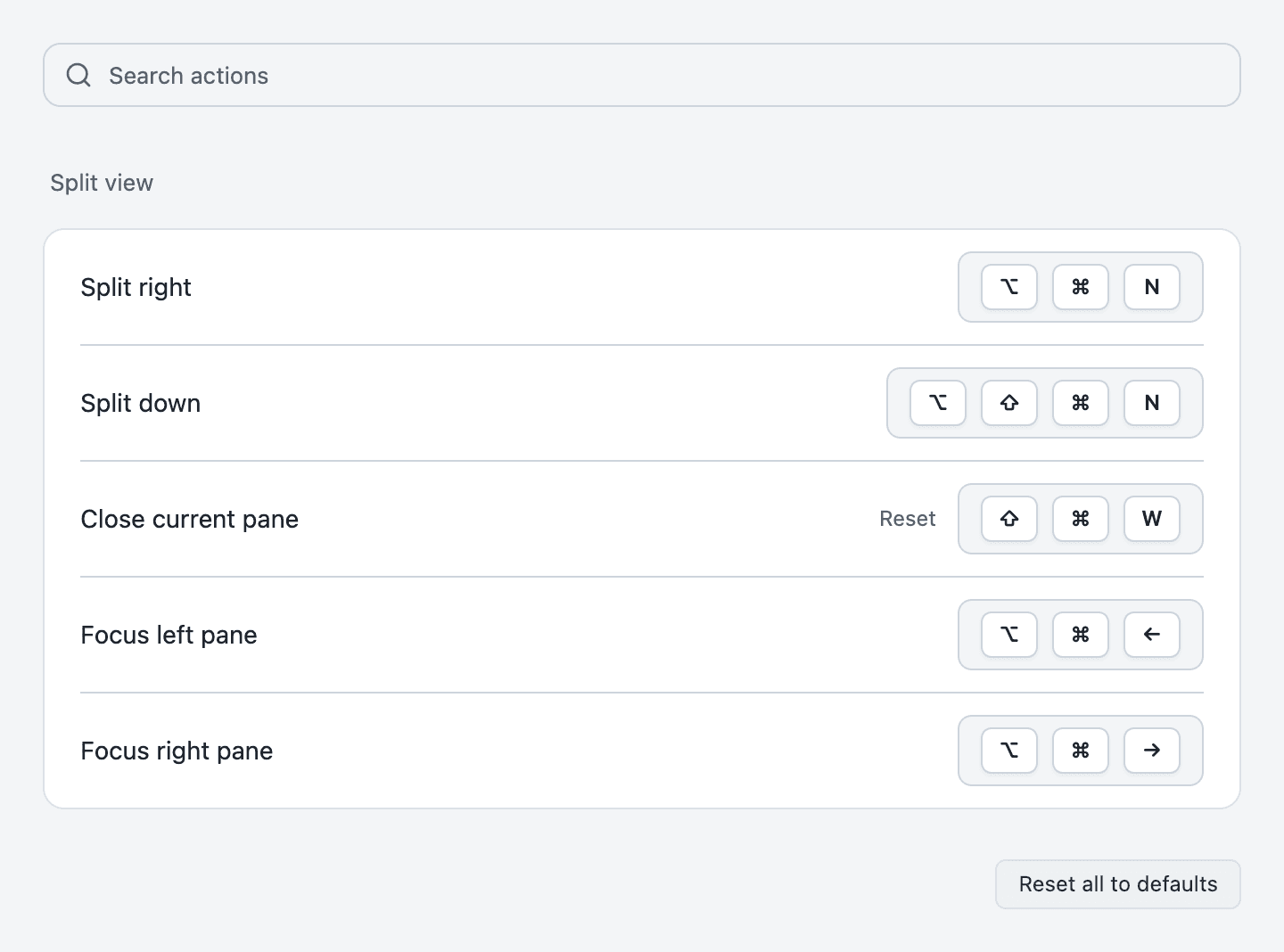
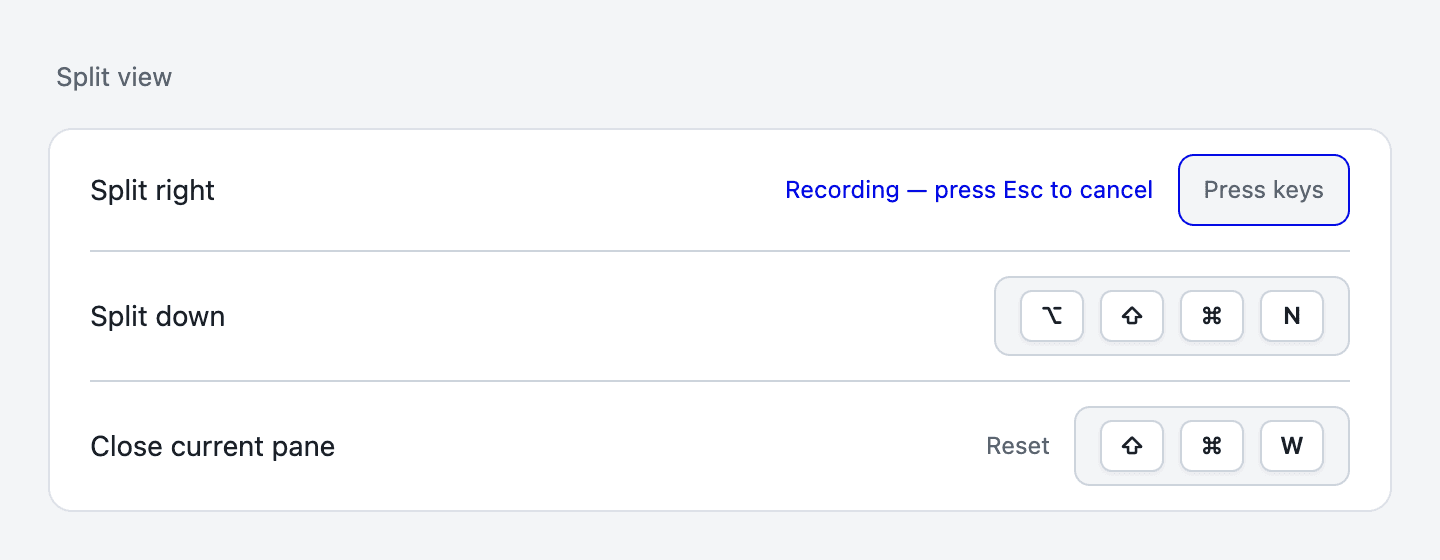
Click the key box to the right of the action and press the keys you want to use.
The change is saved automatically when you release the keys (press Esc to cancel).
Reset or remove a key
| Task | How |
|---|---|
| Restore one action | Click Reset to the left of the key box (only appears for actions you changed). |
| Remove a key | Click × at the top right of the key box (the key becomes “None”). |
| Restore everything | Click Reset all to defaults at the bottom (click Undo in the prompt to revert). |
When keys conflict
If you assign a key that another action already uses, Conflicts with “name”. appears.
- Priority: The action assigned most recently takes priority.
- Scope: In-app browser keys and other keys are checked separately.
Where shortcuts are saved
Changed keys are saved to ~/.blaze/keybindings.json. Blaze also applies edits you make directly to this file.