v0.7.0 : Update notes (2026/05/30)
💡 Thank you for using Blaze!
1. Change Management BETA
Help docs are here.
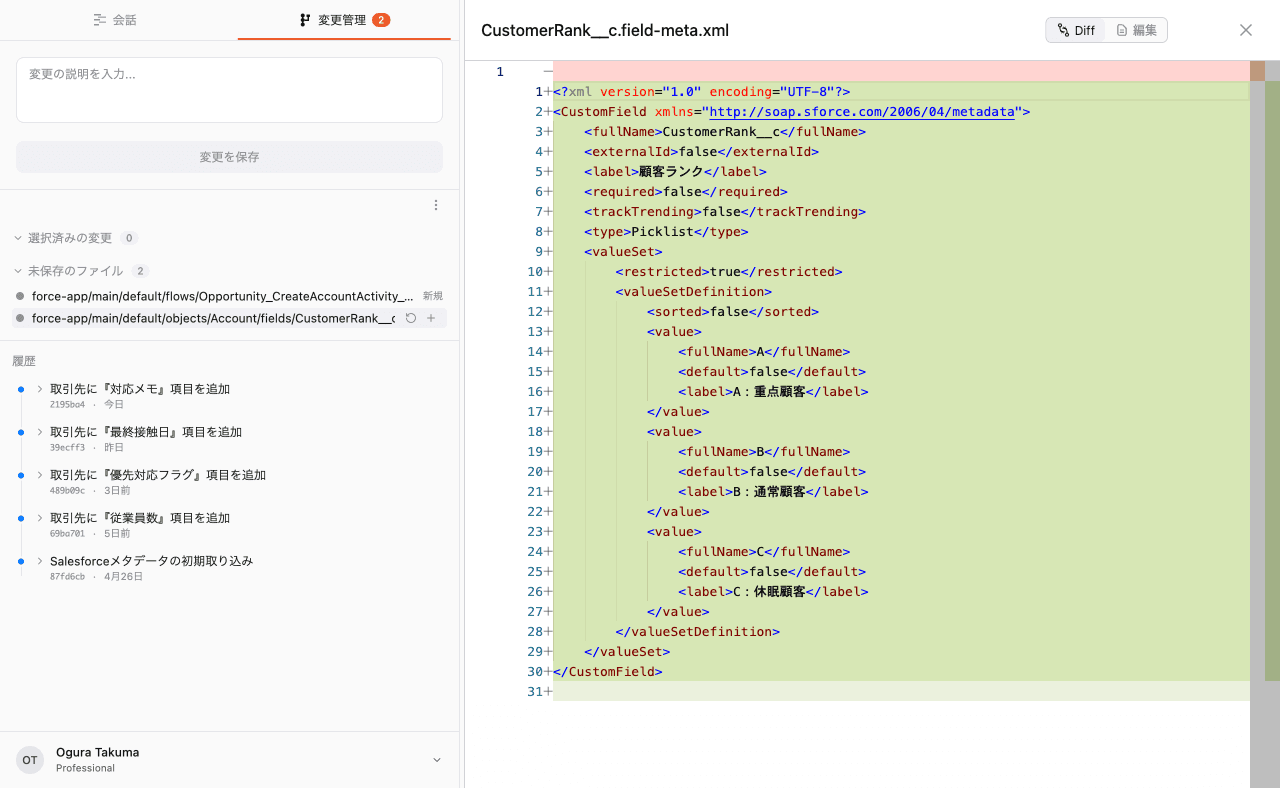
⚠️ Change Management is currently in beta. The core features are in place, but we are still refining it. We recommend trying it out first in a low-impact org such as a Sandbox, rather than in production.
A new feature that tracks the changes Blaze makes, so you can review them and roll them back anytime.
Until now, after the AI edited several files it could be hard to tell what actually changed, or how to get back to an earlier state. Now the “Changes” tab shows you the list of changed files and their diffs at a glance.
-
No setup required: everything Change Management needs is bundled with Blaze. Just press “Start Change Management” and you are ready to go.
-
See it, pick it, save it: click a changed file to view its diff. Select only the changes you want, add a note, and save them to your history.
-
Roll back to an earlier version: from the change history, choose “Revert to this version” to return to that point in time. Because it is reversible, you can experiment with confidence.
2. Reverting a version also updates your org
“Revert to this version” applies not only to your local files but also to the connected Salesforce org.
-
A check before you commit: Blaze validates whether the change can be safely applied and shows you the result before running it.
-
Guidance for manual steps: for things that cannot be reverted automatically (such as flows and certain settings), Blaze clearly tells you what to do.
-
Restored on failure: if something goes wrong midway, Blaze is built to restore the state from before you started.
3. Pull Changes from Salesforce
You can now pull changes made on the Salesforce org side — edits by other members, changes in the Setup screen, and so on — into your Blaze workspace.
-
See which metadata changed, when, and by whom.
-
Choose what you want to bring in and apply it. You can review the diff right there.
-
When your local edits and the Salesforce-side changes disagree, that is surfaced too, so you avoid accidentally overwriting work.
4. Other improvements
-
Resize the side panels freely: drag the divider to any width, and double-click to snap back to the default.
-
Dark mode for diagrams: ER diagrams, flowcharts, and state diagrams now render clearly in dark mode.
-
Default file view: files that support a preview now open in preview mode first.
-
A tidier sidebar: the scrollbar now appears only while you scroll.
-
Quick access to the Help Center: added a link to this Help Center from the user menu.
-
Better stability: when the same kind of error repeats, Blaze now stops early to avoid wasteful retries.
5. Added Claude Opus 4.8
You can now use Claude Opus 4.8, the latest flagship model in the Claude family, in Blaze.
With even stronger reasoning and a large context window, it takes on large, intricate Salesforce work with confidence — a dependable choice when you want to think a design through, dig into research, or push a complex implementation through in one go.
6. Bug fixes
-
Fixed an issue where file and folder names containing Japanese characters or emoji were not handled correctly.
-
In the Launcher, Shift+Enter now inserts a newline, matching the main window.
-
Made auto-scroll smoother while a response is streaming in.
-
Fixed rendering failures on certain diagram syntaxes.
-
Fixed several issues on Windows around Salesforce integration and file handling.
-
Strengthened safety (added protection so that unintended content cannot be executed in rendered views).