Custom Prompt
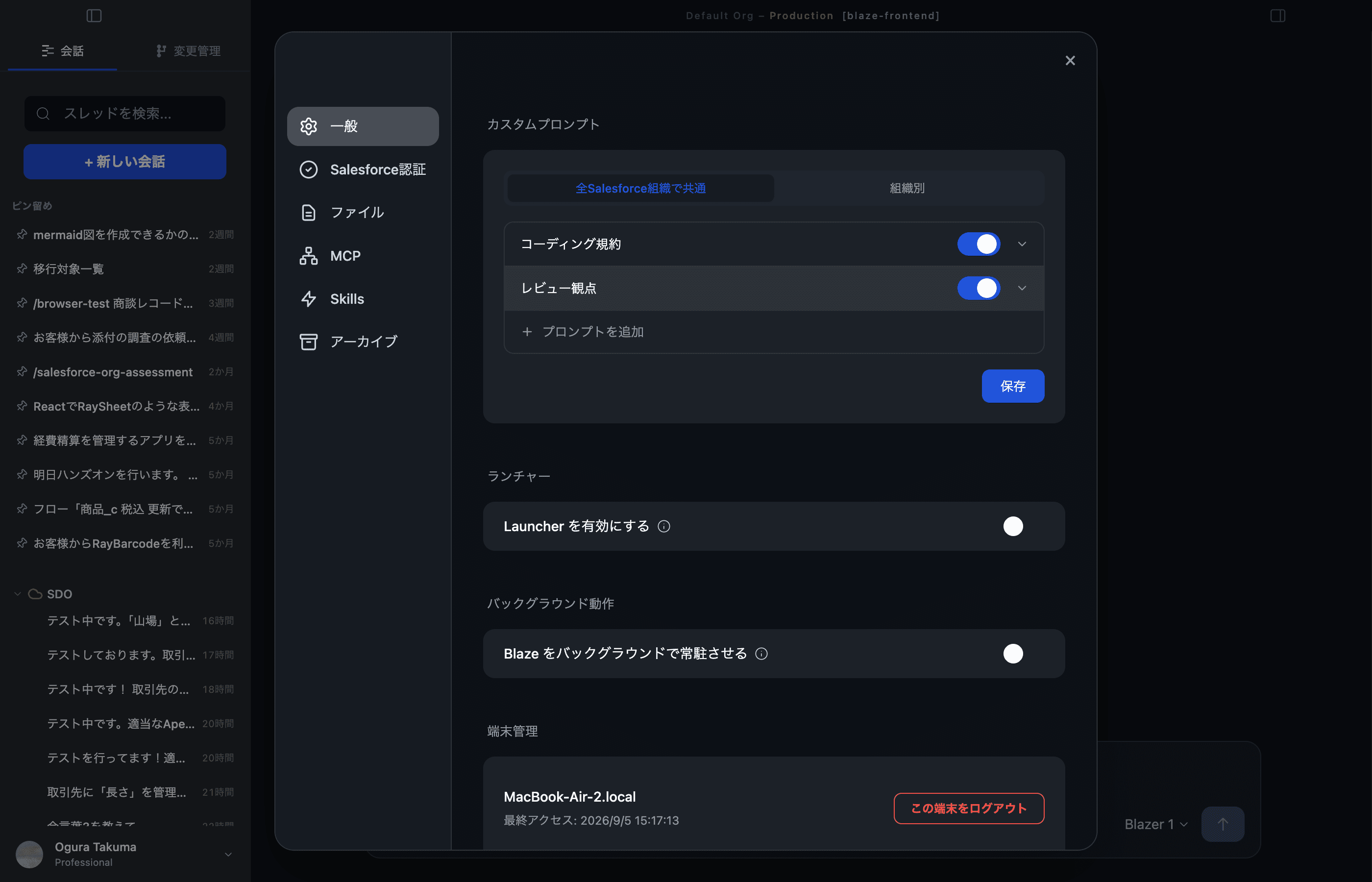
1. What is it?
A way to teach Blaze the instructions you’d otherwise repeat at the top of every conversation — company name, naming conventions, preferred coding style, organisation-specific object names, and so on.
Once saved, Blaze prepends it to every conversation automatically so you don’t have to type the same preamble again. You can register multiple named prompts and manage each one individually, so it’s easy to organize them by purpose.
2. Where to open
Profile (bottom-left) → Settings → Settings tab → “Custom Prompt” section.
3. Two scopes
The “Custom Prompt” block has two tabs. Use them for different jobs.
| Tab | Scope | Good for |
|---|---|---|
| All Salesforce orgs | Every conversation | Company-wide rules (naming, language, tone, preferred libraries) |
| Per org | Only chats against that org | Org-specific terms (custom object names, prod / sandbox conventions) |
The per-org tab exposes an “Organization to edit” picker, so each org carries its own set of prompts.
4. Register a prompt
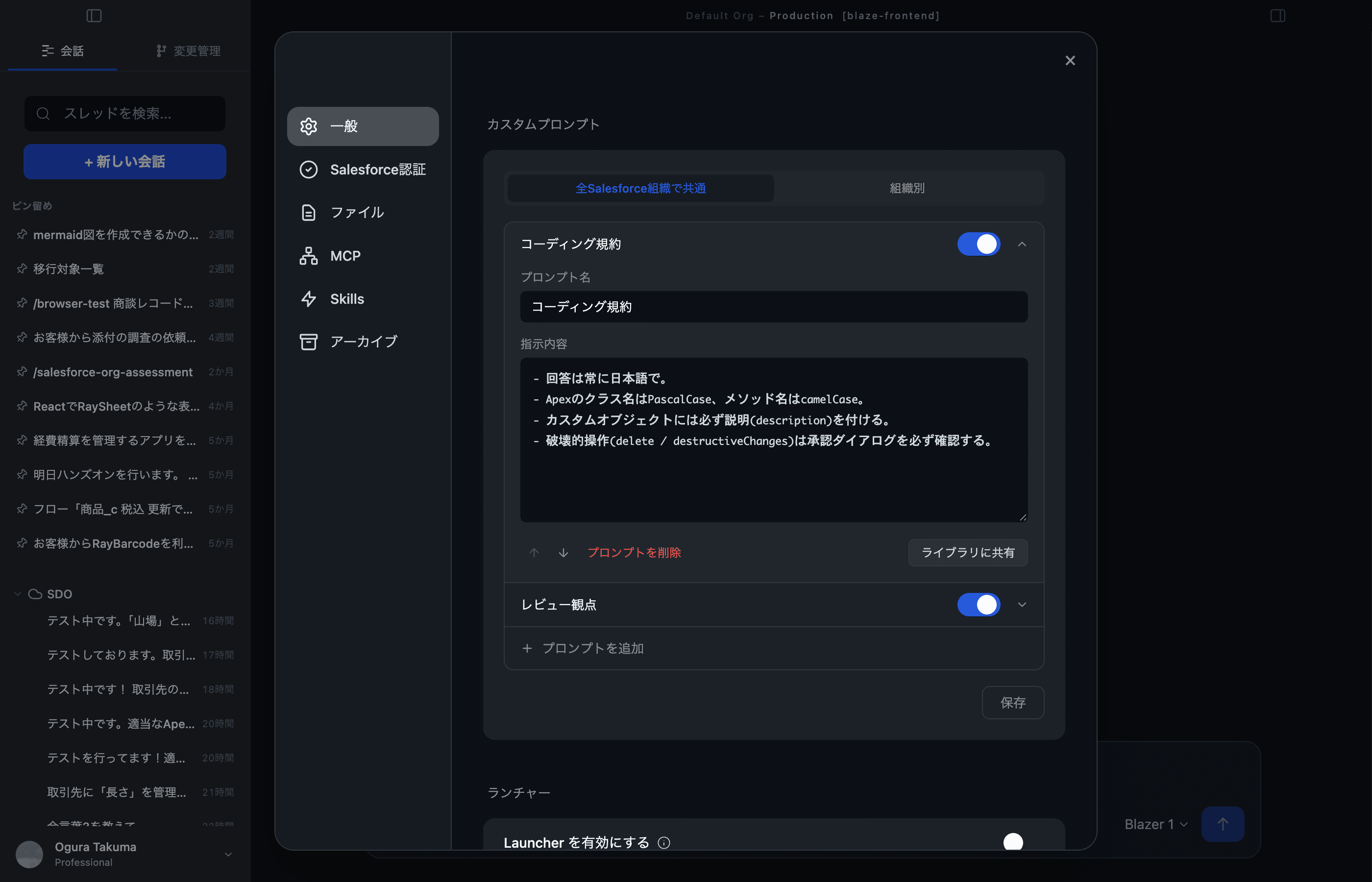
Each tab has a “Prompts” list, where you manage multiple named prompts.
- Click “Add prompt” to open a new prompt entry
- Fill in a name and the content (the instructions for that prompt)
- Each row in the list can be expanded or collapsed — open only the ones you need to edit
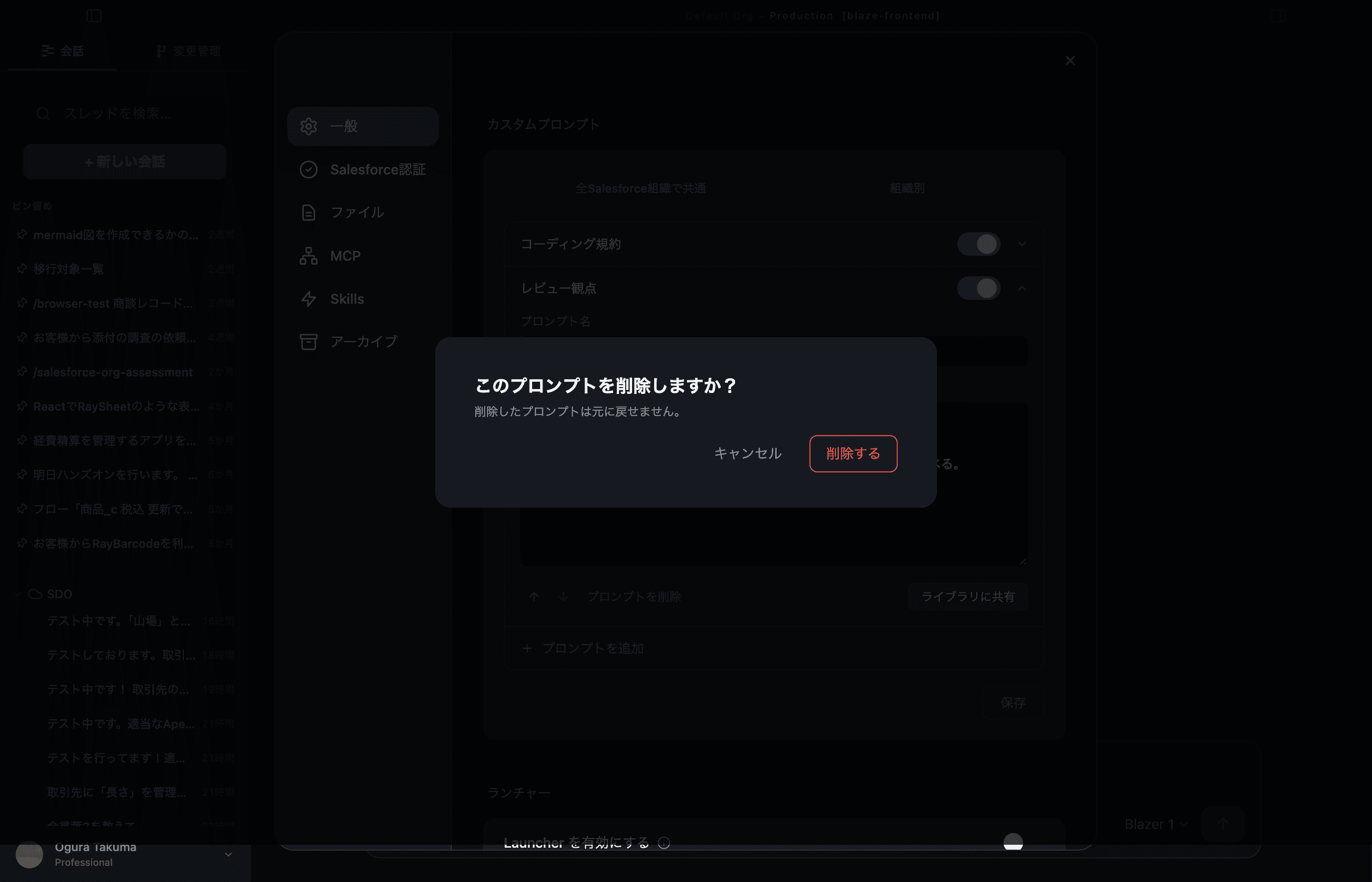
- To remove a prompt you no longer need, use “Delete prompt” (a confirmation dialog appears; deleting cannot be undone)
If a scope has no prompts yet, it shows “No prompts yet.”
Note: If you upgraded from an earlier version, your previous single custom prompt was automatically carried over as a prompt named “Existing custom prompt”.
5. Examples
A. Common (all orgs)
- Always answer in English.
- Apex class names in PascalCase, method names in camelCase.
- Every custom object must carry a description.
- For destructive changes, surface a confirmation diff first.
B. Per org (Production)
- This is the production org. Show me the diff before deploying.
- Do NOT prefix custom fields with "Z_" (internal convention).
- Use "Product__c", not "Item__c", for the item master.
6. Save
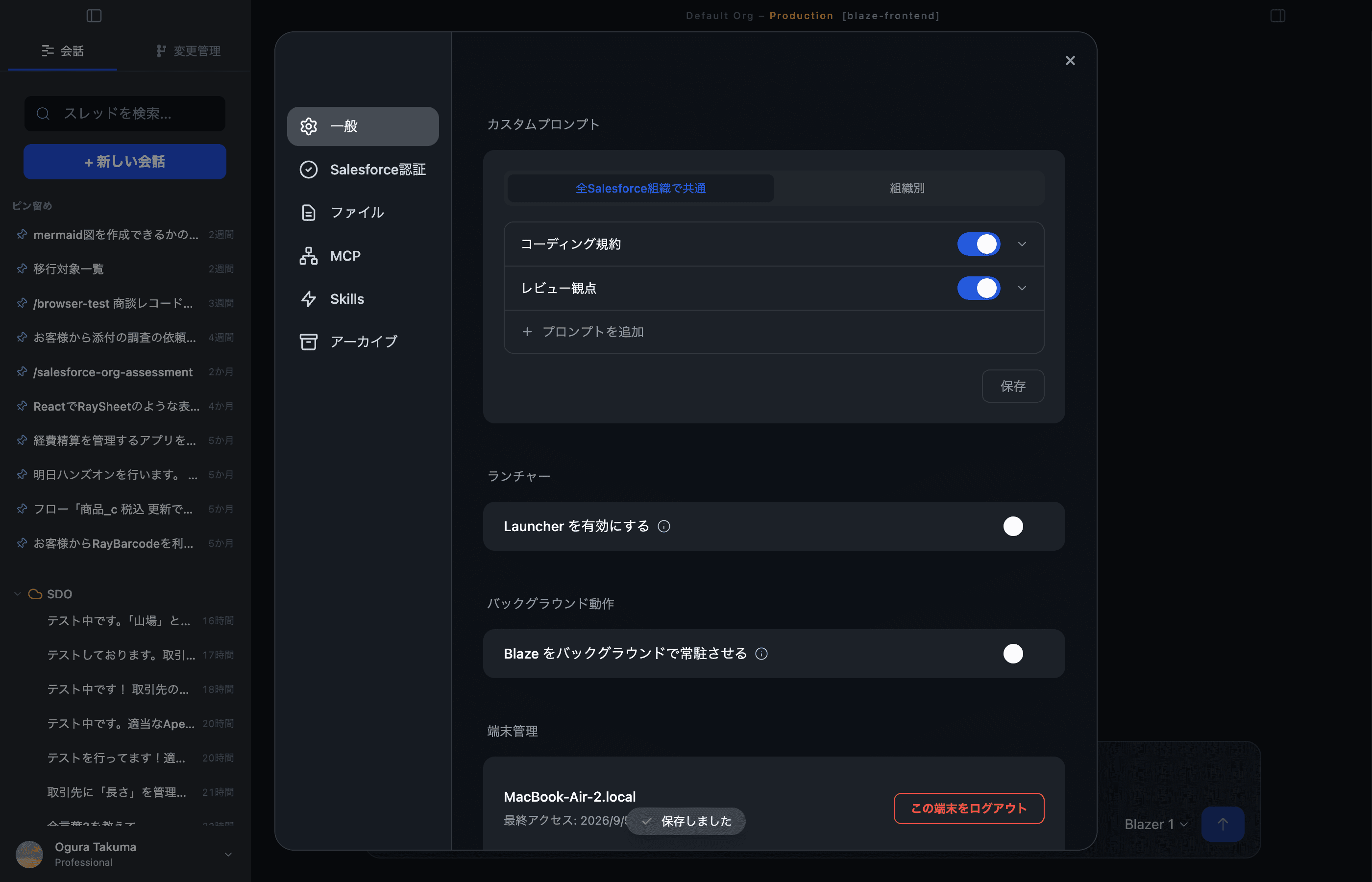
Click “Save” in the lower-right, or hit Cmd / Ctrl + S. A
confirmation message will say “Applied to all Salesforce orgs” (or “to org X”).
If you try to close the screen or switch to another menu while a prompt has unsaved changes, Blaze now asks you to confirm before discarding them — so you don’t lose edits by accident.
Note: Conversations already open pick up the new prompt on the next send. Start a fresh conversation if you want it active immediately.
7. Share with your team
You can also share a prompt with your organization. Use “Share to library” on the prompt’s row, and other members can add the shared prompt to their own Blaze. See Sharing and adding from the Library for details.
8. FAQ
Q. What are the limits per prompt?
A prompt name can be up to 120 characters, and its content up to 2,000 characters. You can register up to 20 prompts per scope. Saving also fails if the combined length of all enabled prompts in a scope exceeds 2,000 characters. Keep it to rules that must apply every time and move project-specific procedures into Skills instead.
Q. What if I fill in both common and per-org prompts?
Both are injected. They’re concatenated common → per-org, so the per-org prompt wins where they conflict.
Q. How do I delete a prompt?
Open the prompt’s row and click “Delete prompt”. Once you confirm the dialog, it cannot be undone.
Q. A prompt added from the library doesn’t show up
When a teammate’s shared prompt is added, Settings shows “A prompt was added from the library. Reload the latest settings to review it.” Follow that message to reload your settings.