Sharing and Adding from the Library
This article covers sharing (uploading) from the Blaze app. Browsing, adding, and deleting what’s shared happens on the web account management screen → Managing the Library. For a high-level overview, see Sharing Prompts and Skills Within Your Organization.
1. What is it?
A way to share a Skill or custom prompt you created with other members of your organization.
- What you share is registered in your organization’s Library, which can be browsed and searched from the web account management screen (for the management side, see Managing the Library).
- Other members can add anything from the library to their own Blaze with a single “Add to Blaze” click.
In short: build a useful Skill or prompt once, and your whole team can reuse it.
2. Share a Skill to the library
- Click the profile at the bottom-left → Settings → Skills
- Open the row for the Skill you want to share, and click “Share to library”
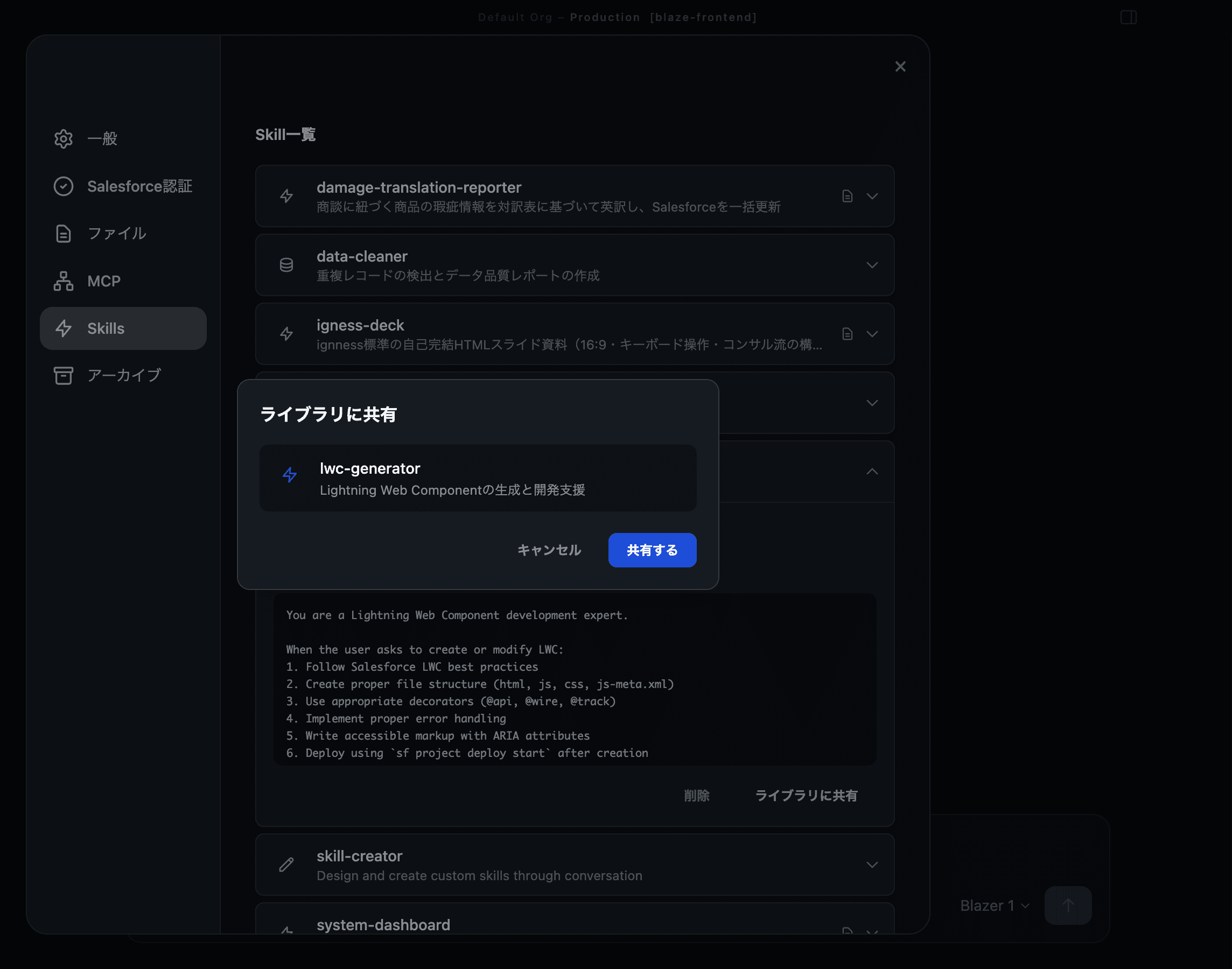
- Review the confirmation dialog and click “Share”
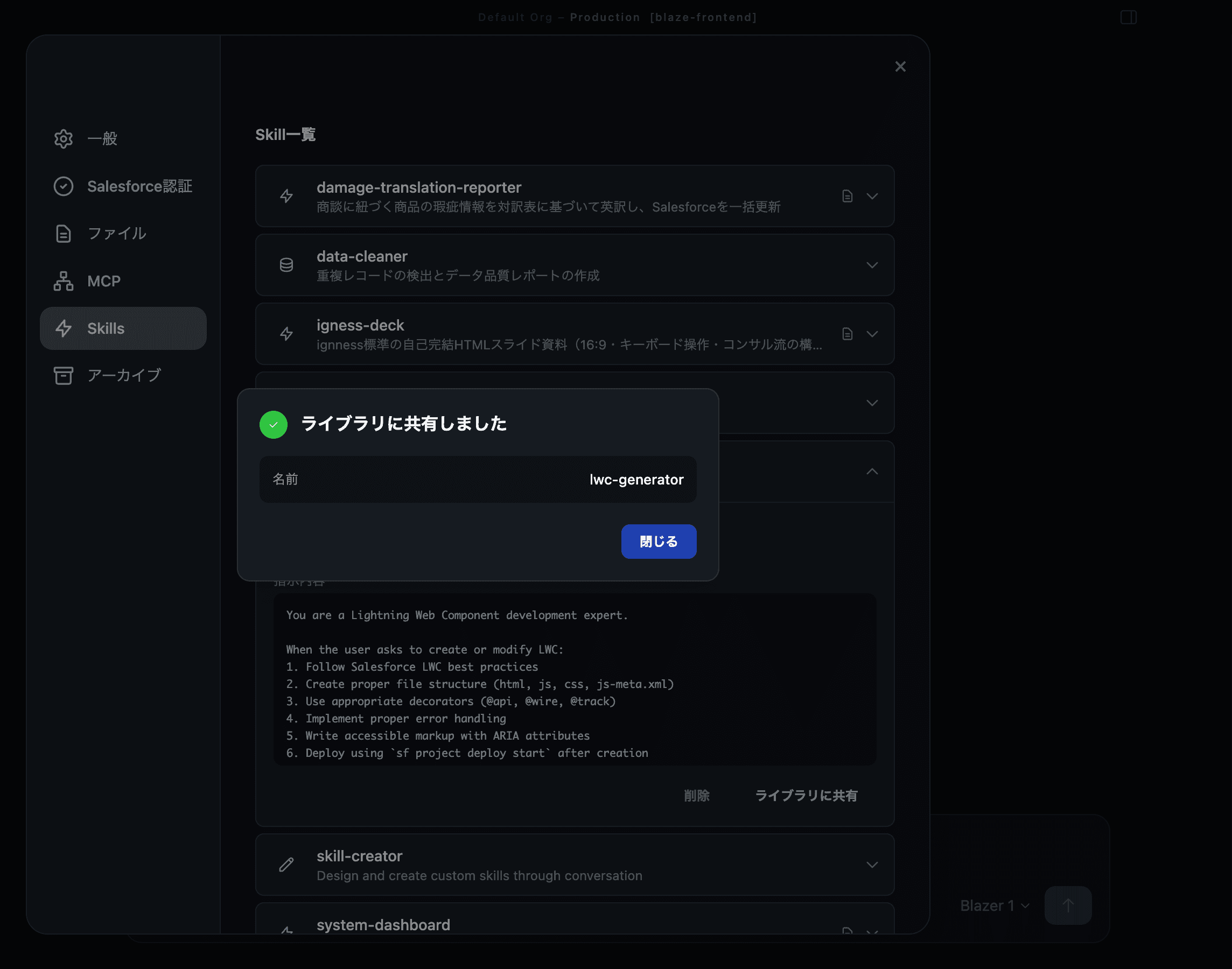
- You’ll see “Shared to the library” when it’s done
3. Share a prompt to the library
- Click the profile at the bottom-left → Settings → Settings tab → open the “Custom Prompt” section
- Open the row for the prompt you want to share, and click “Share to library”
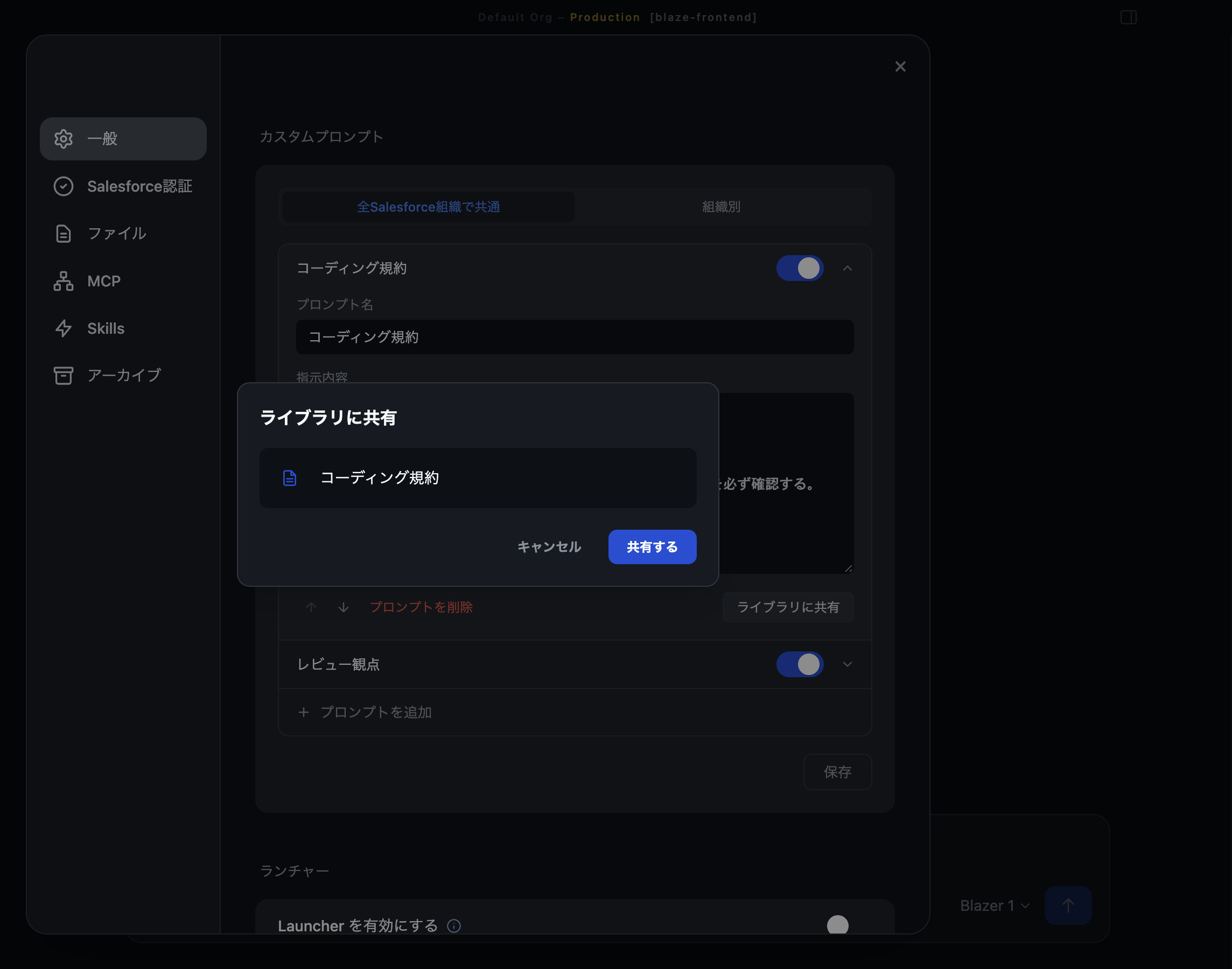
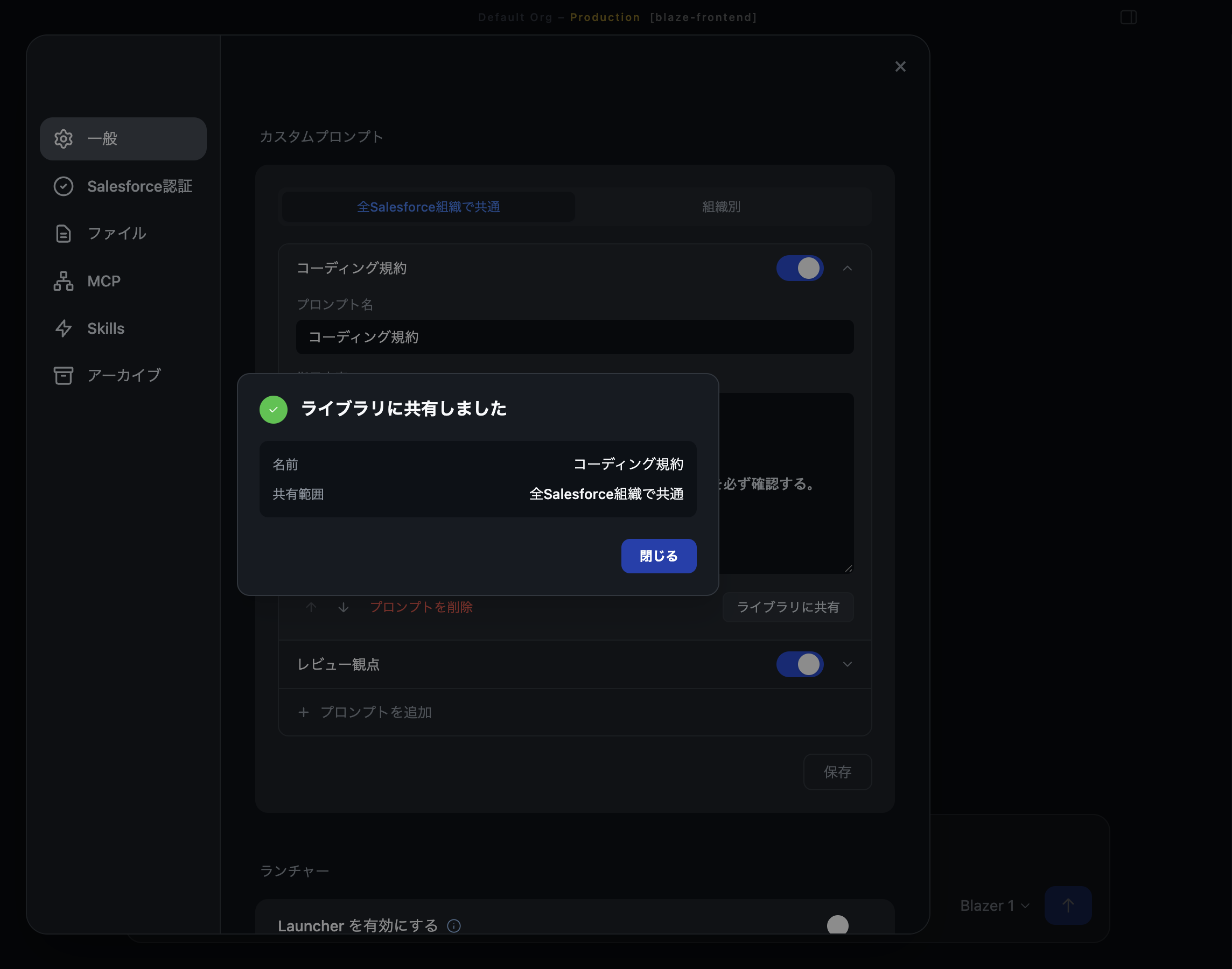
- Review the details and click “Share”. Once sharing succeeds, the name and scope (all Salesforce orgs / per org) are shown
Note: For everything else about managing prompts, see Custom Prompt.
4. Add something from the library to Blaze
Adding from the library happens on the “Library” tab of the web account management screen.
- On the account management screen’s “Library” tab, pick the Skill or prompt you want to add
- Click “Add to Blaze”
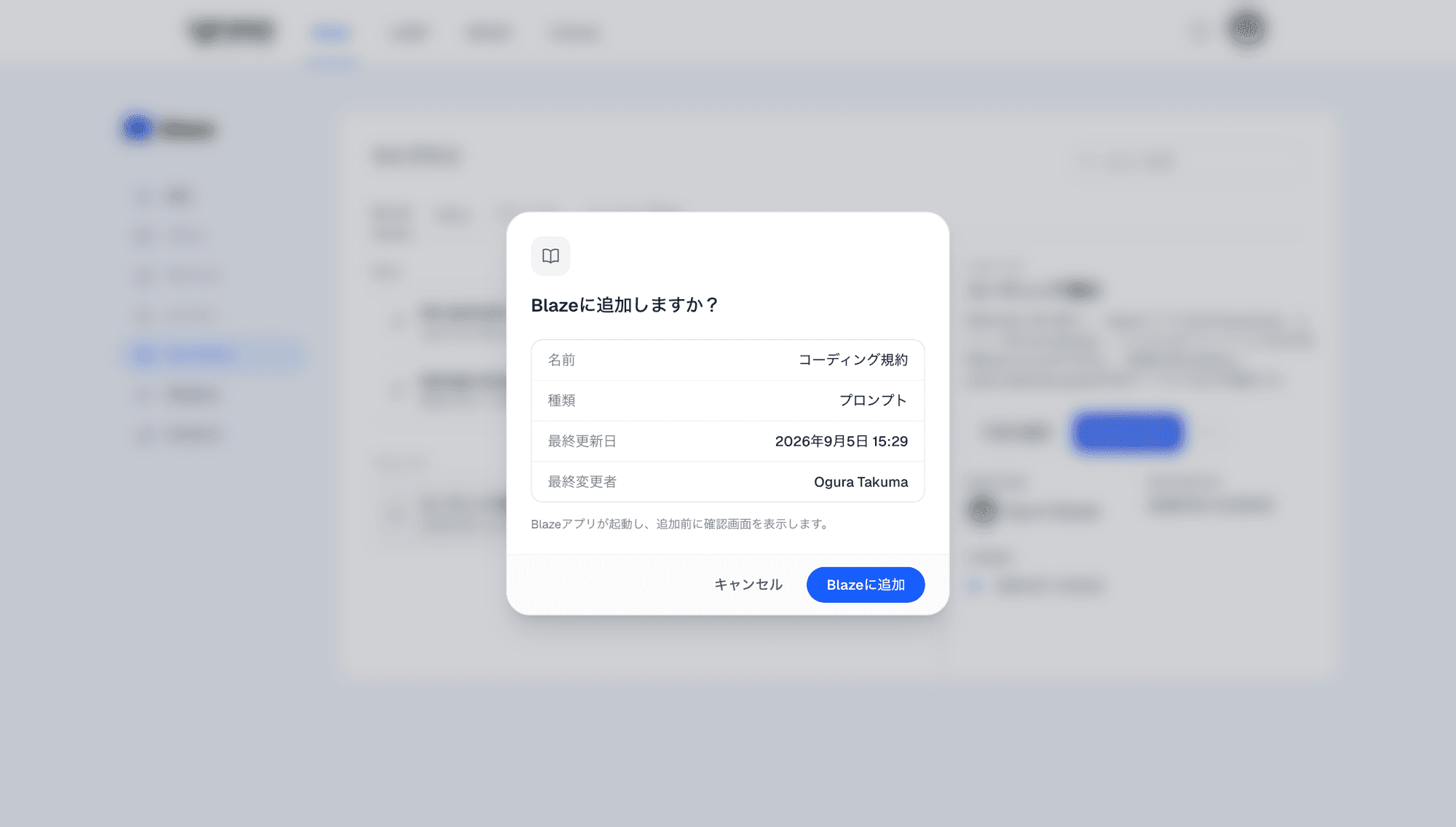
- The Blaze app launches and shows a confirmation dialog (name, type, last updated, updated by)
- For a per-org prompt, choose the destination Salesforce org
- Review the details and click “Add to Blaze” to finish. A Skill then becomes available as a slash command in chat
5. Things to know when adding
- If a Skill with the same name already exists on your machine, Blaze asks whether you want to overwrite it with the update.
- If you’ve manually edited an already-added Skill or prompt, Blaze won’t auto-update it, to protect your manual changes. Review the differences and update it by hand if you want the latest library content.
6. FAQ
Q. How do I remove something I shared?
You can’t remove it from the Blaze app. Use the “Library” tab on the web account management screen to either archive it (removes it from the list but it can be restored) or delete it permanently (cannot be undone). See Managing the Library for details.
Q. I shared something but it’s not showing up in the library
The share may have failed. Log in again and retry sharing from the Blaze app. If it still doesn’t work, please contact support.