Test Salesforce screens as another user
Browser tests can use Salesforce Login As to check screens as a specified user. Use it to check what a sales representative or another user can see and do with different permissions from an administrator.
Prepare for the test
Connect to the Salesforce org you want to test. The connected user must be able to use Salesforce’s standard Login As feature for the target user.
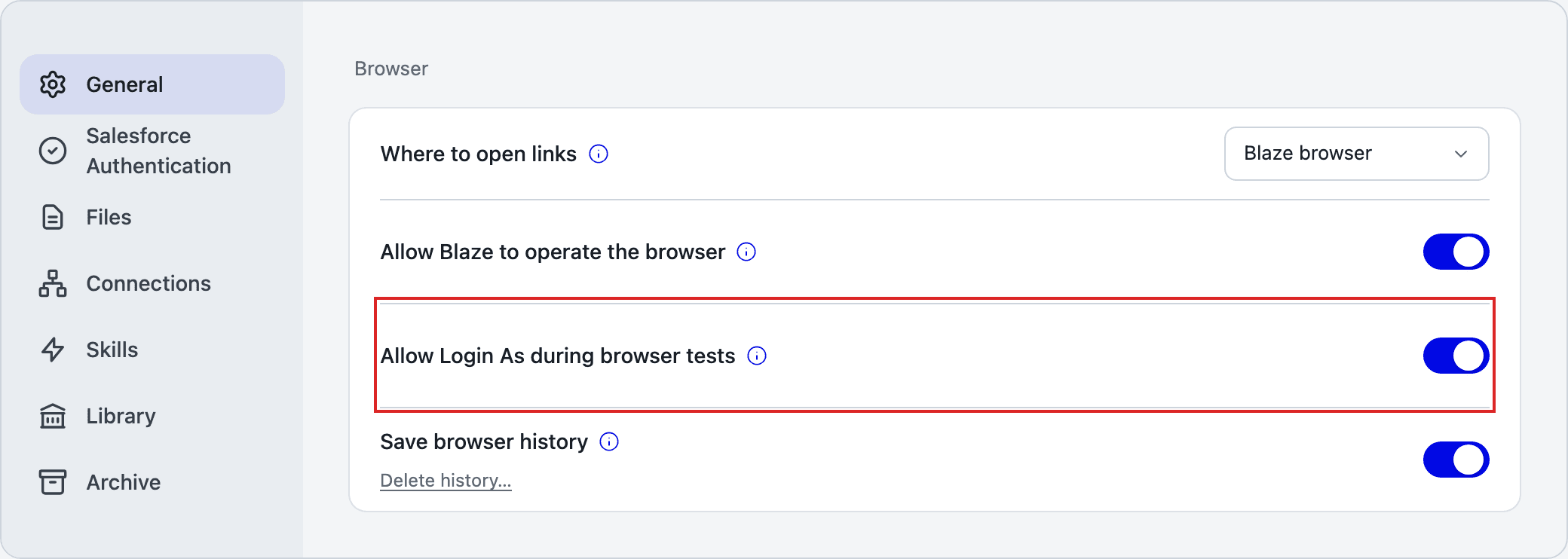
Open Settings from your profile at the bottom left. Under General, scroll to Browser.
Make sure Allow Login As during browser tests is on. It is on by default.
Specify the user and the actions to check
Click “+” next to the conversation input and turn on Browser test mode. See Run E2E tests in Browser test mode.
Enter the target user’s exact Salesforce username or user ID, the actions to check, and the expected result. For example:
Use Login As for sales.user@example.invalid and open the account list.
Check whether the New button is visible, then return to the administrator.
Blaze switches users through Salesforce’s standard Login As operation and verifies the active user before continuing with screen operations.
Tests operate the actual Salesforce screen. If you request record creation, updates, or deletion, those changes affect data in the target org. Check the connected org, target user, and actions before starting.
Login As changes the user for browser operations. Preparation through Salesforce CLI or APIs still uses the connected administrator’s permissions.
Check the active user and return to the administrator
Check Test user and the username at the top of the browser. Switching user appears while the user is being changed.
Click Return to admin to return to the connected administrator. You can also ask Blaze to return to the administrator.

Rerun a saved test
When you save the test, user switches through Login As are recorded as steps. Replaying the test switches to the user recorded in that step before operating the screen.
Before replaying, make sure Allow Login As during browser tests is on and Login As is available for the target user.
See Rerun saved tests for saving and replaying tests.
Check these items if the user cannot be switched
- Make sure the username or user ID belongs to a user in the connected Salesforce org.
- Check whether the connected administrator can use Salesforce’s standard Login As feature for that user.
- If Unable to verify user appears, do not assume the switch succeeded. Return to the administrator and check the target user and org connection.