Run AI requests and tests at scheduled times
With Scheduled runs in Blaze, you can run an AI request or a saved test once at a date and time you choose, or repeat it daily or on specific days.
For example, ask Blaze in a conversation to check your cases every weekday morning.
Every weekday at 9 AM, check open cases and summarize themScheduled AI requests run without approval prompts, even in Approval Mode. Check the target org and instructions before you schedule.
1. Create a schedule from Settings
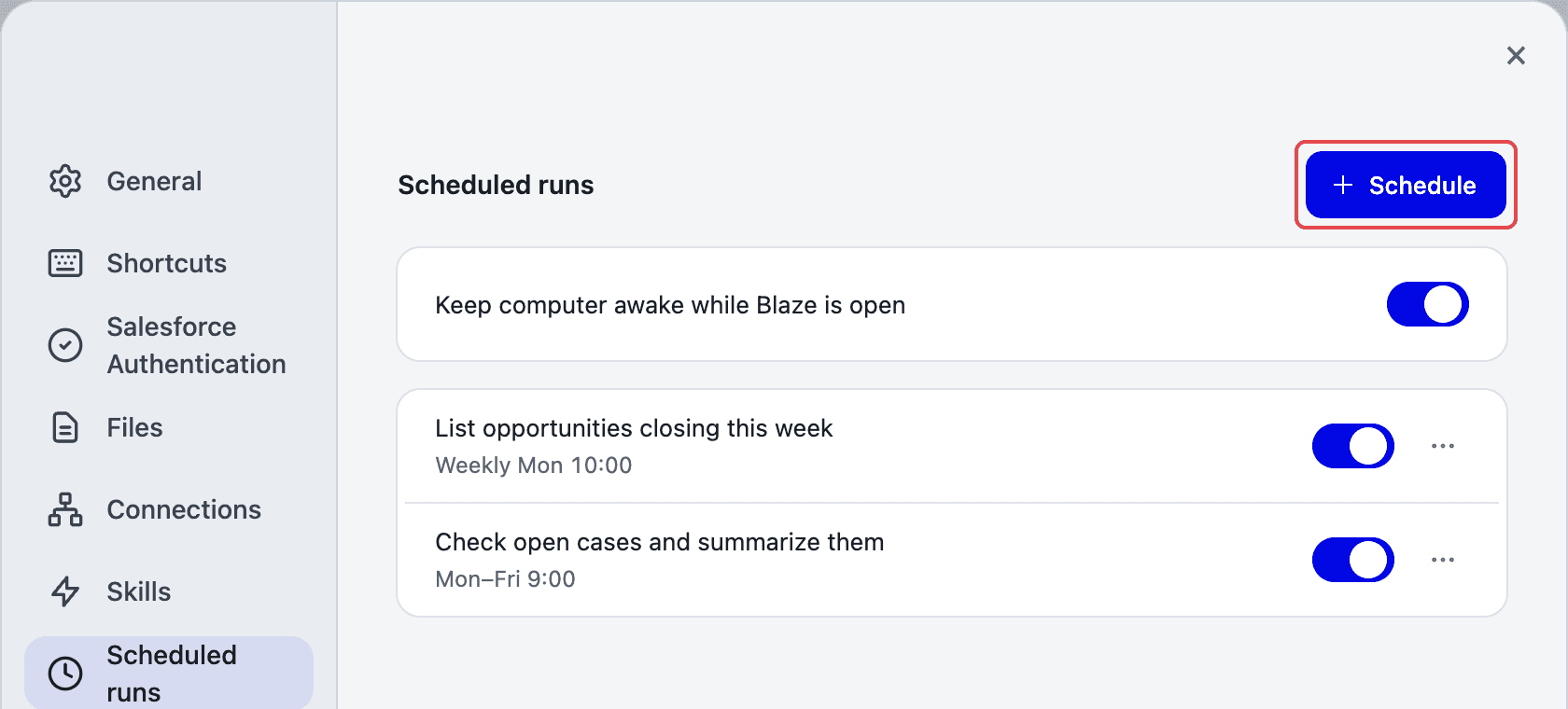
Open your profile at the bottom left, choose Settings → Scheduled runs, and click Schedule at the top right.
Under What to run, choose one of these options.
- Choose Ask AI and enter your request in Instructions for AI. Type
/to choose a skill. - Choose Run a test and select a saved test in Test.
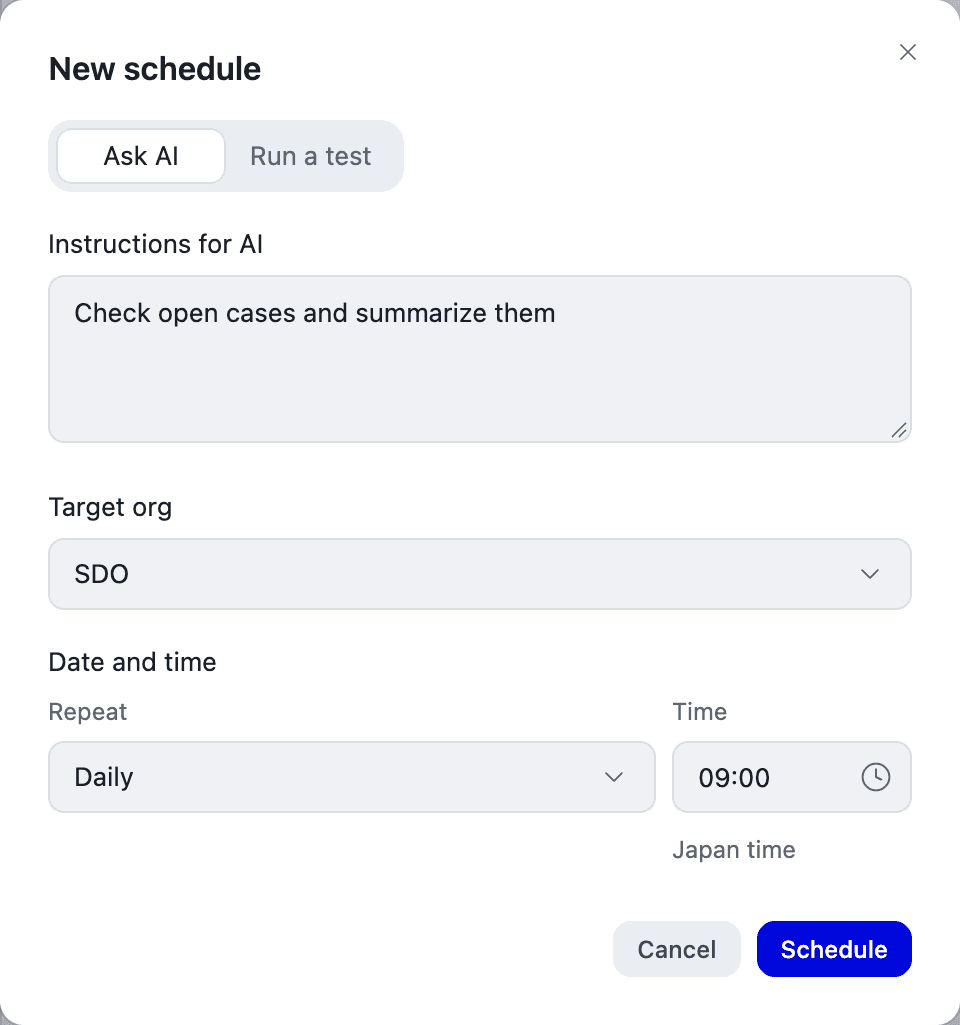
For AI requests, select a Target org. Tests run in the org associated with the saved test.
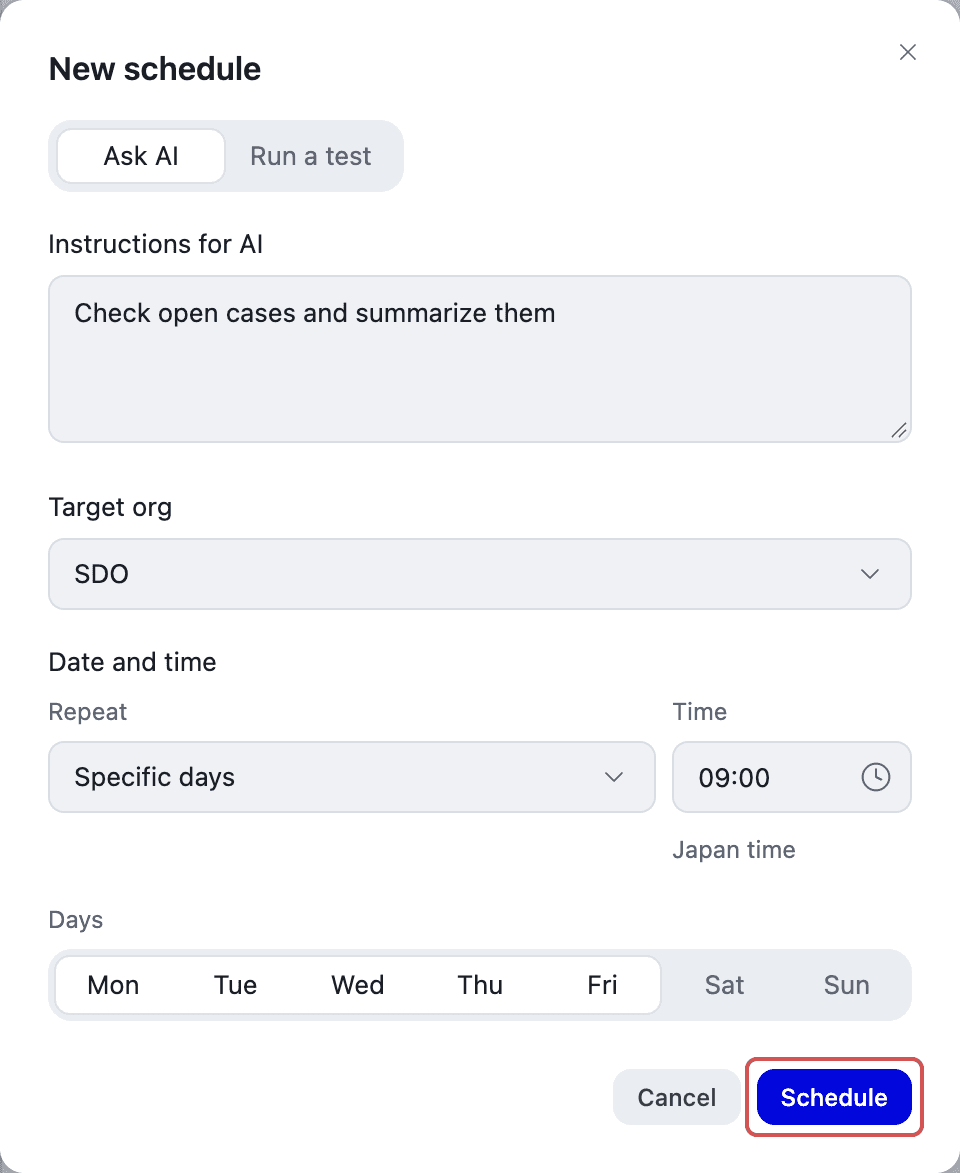
Set Repeat and Time in Japan time. If you choose Once, select a date. If you choose Specific days, select the days. Click Schedule.
2. Check the results
Blaze creates a new conversation for each run and leaves your current conversation open.
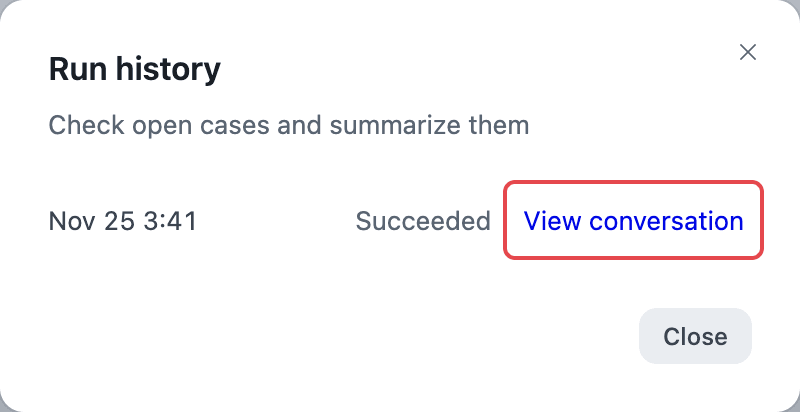
Open Run history from the menu at the end of the schedule row to see when each run took place and its result. Click View conversation to open that run’s conversation.
When scheduled tests overlap, later tests wait in the Queue and run one at a time.
3. Pause, edit, or delete a schedule
Turn the schedule’s switch off to pause it. Turn it back on to resume.
To change what runs or when, choose Edit from the menu at the end of the row. To remove the schedule, choose Delete from the same menu.
4. Keep your computer awake
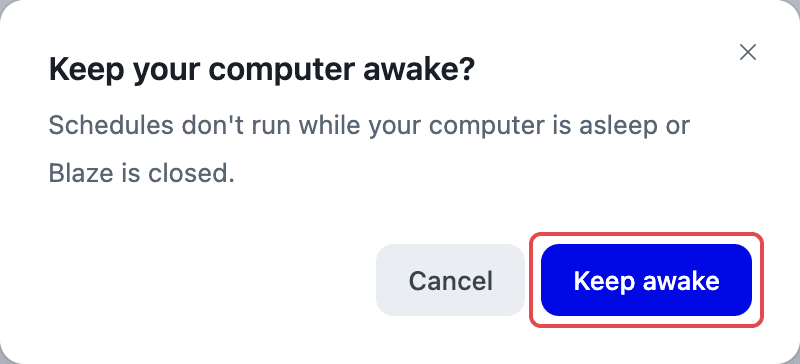
Schedules don’t run while your computer is asleep or Blaze is closed.
The first time you enable a schedule, click Keep awake to prevent automatic sleep while Blaze is open. You can change this later under Keep computer awake while Blaze is open on the Scheduled runs screen.
5. Troubleshooting
5.1 A schedule didn’t run
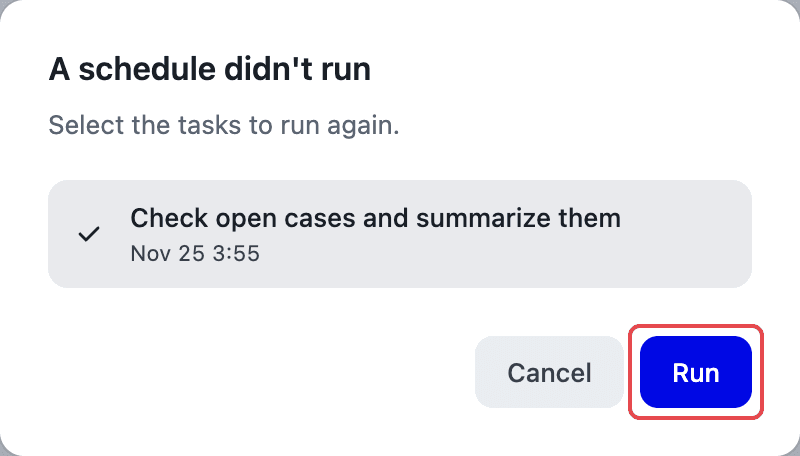
Blaze shows missed runs when your computer wakes up or you reopen Blaze.
Select the runs you want and click Run. To skip all missed runs, click Cancel. Repeating schedules continue at their next scheduled time.
5.2 Test not found
The scheduled test was deleted or archived. Edit the schedule and choose another test, or delete the schedule.
5.3 Couldn’t save the schedule. Try again.
Your input is still in the form. Click Schedule again. If it still fails, restart Blaze and try again.