Connect to a team repository
Connect your team’s Git repository to Change Management on this computer. Choose a repository and branch to bring its content into your local workspace.
Connecting does not change the Salesforce org. To apply the content to the org, ask Blaze to deploy it.
1. Open the connection screen
Connect to a Salesforce org and open Changes from the left sidebar.
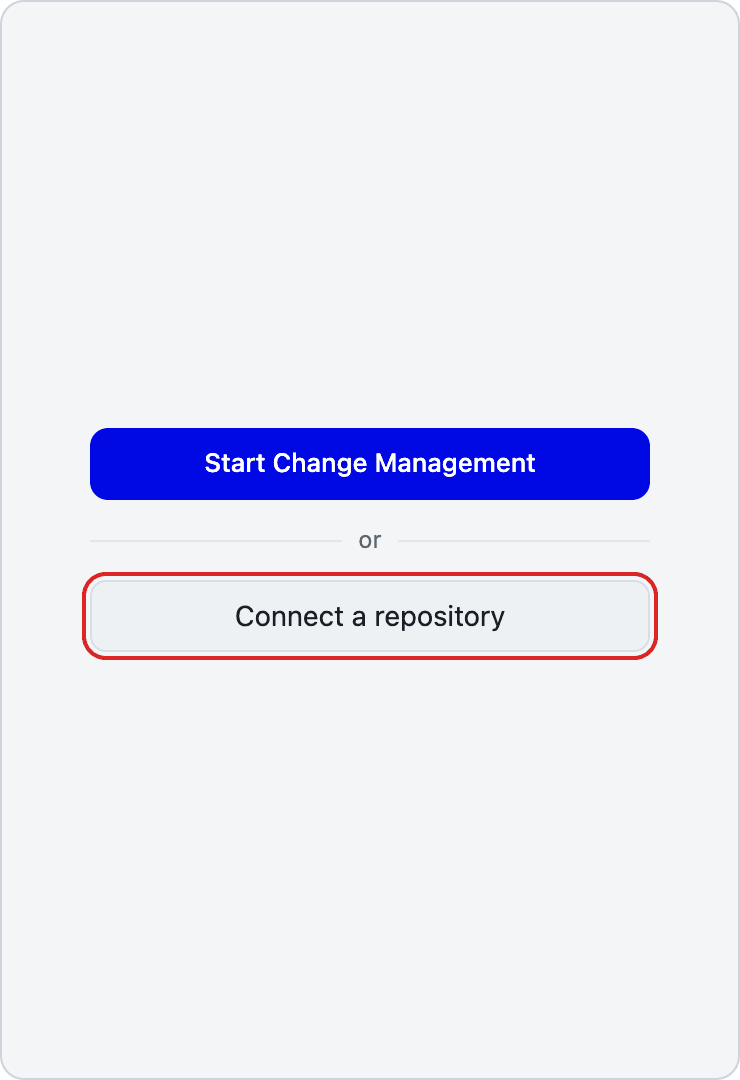
If you have not started Change Management yet, click Connect a repository.
To record changes only on this computer, choose Start Change Management instead.
If Change Management is already enabled and no repository is connected yet, open the menu below Save Changes and choose Connect a repository.
2. Choose a repository
Choose an available GitHub repository. Use Owner and Search repositories to find it, then click Next.
If Sign in to GitHub appears, sign in first. In your browser, enter the code shown in Blaze and allow access on GitHub.
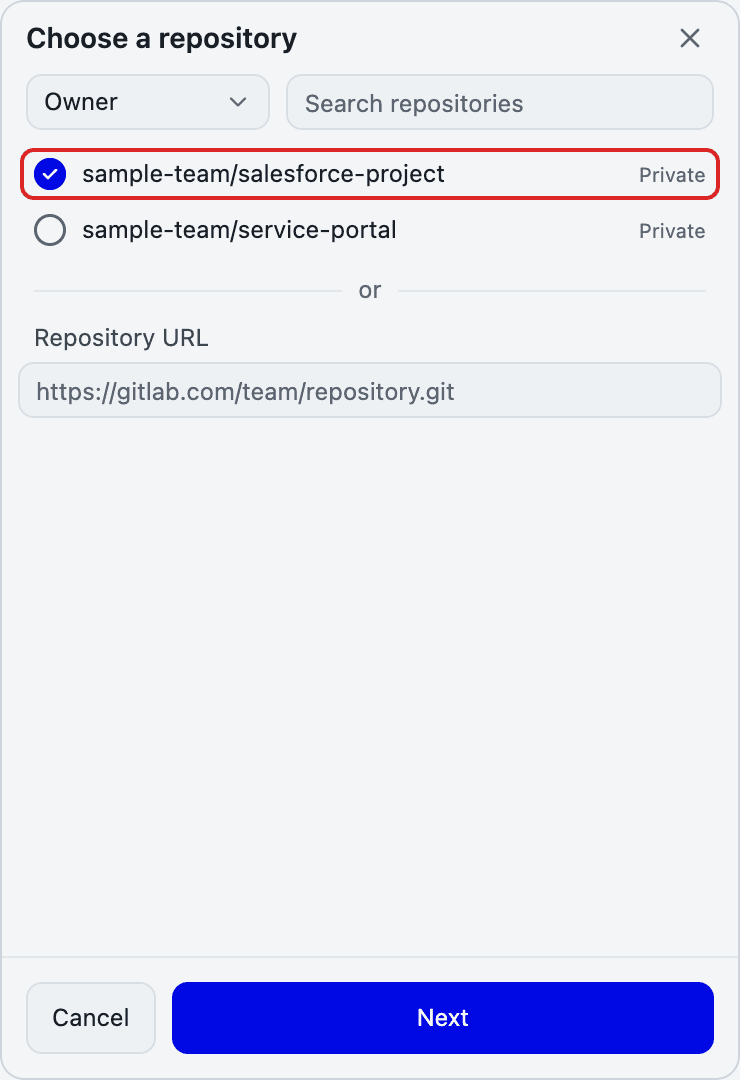
Instead of choosing from the list, you can enter a URL under Repository URL and click Next. Connections to repositories outside GitHub use the Git authentication configured on this computer.
3. Choose a branch and connect
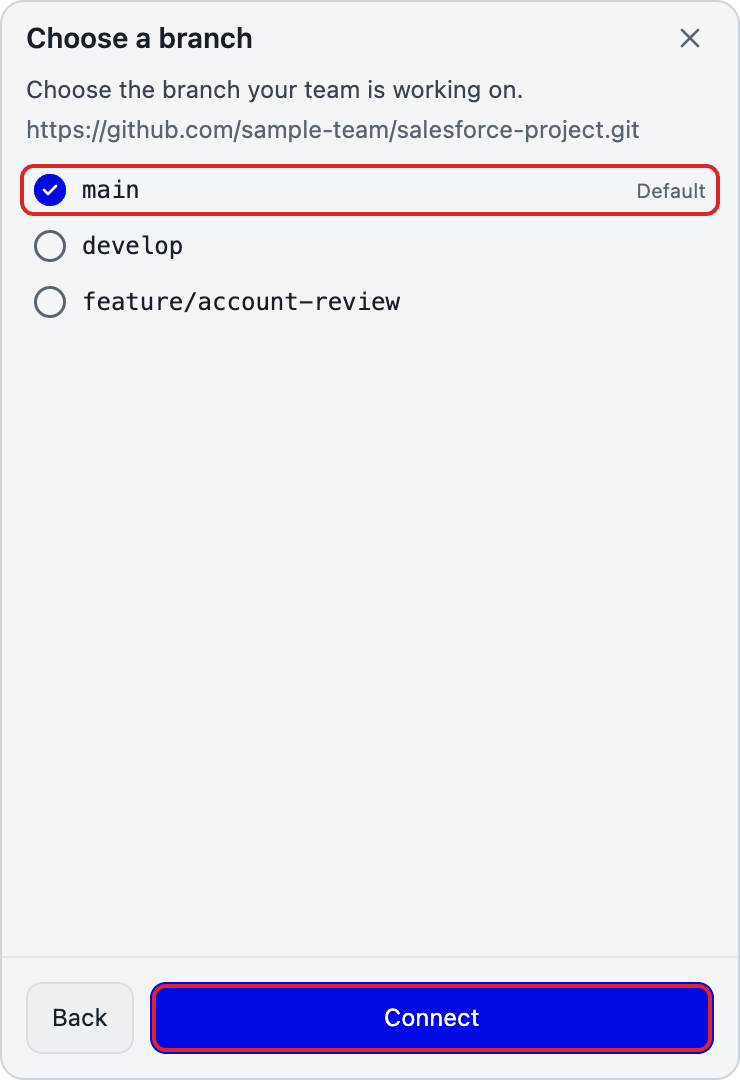
Choose the branch your team uses, then click Connect.
You can also connect to an empty repository that has no branches yet. If no branches are listed, click Connect without selecting one. After connecting, save and push your local changes to send them to the repository.
4. Choose what to keep when content differs
When the same file has different content locally and in the repository, a comparison screen opens. Review both sides and click the card for the content you want to keep. You can also choose Keep both when available.
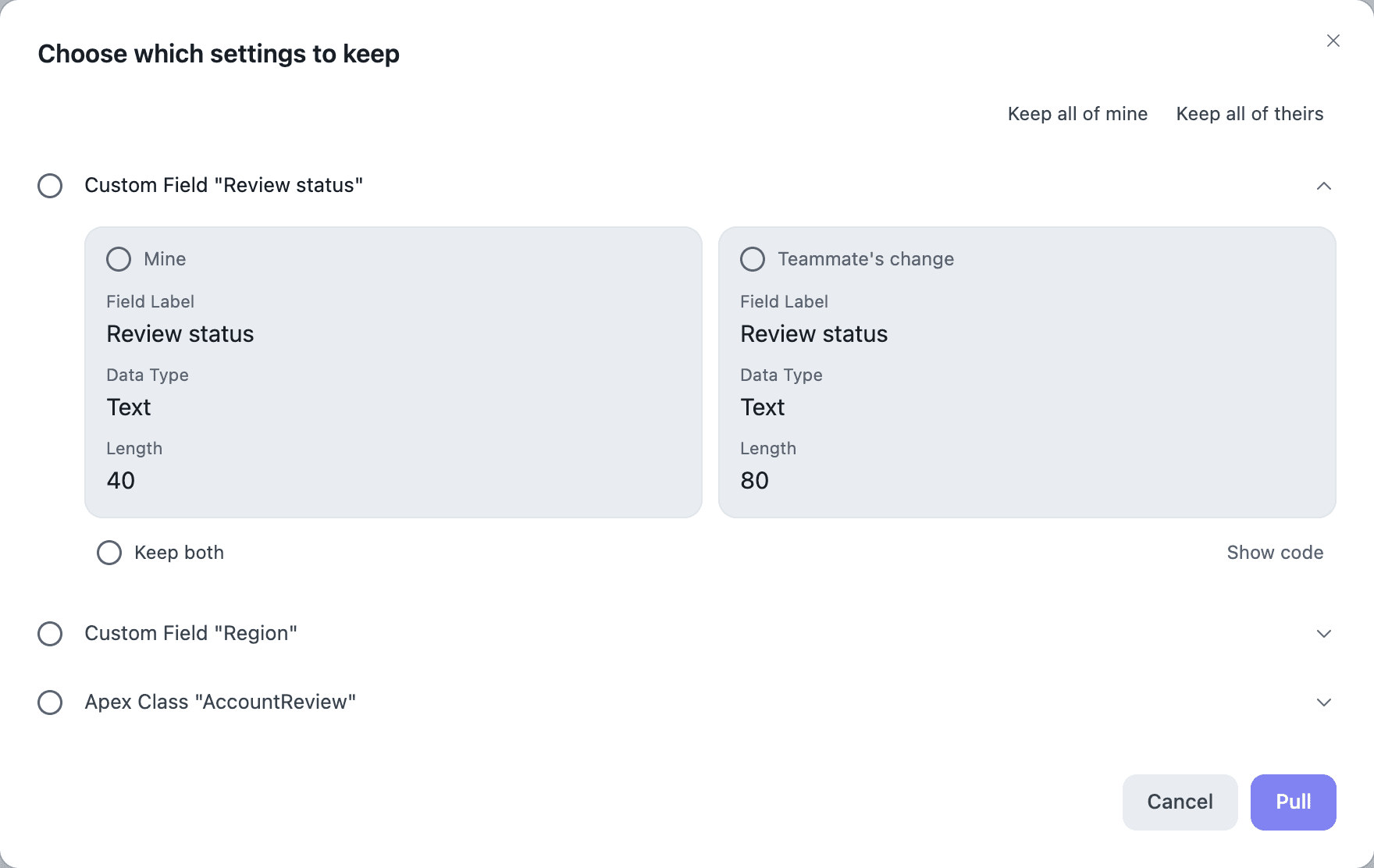
Clicking Pull applies your choices to local files. Choosing repository content replaces the corresponding local content. Review what you want to keep before proceeding.
Click Cancel to leave the comparison without applying it.
After connecting, follow Save changes, Pull changes, and Push changes to share work with your team.